 Flexible SCADA
What Flexible SCADA can do
Everything a control room and an automation engineer need, in one product: from polling PLCs to a report for the chief engineer and a Telegram alert to the person on duty.
From project to operator screen
Engineers design HMI screens in the Flexible SCADA application and publish them to the server. Operators open the published screens in a browser on a PC, video wall or tablet.
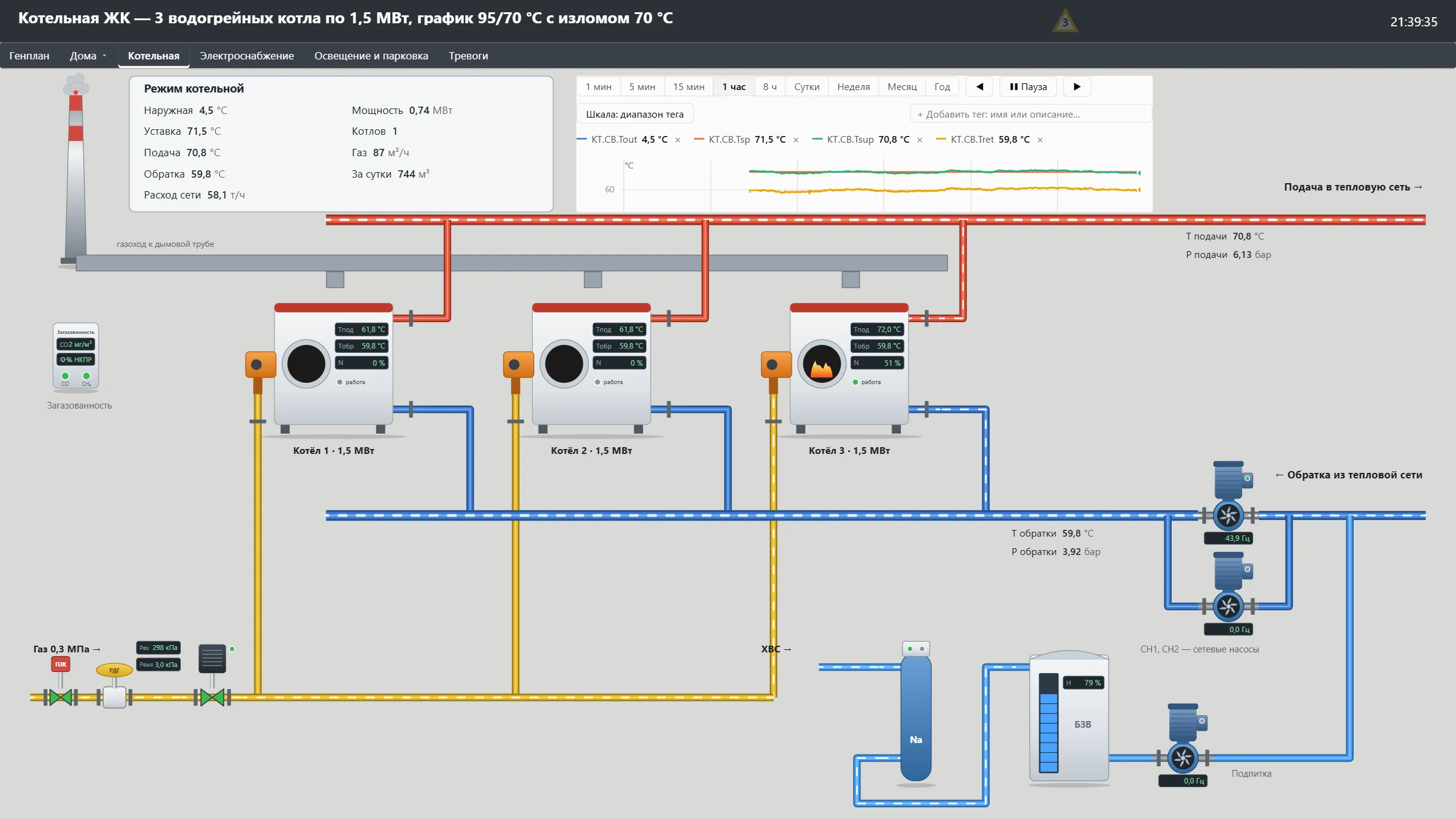
- Window editor: grid, alignment and distribution, layer order, smart guides, rotation and flipping.
- Dynamics on any property: color, visibility, position, size, text — driven by a tag value.
- Elements: value, analog indicator with normal range and limits, alarm indicator, button, input field, trend, alarm list, menu, clock, embedded window, SVG image.
- ISA-101 navigation: screen levels, “Home”, “Back” and “Up” buttons, operator stations with their own start window.
- Your choice of style: strict ISA-101 style or free design — like the demo project’s 3D site plan.
- Command confirmation, tooltips, equipment faceplates on click.
- Releases: operators work with the published version while the engineer edits a draft.
- Separate ports for operators: they serve only screens and sign-in — no development environment or administration.
Describe a pump once — get a hundred pumps
Equipment is described by a type: tags, screens, alarms, trends, reports and programs. Every object of the type gets all of it at once — with its own PLC addresses.
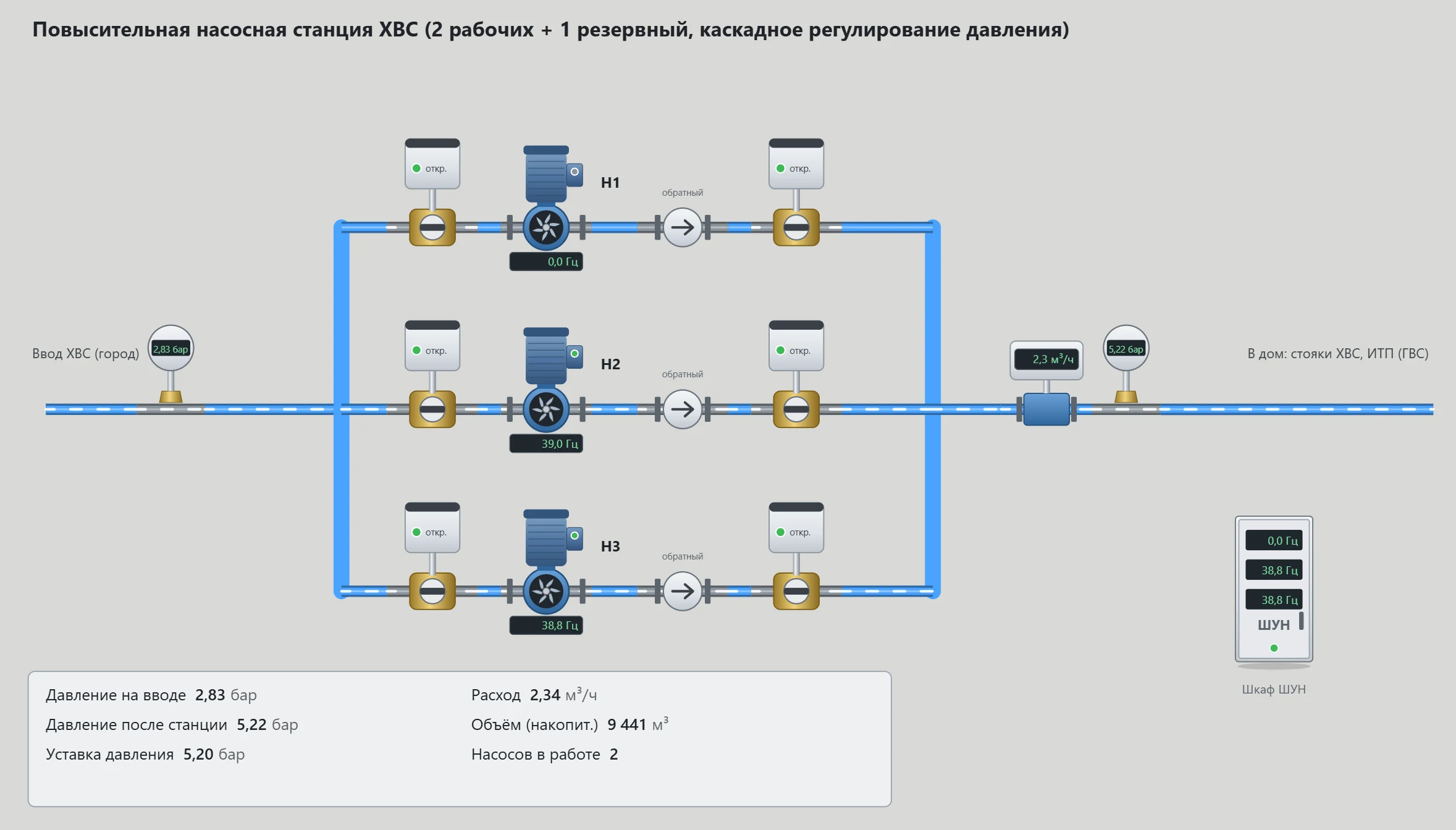
- A type — tags, windows (icon, screen, faceplate), alarms, trends, reports and programs.
- Inheritance: a pump with a VFD is a pump plus its own tags and screen.
- Object series: “Pump {N:00}” and the address
{1000+(N-1)*20}— a hundred objects in one step. - Binding templates: “{PLC}.Status.Run” — the object’s parameters are substituted into the addresses automatically.
- Copy with rebinding: every copy shows which tags it is bound to, and you can change them.
- Seven standard libraries: ventilation, heating substations, boiler houses, wastewater treatment, warehouses and conveyors, pipelines, power supply.
- Elements snap together: pipes and ports sit on a common grid — a diagram goes together like building blocks.
- ISA-95 model: equipment levels on folders and objects, B2MML export.
12 protocols inside the server — no separate OPC servers
Modbus TCP, OPC UA, Siemens S7, IEC 60870-5-104, MQTT, BACnet/IP, KNX IP, SNMP, Omron FINS, Mitsubishi MC, EtherNet/IP and HTTP (JSON). Plus a built-in simulator — build and demonstrate the project before the PLCs are installed.
- OPC UA browsing: tick a whole folder — thousands of tags at once; server nodes right in the project tree.
- Import: Siemens data blocks, KNX group addresses from ETS, a Modbus register scanner.
- Connection test and “read now” in the channel form — before the project is saved.
- Errors in the protocol’s terms: “no such DB”, “IOA 999 did not arrive in the general interrogation response”.
- Block reads: adjacent addresses merge into one request; a bad address fails alone, not the whole block.
- Scaling and quality: engineering value = raw × factor + offset, with quality on every value.
- Live editing: changing a channel or its tags does not reconnect the other devices.
- Tag hierarchy: blocks, structures and arrays are shown as a tree, just like in the PLC.
ISA-18.2 alarms — and the person on duty hears about them in time
Alarms show on the HMI screen, in the banner at the bottom, in the journal and on the alarm console. If nobody responds, the notification moves on down the chain.
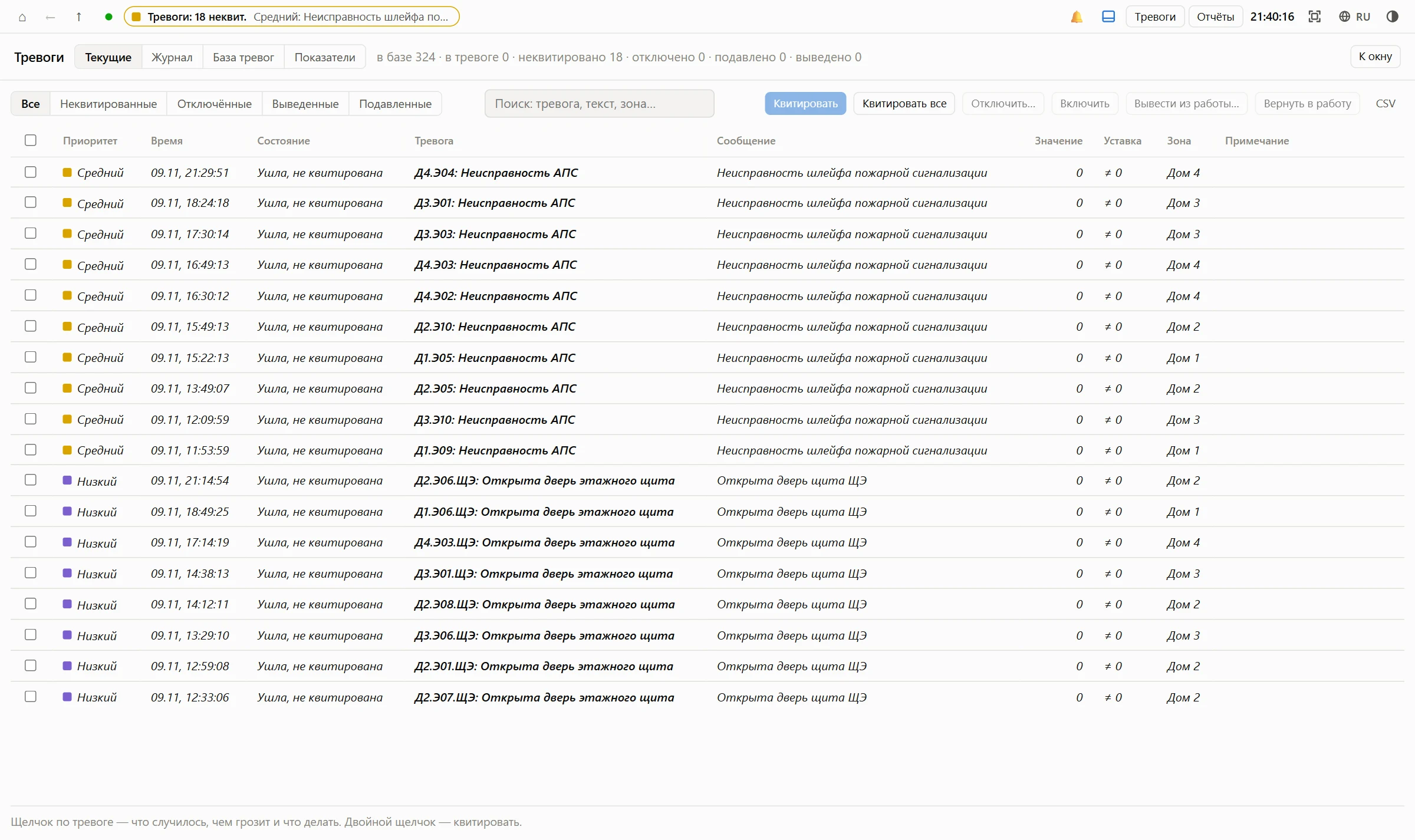
- Priorities and areas, setpoints, on-delay and deadband.
- ISA-18.2 states: disabling, suppression and out-of-service — each with a reason.
- Metrics: floods, chattering, fleeting and stale alarms, the most frequent ones — and a printable report.
- Communication alarms are created automatically for every channel.
- Alarms in types: defined once; an object can override the setpoint.
- Notifications: e-mail through your own mail server, Telegram, an SMS gateway; duty rosters and escalation.
- Acknowledge from Telegram — with a button under the alarm message.
- Alarm journal and sound at the operator station; a “Silence” button.
History — on site and in your own databases
The server’s own historian keeps values for years and compresses them every night. Trends embed right into HMI screens, and reports build themselves from templates.
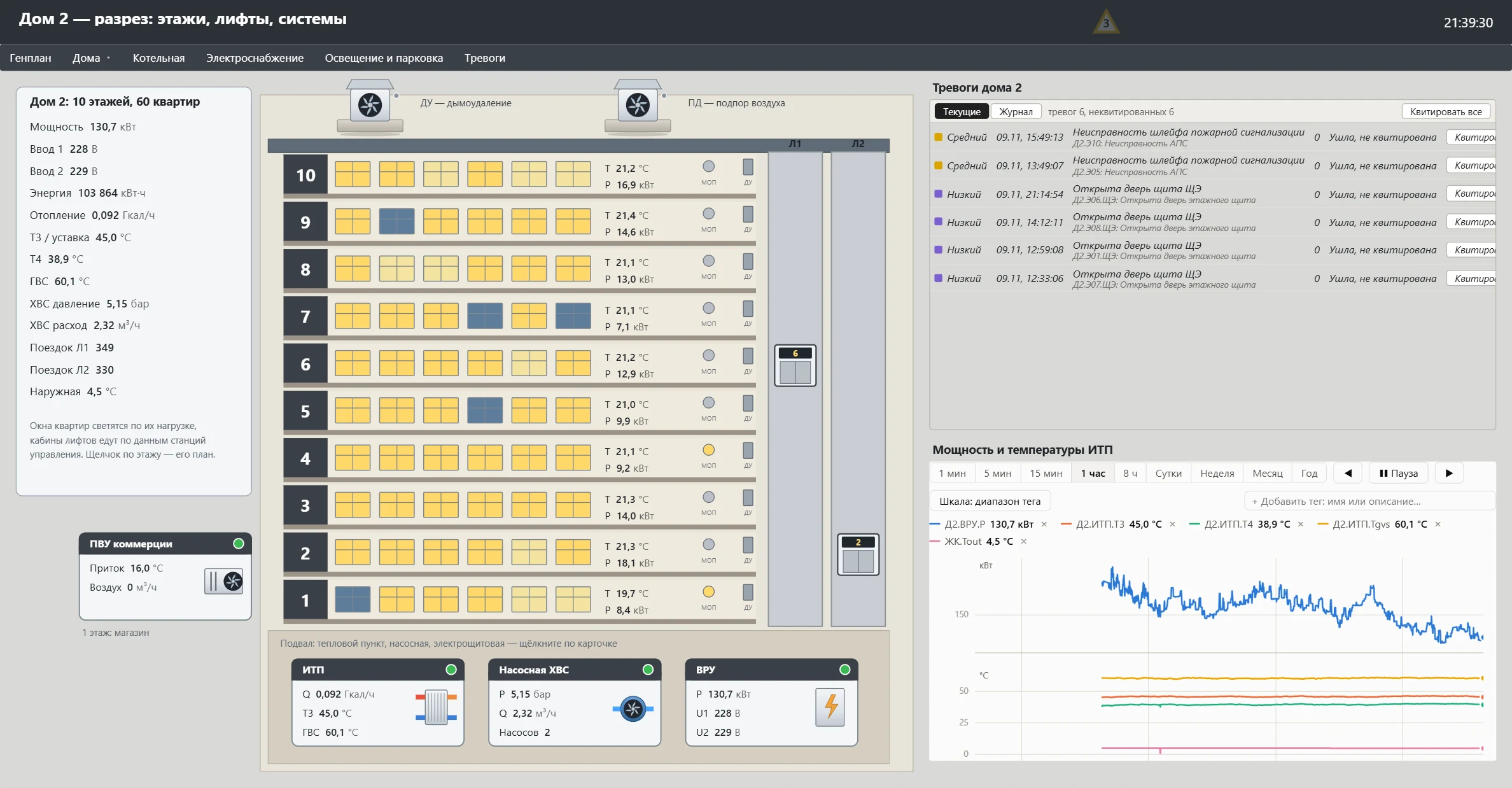
- Selective archiving: an “Archive” checkbox on a tag or in a type — only what you need is recorded.
- Compression: each night the day’s archive shrinks by about half without losing a single point.
- Trends from a minute to a year, pause and history scrolling, add a tag by searching.
- External databases: PostgreSQL, MS SQL, ClickHouse, InfluxDB — several servers can write into one database.
- Reports on demand and on schedule: Excel, HTML, print and PDF.
- Type reports: one template — a report for every object.
- Excel-like tables: cell selection, copy and paste, CSV export from any table.
- Accurate time: clock checks against NTP; any drift shows in the server status.
C#, ST and FBD — right next to the data
Programs run on the server: on a timer, on a tag change, on a condition or at startup. A type program runs for every object — with that object’s tags.
- ST and FBD per IEC 61131-3: timers, triggers, counters, standard functions, your own ST libraries.
- C# — the whole .NET platform for calculations, models and integrations.
- Live values on the block outputs of FBD diagrams.
- Separate runtime: programs run outside the server core, so polling and the historian don’t depend on them.
- Checks and log right below the editor; “Run once” for debugging.
- VS Code: an extension with code completion, installed straight from the server.
Your site keeps running even when something breaks
Hot standby, backups and access protection are built in, not sold as add-ons. Guided by IEC 62443 and NIST SP 800-82.
- Hot standby: both servers of the pair poll the equipment and write the archive; on failure the role switches by itself and archive gaps are backfilled.
- Backups on schedule, with AES-256 encryption, verification and restore in a couple of clicks.
- HTTPS by default; servers and the app window remember the server key, like SSH.
- Users and roles: view, acknowledge, projects, administration.
- Password policy: complexity, lockout after failed sign-ins, change at first sign-in, idle sign-out.
- Audit log with a hash chain — tampering is visible; forwarding to syslog.
- Channel passwords are stored encrypted in the project.
- Project history: versions, releases, comparison with a release, undo for any step.
A network of sites — from one center
A facility management company, a water utility, a retail chain: every site has its own server, while the dispatcher and the engineer work with all of them from one place.
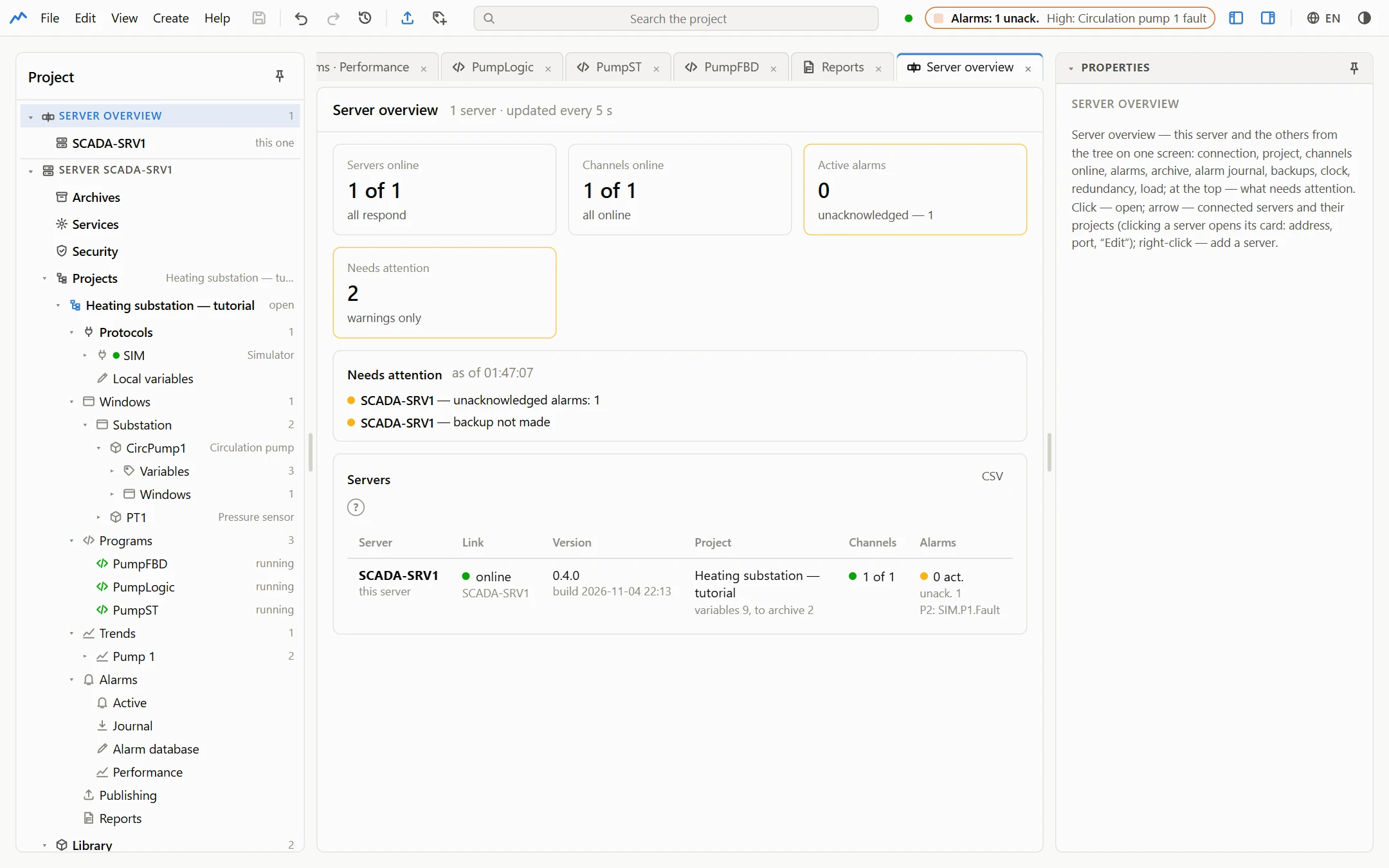
- Server overview: connection, project, channels, alarms, archive, backups, clock, load — every 5 seconds.
- Alarm console: alarms from all servers in one list, acknowledgement that records who pressed it.
- Project publishing to any server in one step — the site’s archive, alarms and data are kept.
- Another server’s IDE opens in the same window — and one button takes you back.
- SSH installation: Flexible SCADA is installed on a new Linux computer straight from the IDE.
- Network updates with signed packages — no trip to the site.
Engineering workstation
An app for Windows, macOS and Linux. It connects to a site server or runs its own server right on your laptop — for development and demos without hardware.
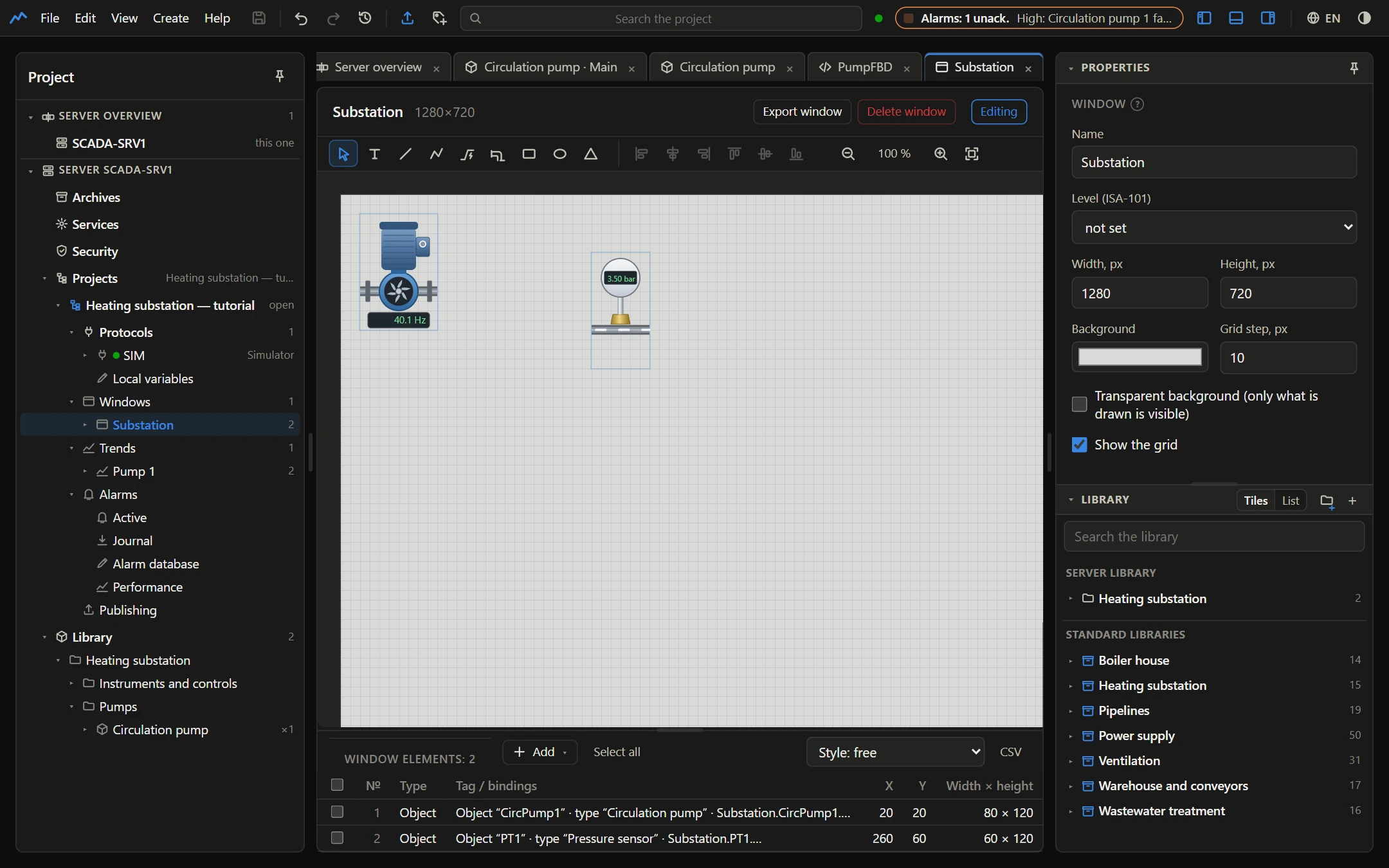
- The “Servers” screen: all the servers you work with, and sign-in to each.
- “This computer is for development”: your own server on a laptop; publish to the site when it’s ready.
- Familiar menus “File — Edit — View — Create”, keyboard shortcuts, panels that pin and auto-hide.
- Project search and a quick jump to any tag, window or object.
- Undo any step, including edits to the type library.
- Offline help in Russian and English: screenshots, step-by-step examples, animations.
Data goes where it’s needed
Flexible SCADA is not a closed box: upper-level systems get the data over open protocols.
- OPC UA server: tags, the equipment model, history (HistoryRead) and alarms (Alarms & Conditions), Flexible SCADA users.
- Databases: PostgreSQL, MS SQL, ClickHouse, InfluxDB.
- HTTP API and WebSocket for your own apps and dashboards.
- HTTP (JSON) as a protocol: data from web services and clouds flows into project tags.
- ISA-95 and B2MML — the equipment model for MES.
- Excel and CSV: reports, tag and alarm tables, import and export.
Shall we look at your site?
We’ll show Flexible SCADA on your equipment or on a demo project and answer your questions.