Alarms
Alarms per ISA-18.2: a condition on a variable, a priority, a message and guidance for the operator. The server watches the conditions itself, the operator acknowledges, shelves and takes alarms out of service, and the journal remembers everything.
 1
 1
 12
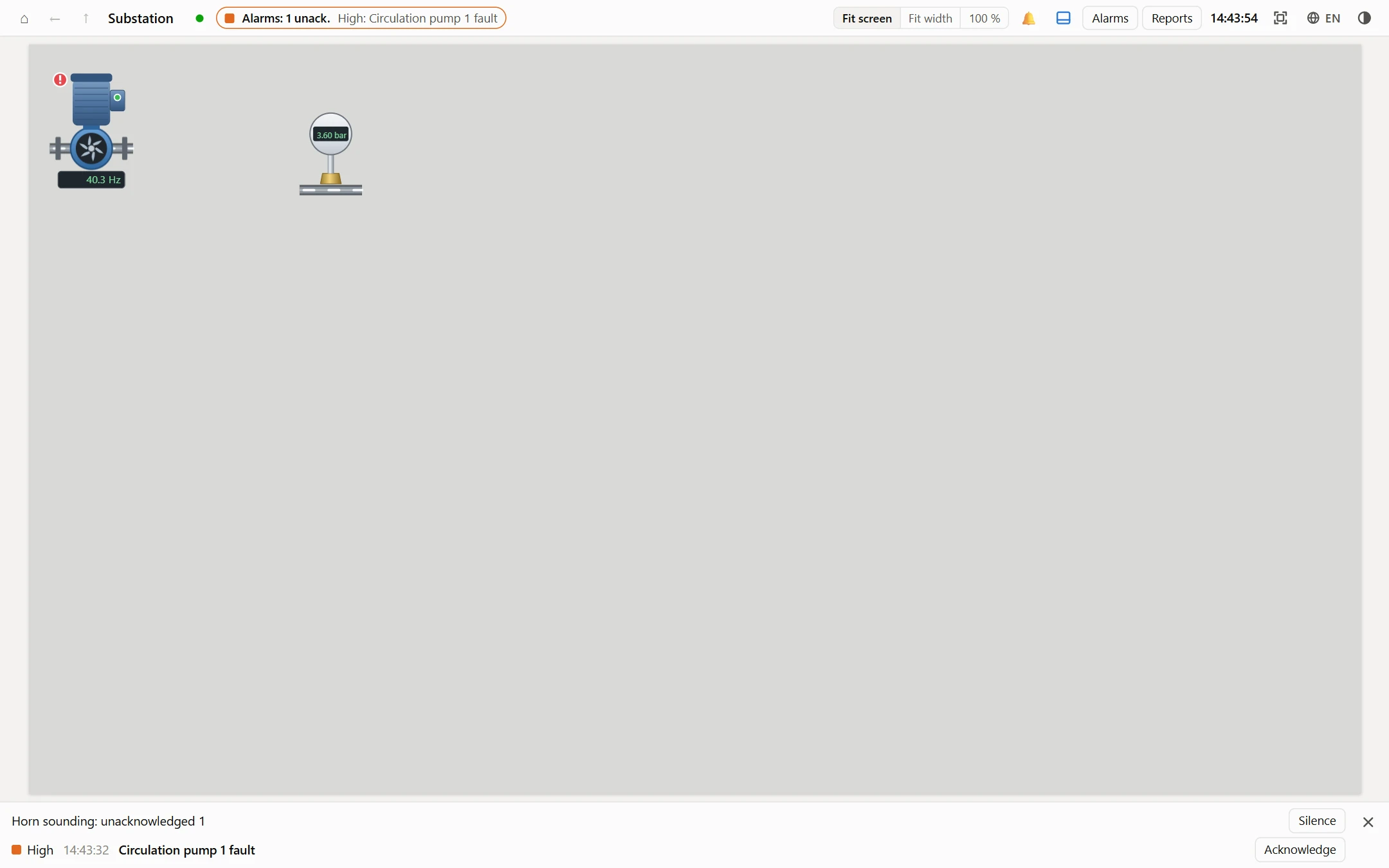
Alarm sections
The Alarms branch of the project tree (and the alarm bar in the header) opens four sections:
| Section | What is there |
|---|---|
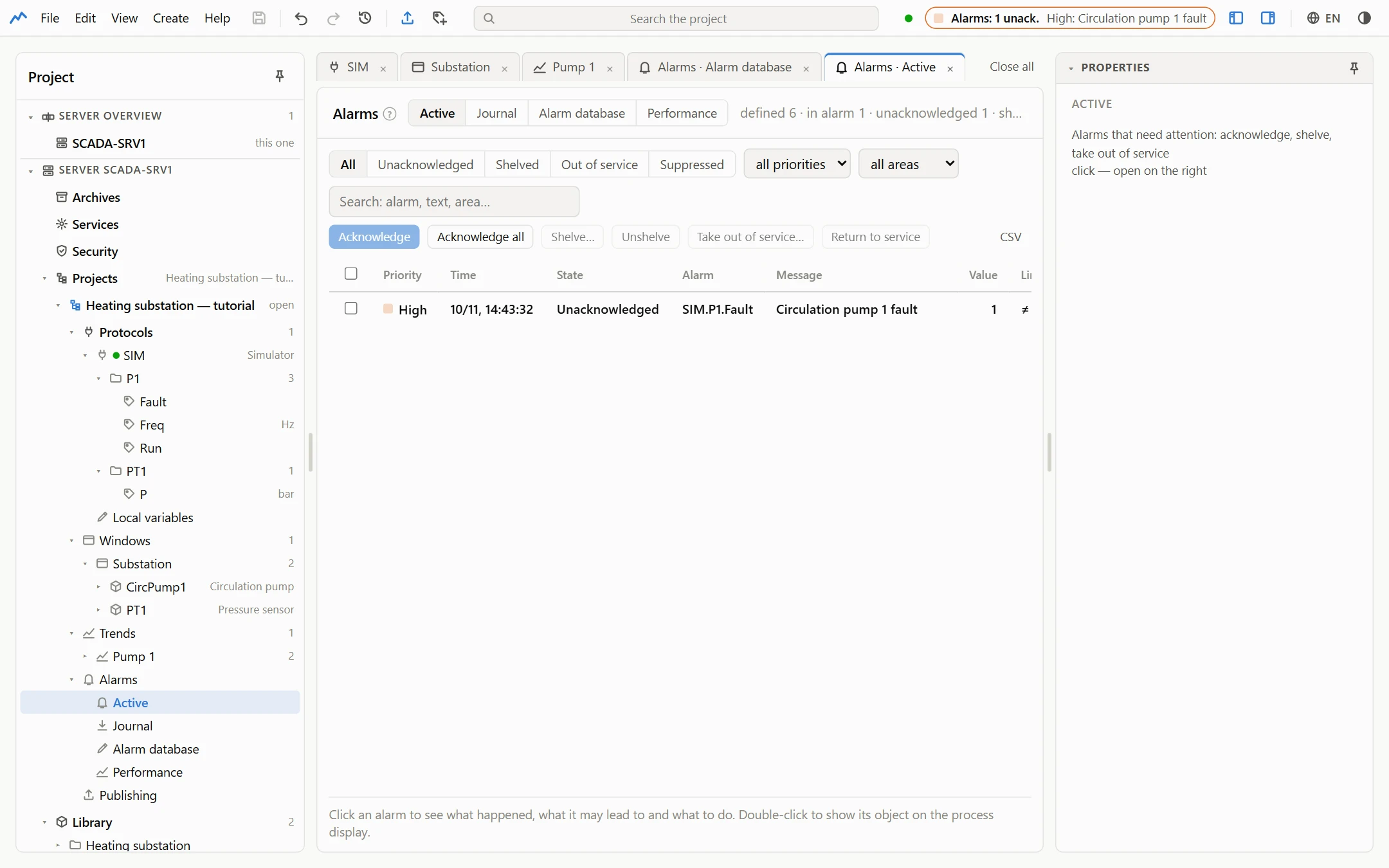
| Active | alarms that need attention: acknowledgement, shelving, out of service |
| Journal | all events: raised, acknowledged, cleared, shelved — with filters and export |
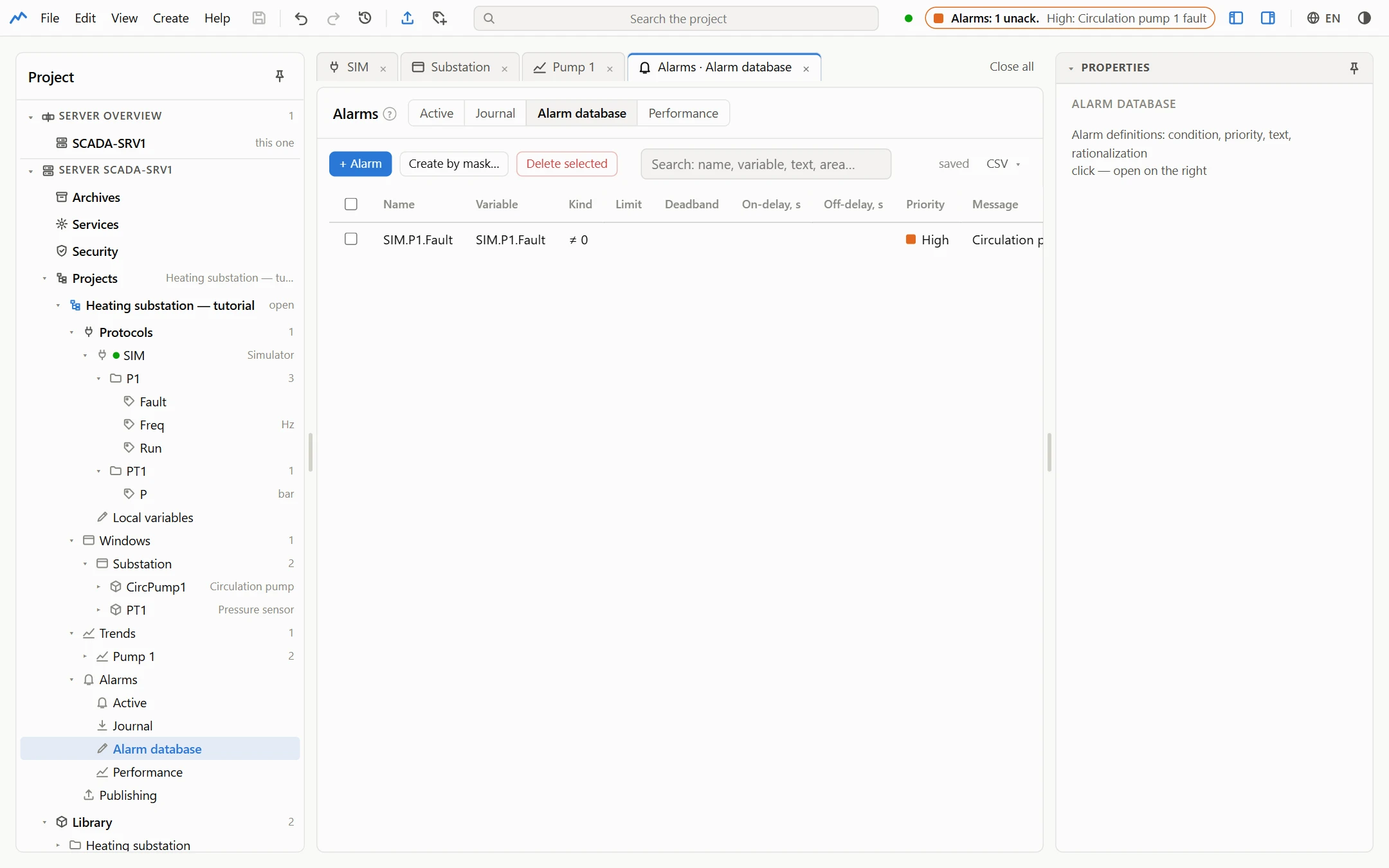
| Alarm database | the project alarm descriptions: conditions, priorities, messages, rationalisation |
| Performance | the operator load per ISA-18.2: alarms per hour, chattering and stale ones |
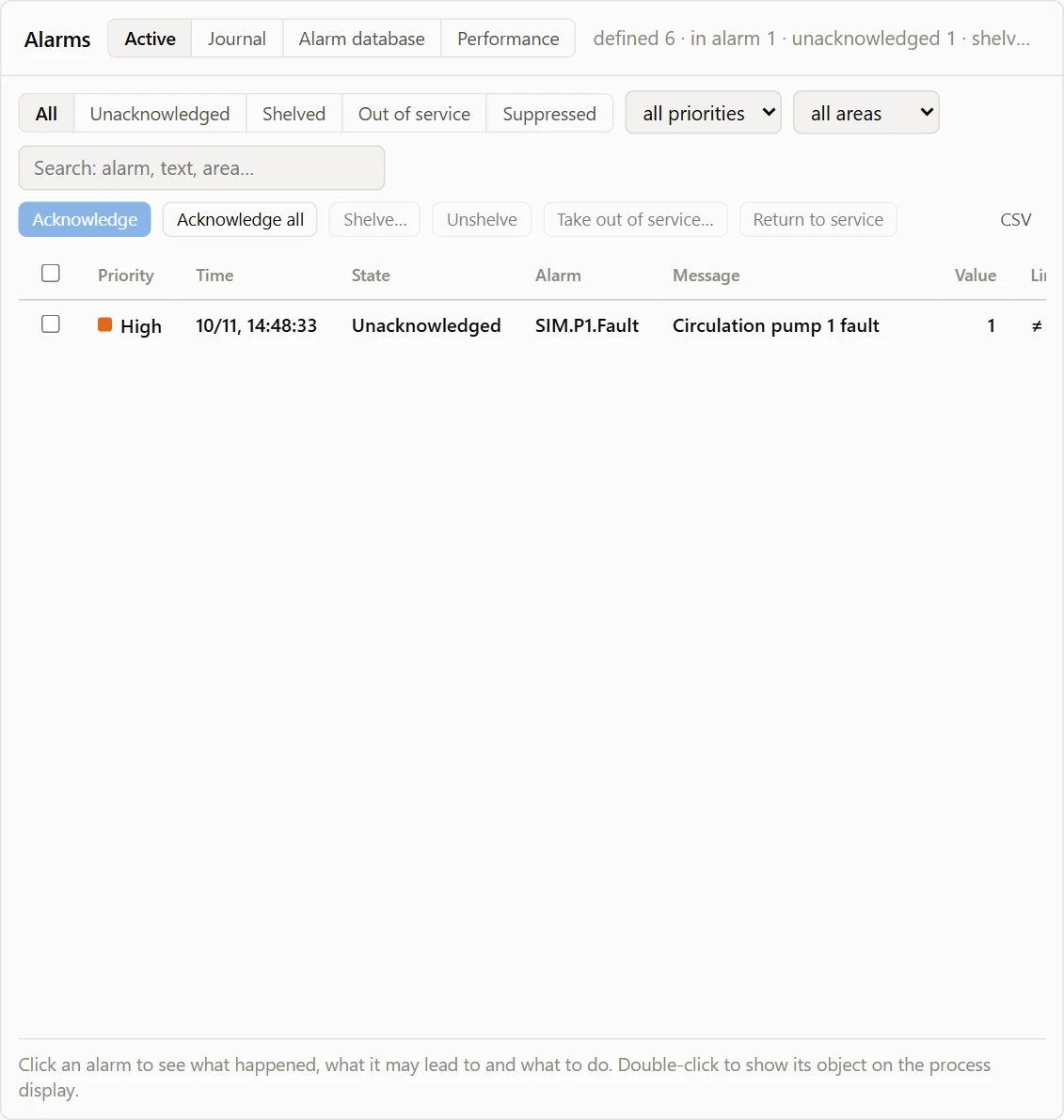
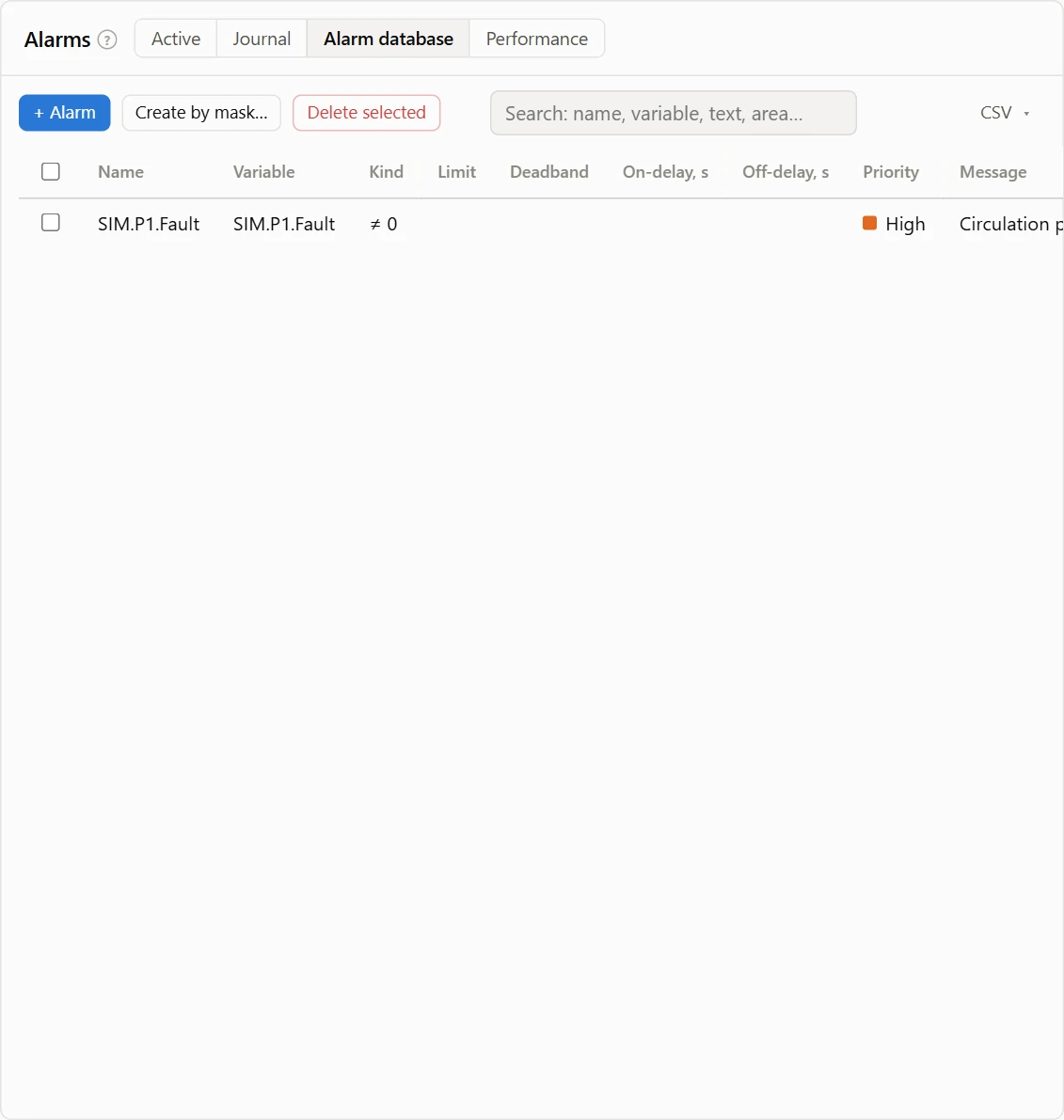
Alarm database: alarm fields
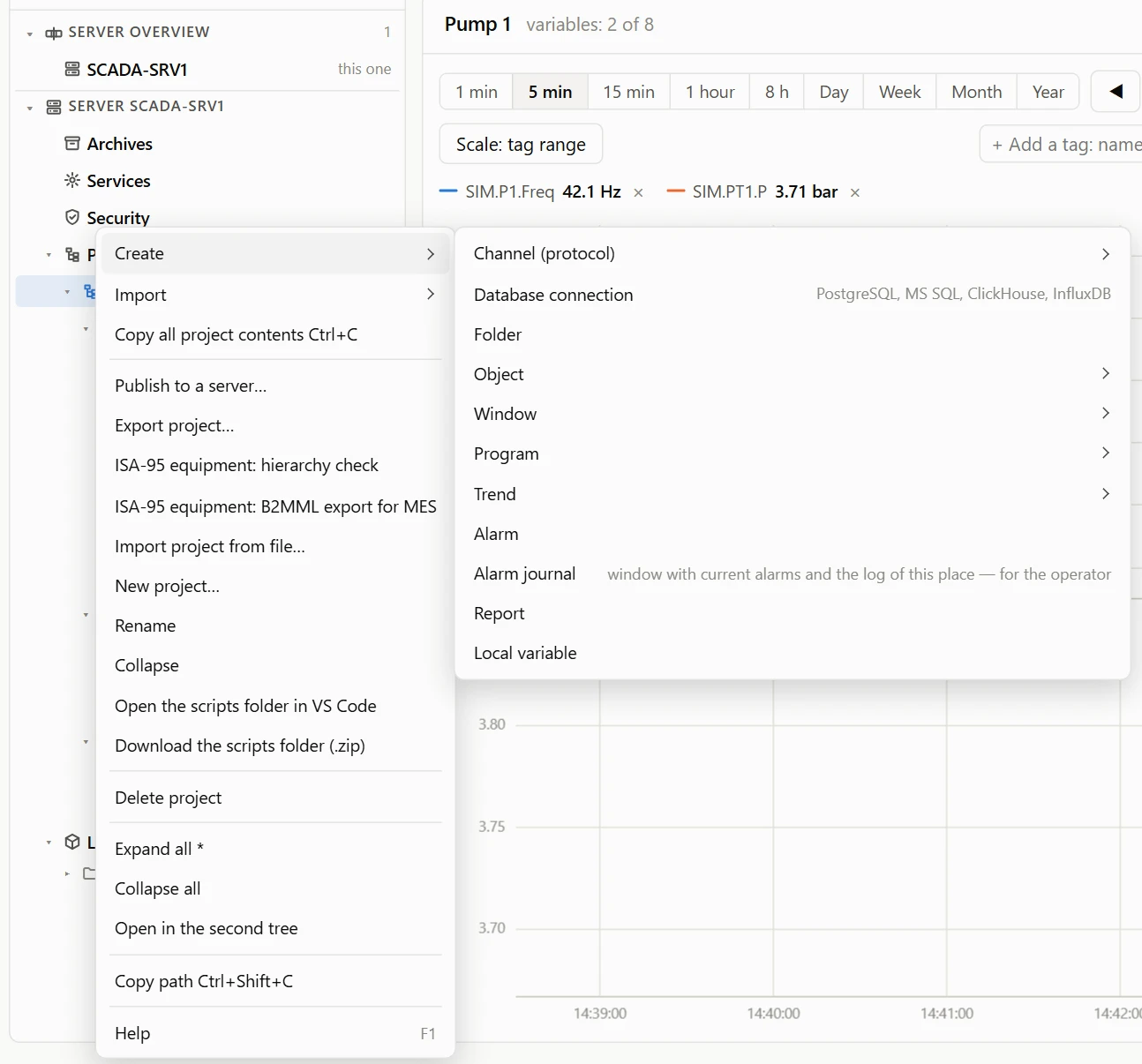
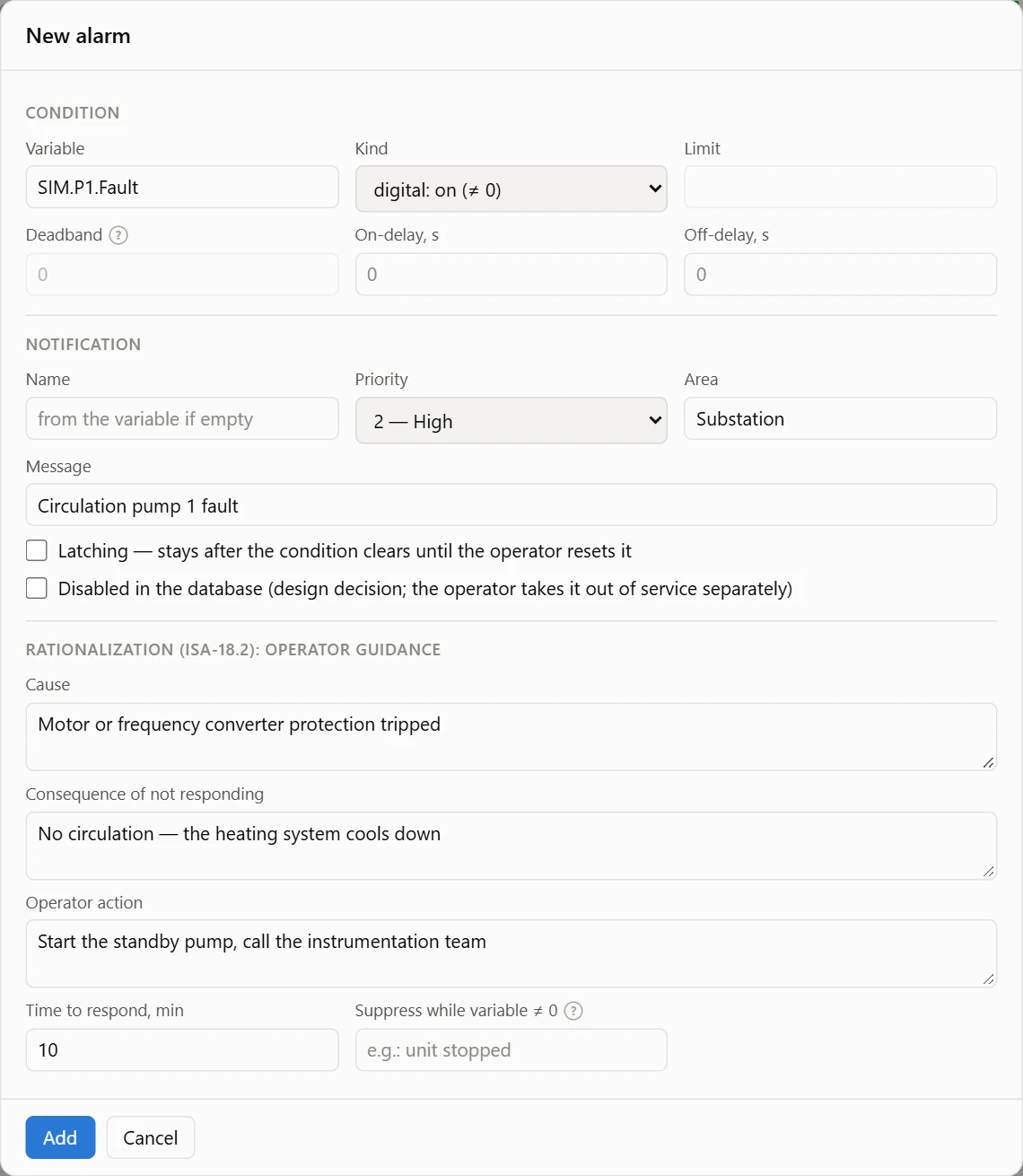
A new alarm — right-click a folder → Create → Alarm or + Alarm in the database. The database table can be edited right in the cells and pasted from Excel; Create by mask… makes alarms for many variables at once (*.HmiAlarmsDb.err*).
| Parameter | Values | Meaning |
|---|---|---|
| Condition | ||
| Variable | text | The project variable the alarm watches. |
| Kind | HH — above the high-high limitH — above the limitL — below the limitLL — below the low-low limitdigital: on (≠ 0) · defaultdigital: off (= 0)equal to the limitnot equal to the limit | The condition (see the table of kinds below). |
| Limit | number | The threshold for HH, H, L, LL, = and ≠. Not needed for the digital kinds. |
| Deadband | number 0 · default | The alarm clears only when the value moves away from the limit by the deadband: H = 80, deadband 2 — it clears below 78. Removes chatter at the threshold. |
| On-delay, s | number 0 · default | The condition must hold for this many seconds — short spikes do not raise the alarm. |
| Off-delay, s | number 0 · default | The condition must be gone for this many seconds for the alarm to clear. |
| Notification | ||
| Name | text | The alarm name; empty — by the variable (“SIM.P1.Fault”, “Tank.Level.HH”). |
| Priority | 1 — Critical2 — High3 — Medium · default4 — Low | Importance (see the priority table); it defines the colour, the sign shape, the sound. |
| Area | text | An area, a unit — a filter for the operator and in alarm tables. |
| Message | text | What the operator sees. Empty — the variable description. |
| Latching — stays after the condition clears until the operator resets it | checkbox off · default | The alarm does not clear by itself when the condition goes away: the operator has to reset it (protections, emergency stops). |
| Disabled in the database (design decision; the operator takes it out of service separately) | checkbox off · default | The alarm is described but not active — a design decision (for example, the equipment is not installed yet). |
| Rationalization (ISA-18.2): operator guidance | ||
| Cause | text | Why the alarm could occur — a hint for the operator. |
| Consequence of not responding | text | What happens if nothing is done. |
| Operator action | text | What to do — the operator sees this by clicking the alarm. |
| Time to respond, min | number | How many minutes there are to respond (ISA-18.2 rationalisation). |
| Suppress while variable ≠ 0 | text e.g. e.g.: unit stopped | Suppression by condition: while this variable is non-zero (the unit is stopped), the alarm is not shown — “alarms by design”. |
Condition kinds
| Kind | Short | Alarm when |
|---|---|---|
| HH — above the high-high limit | HH | value ≥ limit (usually above H) |
| H — above the limit | H | value ≥ limit |
| L — below the limit | L | value ≤ limit |
| LL — below the low-low limit | LL | value ≤ limit (usually below L) |
| digital: on (≠ 0) | ≠ 0 | the value is not zero — a fault, a tripped protection |
| digital: off (= 0) | = 0 | the value is zero — power lost, no flow |
| equal to the limit | = | the value equals the limit — a state code |
| not equal to the limit | ≠ | the value differs from the limit — the wrong mode |
Priorities
| Priority | When | Sign (ISA-101) |
|---|---|---|
| 1 — Critical | a threat to people, equipment, process failure — immediately | a red square with 1 |
| 2 — High | a quick response is needed (minutes) | an orange diamond with 2 |
| 3 — Medium | a response within the shift (the default) | a yellow triangle with 3 |
| 4 — Low | for information, scheduled maintenance | a purple inverted triangle with 4 |
Every priority has its own shape — alarms are distinguishable without colour (colour blindness, monochrome screens). While the condition is present the sign is filled; once the condition is gone and the alarm still waits for acknowledgement — only the outline.
ISA-18.2 recommends: critical — under 5 %, high — about 15 %, medium — about 80 %. Performance shows when the balance is off.
Alarm states
| State | What it means | What the operator does |
|---|---|---|
| Unacknowledged | the condition is present, the operator has not seen it yet | acknowledges — “seen” |
| Acknowledged | the condition is present, the operator knows | removes the cause |
| Cleared, unacknowledged | the condition is gone but the operator has not seen it | acknowledges |
| Cleared, awaiting reset | latching: the condition is gone, a reset is needed | resets |
| Shelved | temporarily shelved by the operator (with a time limit and a reason) | it unshelves by itself on time |
| Suppressed | suppression by condition (“while the unit is stopped”) | — |
| Out of service | the equipment is under repair: the alarm is inactive until returned | returns it to service |
Actions on alarms
| Action | Role permission | What happens |
|---|---|---|
| Acknowledge | Alarm acknowledgement | a “seen” mark — into the journal with the operator name |
| Acknowledge all | Alarm acknowledgement | all visible at once |
| Shelve… | Alarm shelving | for a time (minutes) with a reason: when the time is up the alarm returns by itself and notifies if the condition is present |
| Take out of service… | Alarm shelving | until returned manually, with a reason (repair) |
| Unshelve, Return to service | Alarm shelving | end a shelving early or return an alarm to service |
| Silence | — | turn off the sound at this workstation until a new alarm |
A click on an alarm shows its guidance: cause, consequence and action. A double-click (or Enter on the row, or the Show on the process display button) opens the window where the alarm’s object stands and highlights it.
Filtering the active alarms
Above the table is the filter row: state (All, Unacknowledged, Shelved, Out of service, Suppressed), Priority — “not lower than the chosen one”, Area, Object (the alarms of one object; for an array — of all its elements) and a search by name, message and object. Next to it — how many rows are shown out of how many; Clear filter brings them all back. Acknowledge shown acknowledges only what passed the filter — for example, all alarms of one area.
Showing an alarm on the process display
A double-click on an alarm — in the active list, in the journal, in the alarm strip at the bottom of the operator screen and in an alarm table placed in a window — opens the window where the alarm’s object is placed and highlights it with a frame and a caption: you see where on the diagram the fault happened. The place is found like this:
| What is found | What opens |
|---|---|
| the alarm’s object stands in a window | that window (for an operator — within their station), the object framed |
| a window has an element with the alarm’s variable | the window with that element |
the alarm is defined on a PLC variable, and a window holds an object whose variable is bound to it (the pump’s Fault ← SIM.P1.Fault) — by its own binding or by the type template | the window with that object, the object framed; if the object’s own screen is open — the element with this variable on it is highlighted |
| the object is a part of a unit that has its own screen | the unit’s screen, the part framed |
| the object is not placed anywhere | a message saying so; in the engineering environment — the object’s page |
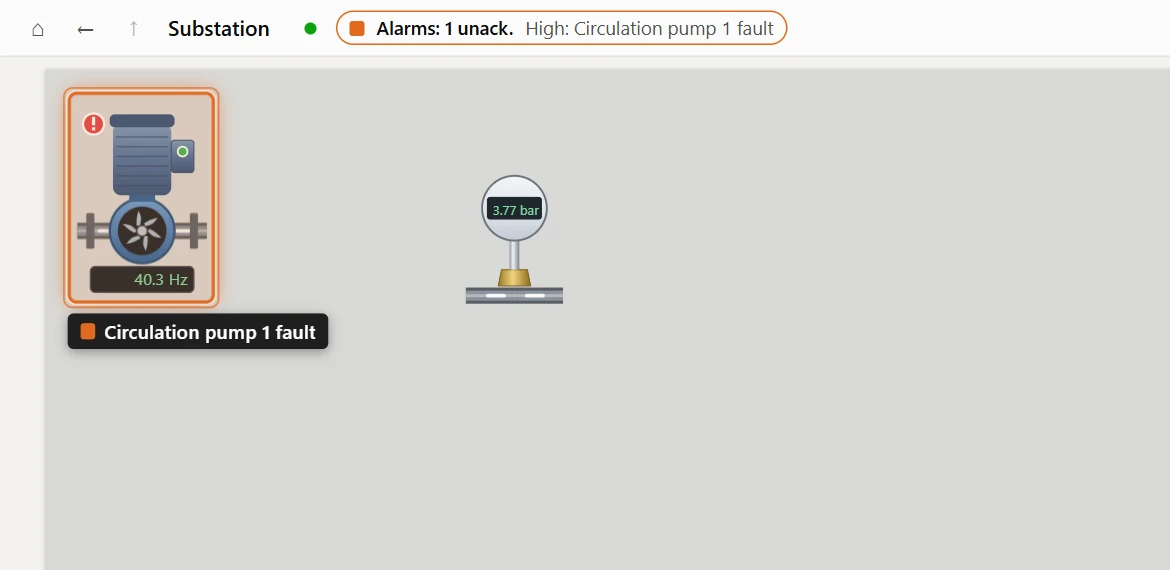
The highlight fades by itself in a few seconds or on a click. If the alarm’s variable is shown both by exact elements (a value, a lamp) and by a picture covering almost the whole window (a site plan with a detail bound to it), only the exact ones are framed. In the Console (alarms of all servers) a double-click still acknowledges.
Journal and performance
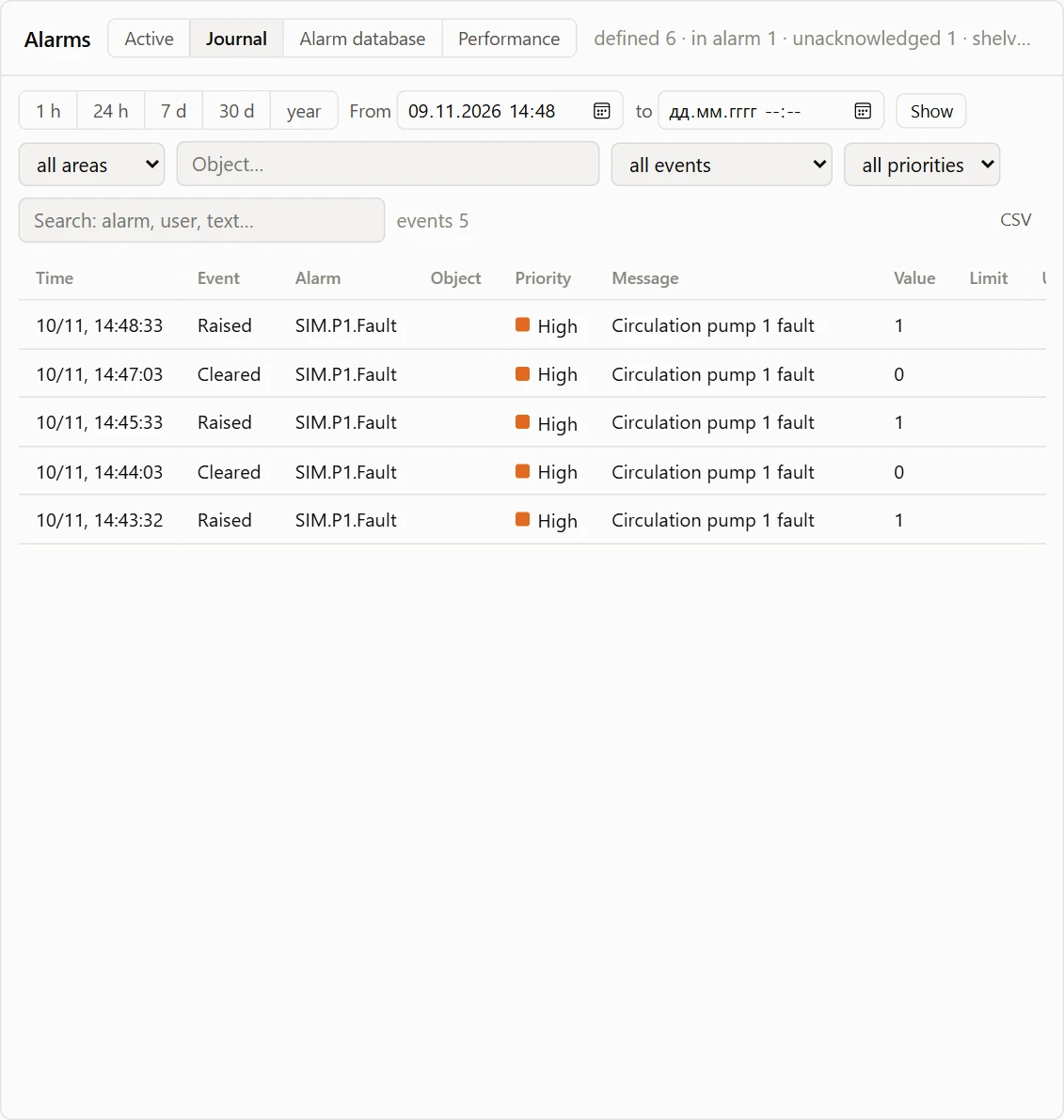
The journal shows the events of a period: the buttons “1 h”, “24 h”, “7 d”, “30 d”, “year” or your own “from” and “to” dates. Filters: Console (a station’s area of responsibility), Area, Object (the journal of one unit — it also opens by clicking the object in a row), Event (raised, acknowledged, cleared, shelved…), Priority and a search by alarm, user and text; Clear filter — all events again. The latest 500 events are shown, the next ones load when you scroll to the end (or with Show more); CSV exports everything that matched the filter — up to 200,000 rows. A double-click on an event shows its object on the process display.
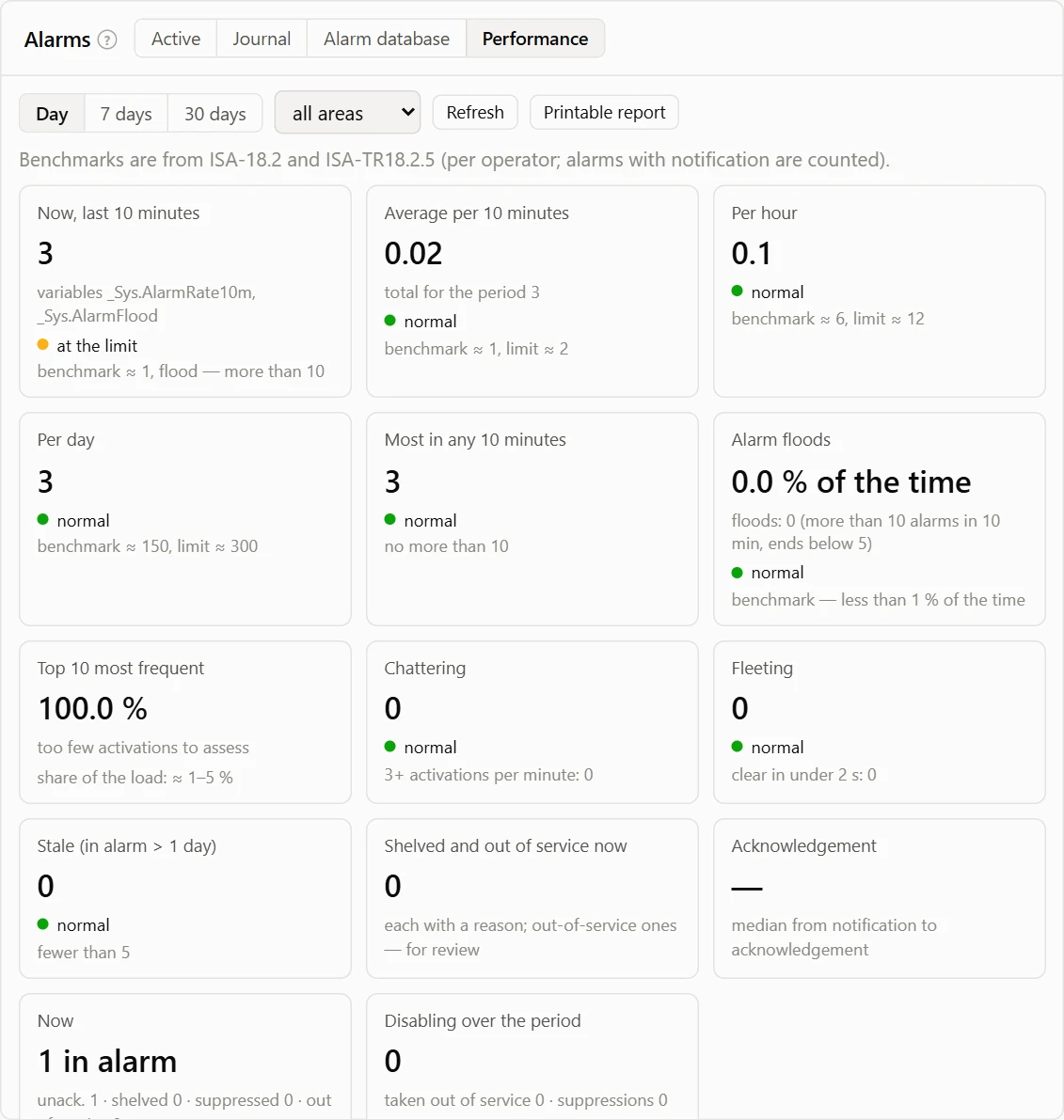
Performance. The period — a day, 7 or 30 days, for all areas or one; Printable report — for a review meeting. The targets come from ISA-18.2 and ISA-TR18.2.5, per operator; alarms with notification are counted. Every indicator has a rating: “normal”, “at the limit” or “overload”.
| Indicator | Target | What to do if it is bad |
|---|---|---|
| Now, per 10 minutes | ≈ 1; a flood — more than 10 | the same is in the _Sys.AlarmRate10m and _Sys.AlarmFlood variables for windows and programs |
| Average per 10 minutes | ≈ 1, limit ≈ 2 | look for sources in “10 most frequent” |
| Per hour | ≈ 6, limit ≈ 12 | |
| Per day | ≈ 150, limit ≈ 300 | |
| Most in any 10 minutes | at most 10 | group related alarms, suppression by condition |
| Alarm floods | under 1 % of the time (a flood — more than 10 alarms in 10 min, ends below 5) | |
| 10 most frequent | share of the load ≈ 1–5 % | review the limits of the most frequent — usually the quickest way to reduce the load |
| Chattering | 3+ activations per minute — 0 | deadband and delays |
| Fleeting | clear in under 2 s — 0 | an on-delay |
| Stale (in alarm > a day) | under 5 | review the limit or take out of service |
| Shelved and out of service now | each with a reason | out of service — for review |
| Acknowledgement | the median from notification to acknowledgement |
Type alarms
An object type has its own Type alarms on its variables ($Fault, $Level): every object gets its own. The limit, priority and disabling of a specific object are changed on the object page. See Objects and types.
Notifications
Alarms are sent by e-mail, Telegram and SMS: recipients, duty rosters, escalation, acknowledgement from Telegram. Set up in the admin panel — Administration → Notifications.