Objects and types
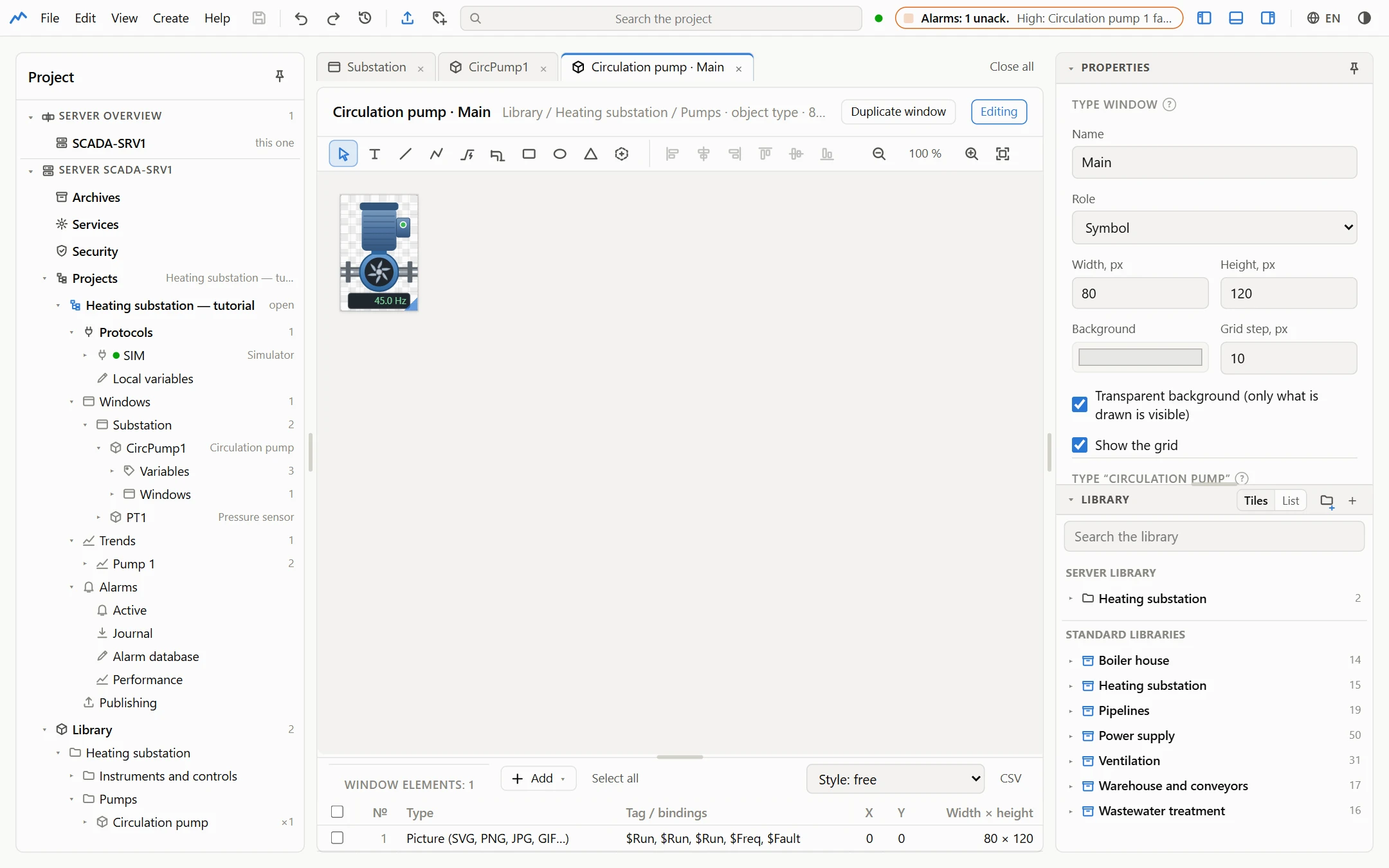
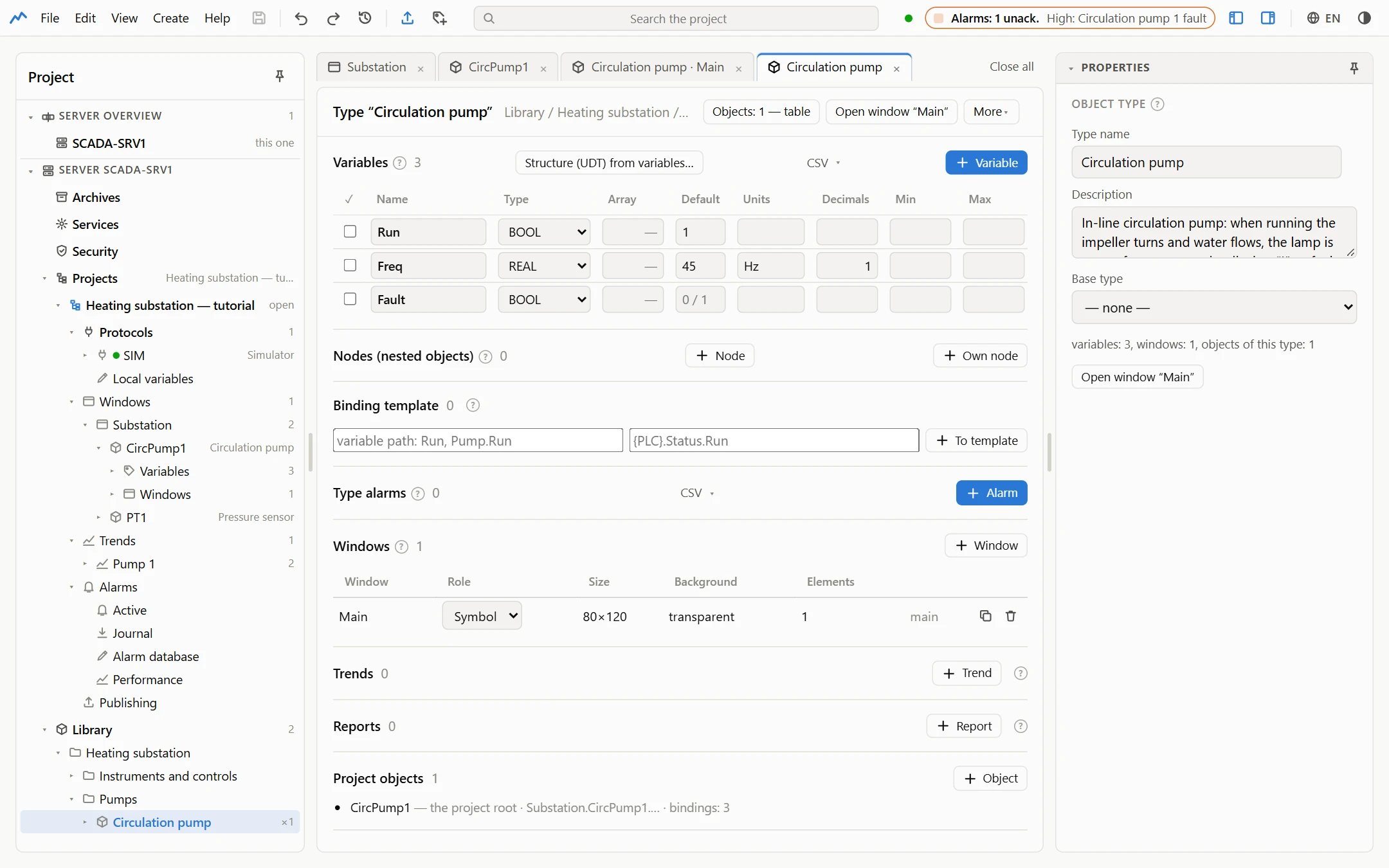
A type describes an equipment class once — variables, windows, alarms, trends, programs. A project object is a concrete instance with its own bindings. Change the type — and all its objects change.
 12
 12
 12
 12
How it works
| Concept | What it is | Example |
|---|---|---|
| Type (library) | an equipment class: variables, nodes, windows, alarms, trends, programs, reports | “Circulation pump”: Run, Freq, Fault; symbol, panel |
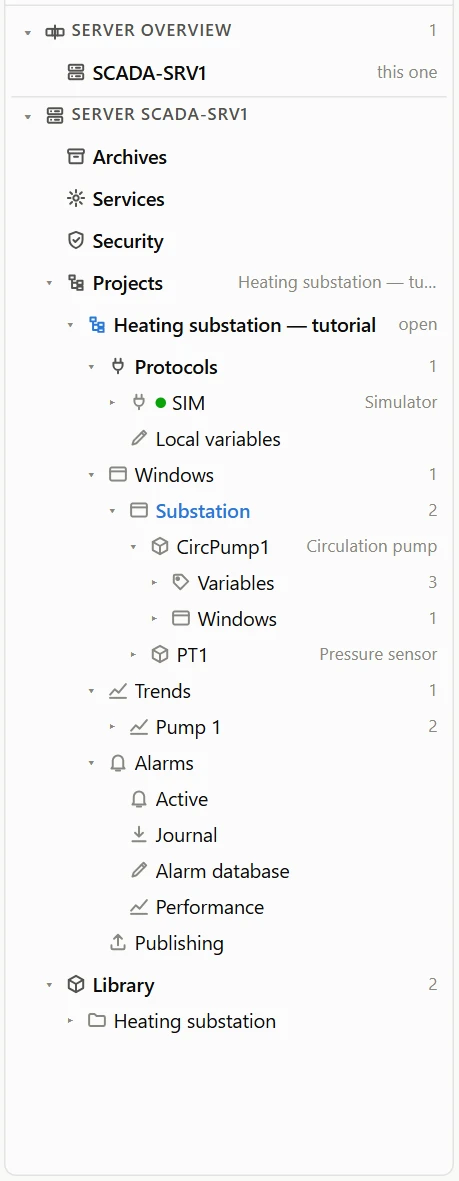
| Project object | an instance of a type in a project folder; its variables are project variables named by the path | Substation.CircPump1.Freq |
| Binding | where an object variable takes its value: a protocol variable, a local one or a constant | Freq ← SIM.P1.Freq |
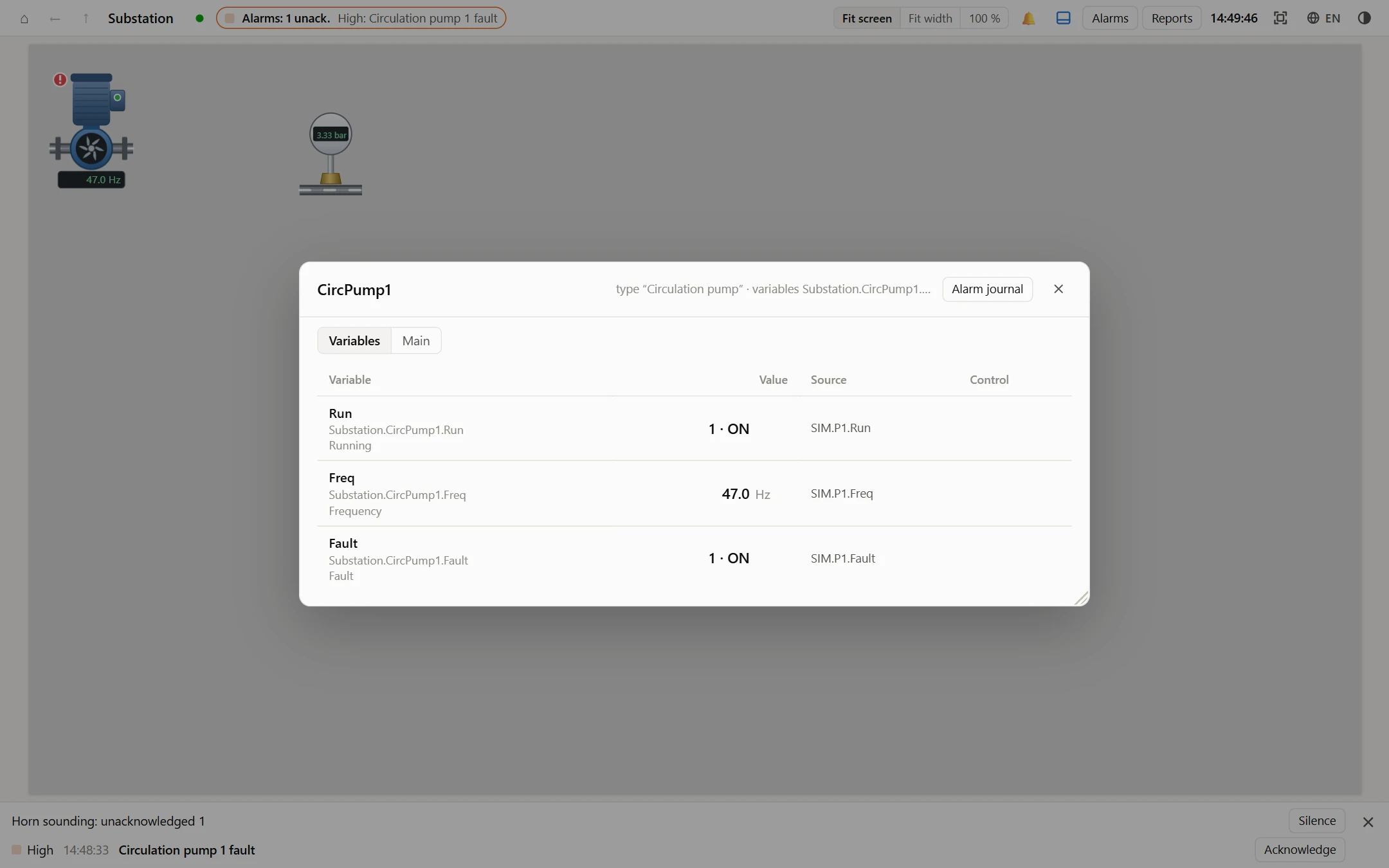
| Instance on a window | the object symbol on a mimic diagram — running, a click opens its panel | the pump icon on the “Substation” window |
| Node | a nested object inside a type or an object | an air handling unit has a fan, a heater, a filter |
| Structure (UDT) | a set of fields a type variable takes as a whole | Motor: State, Speed, Current |
 1
Create an object
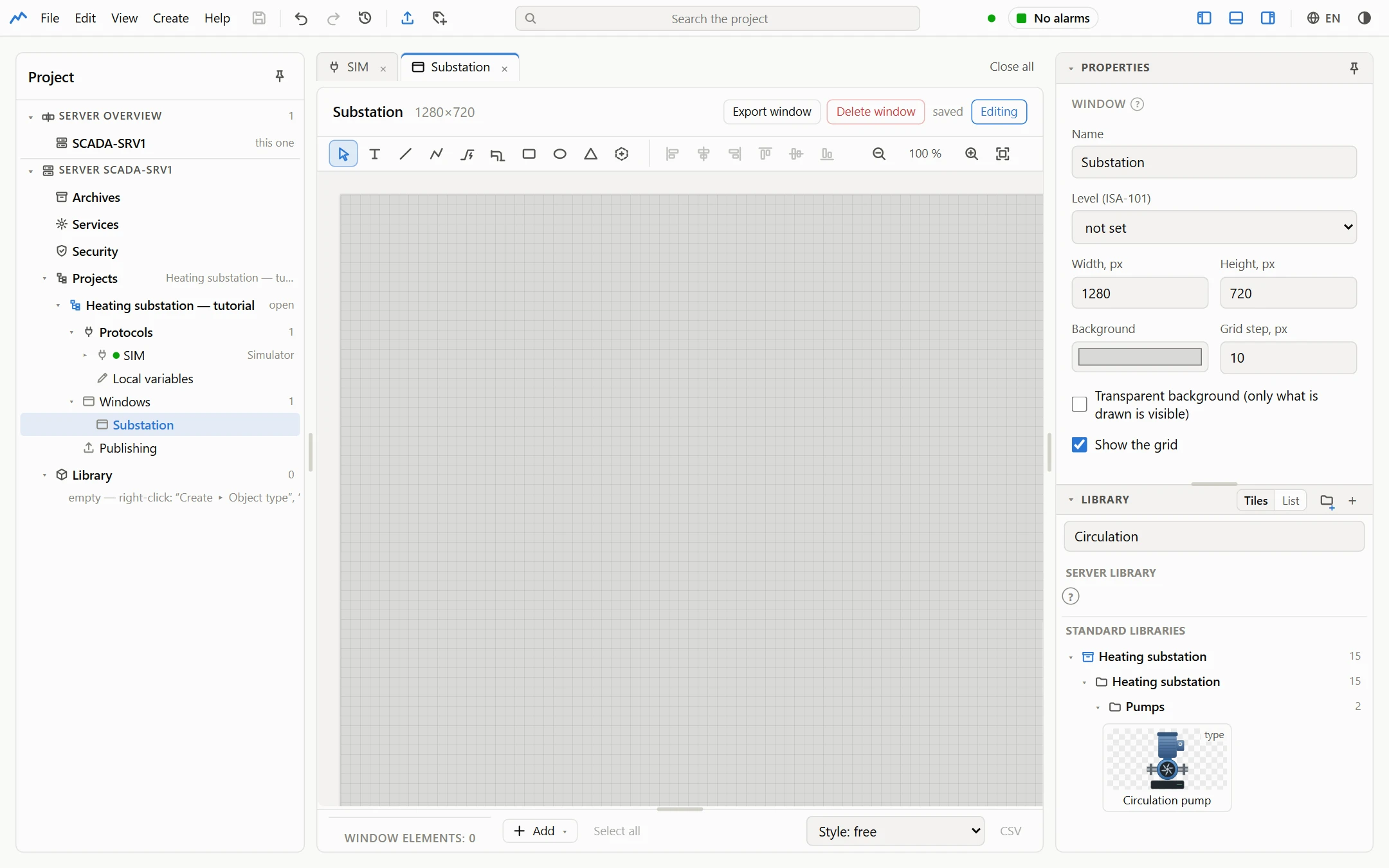
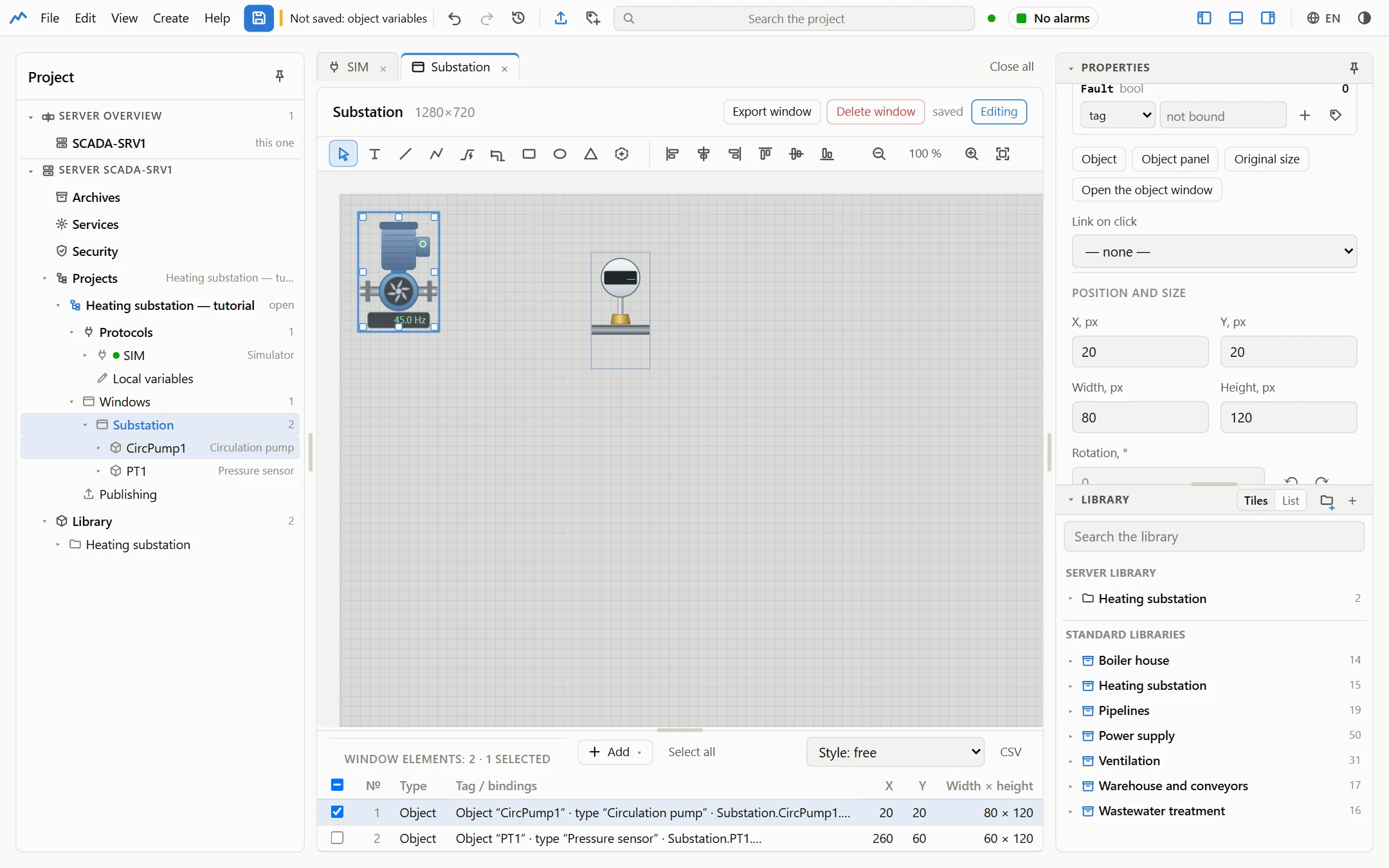
- From a window: double-click or drag a library tile onto the open window — the object appears in the window folder and on the window itself.
- In a folder: right-click a folder → Create → Object → Object of a type; Empty object — with its own definition (own variables and windows, no type); Array of objects of a type — N identical ones at once (pumps 1…10).
- A ready object is placed on a window by dragging its row from the tree onto the window.
Variable bindings
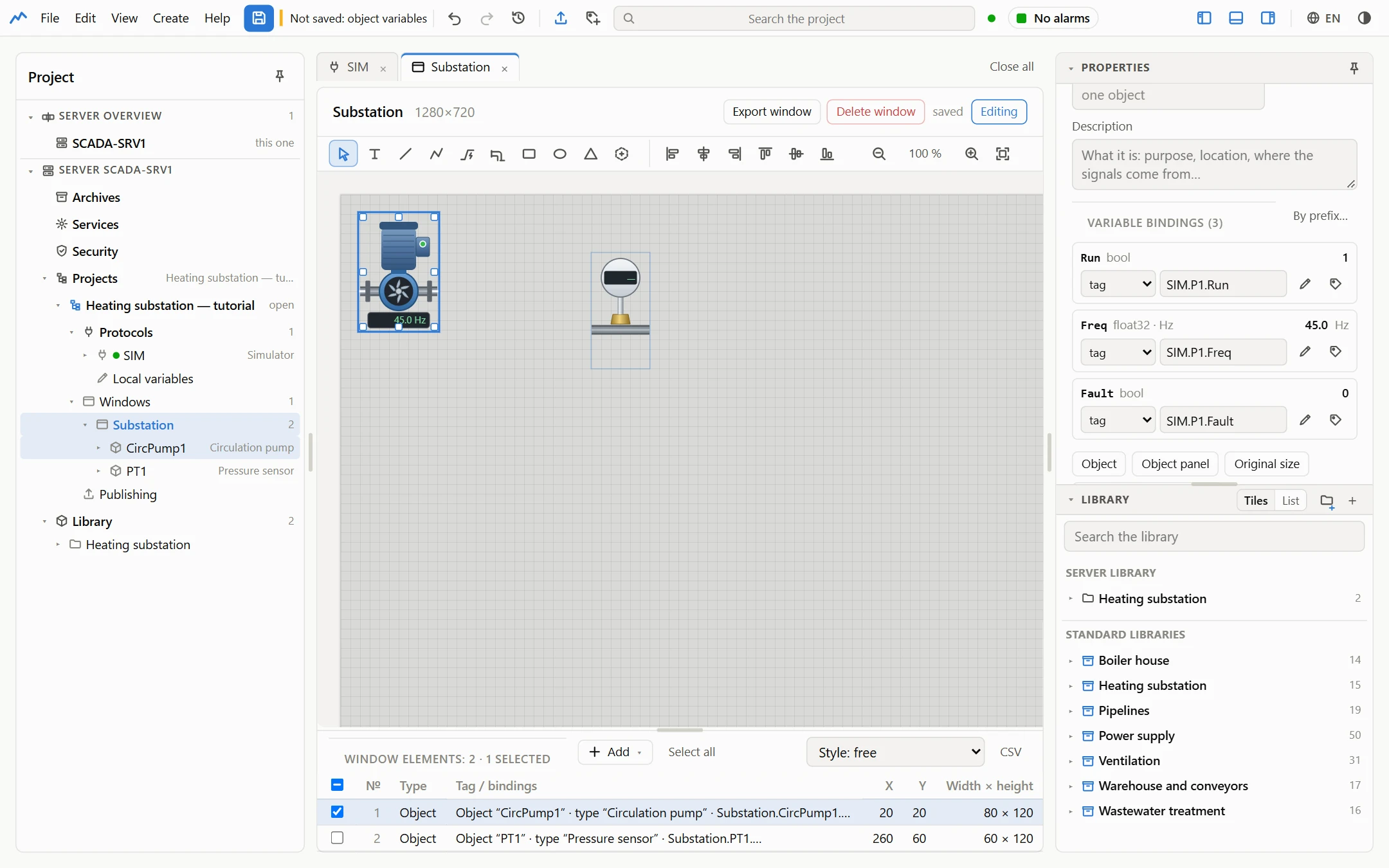
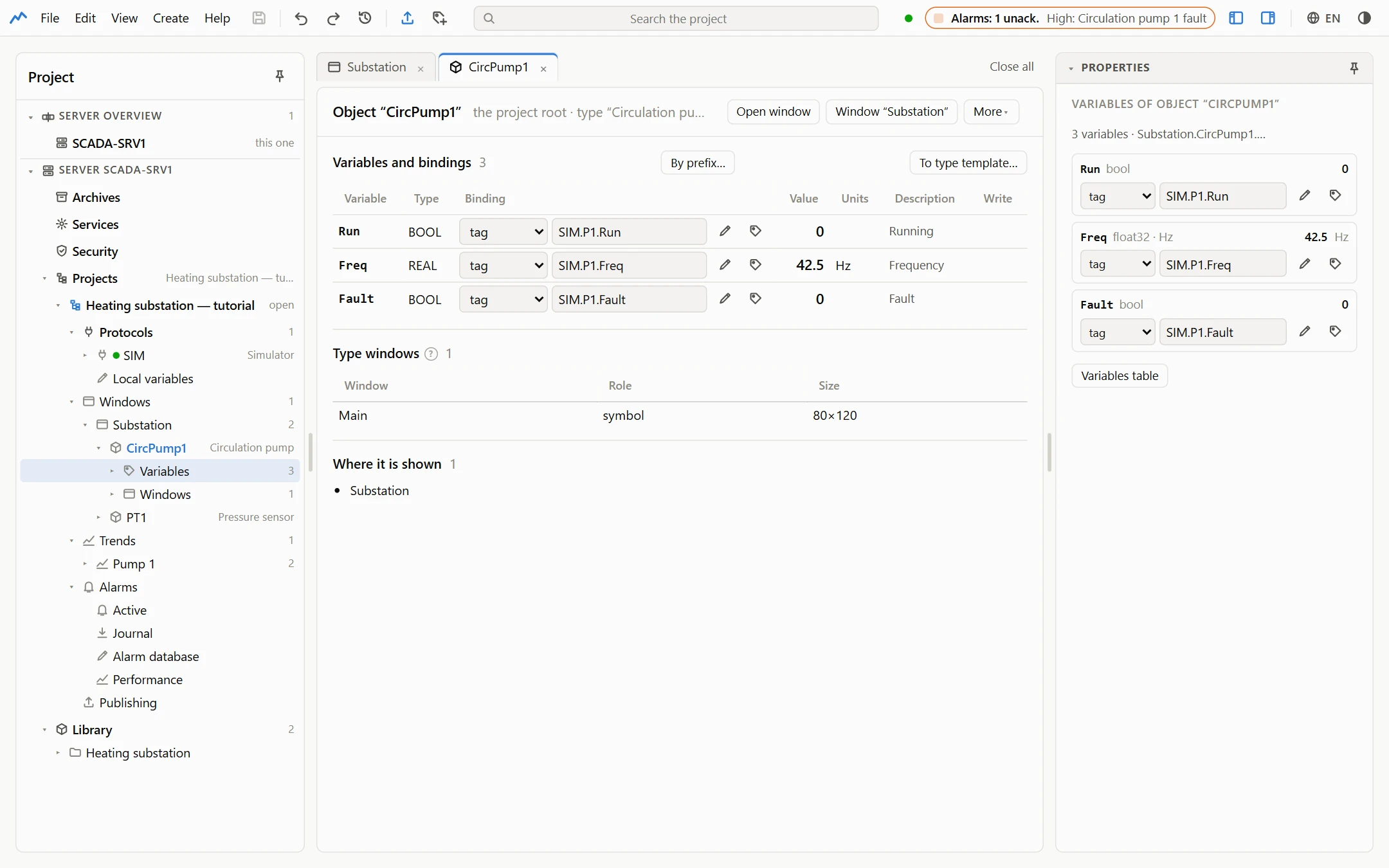
Select an object (on a window or in the tree) — Properties has the Variable bindings section: every object variable has a source and a field.
| Source | What to enter | Example |
|---|---|---|
| tag | the name of a project variable: a protocol, local or another object variable. It can be dragged from the tree onto the field or picked with the button | SIM.P1.Freq, PLC1.DB10.Pump1.Speed |
| value | a constant number or text | 1, 45 |
| (empty) | the default value from the type | — |
 12
A composite variable (a structure, an array) is bound as a whole by a name prefix: UA1.Fan1 → the fields are taken as UA1.Fan1.State, UA1.Fan1.Speed; for an array — UA1.Fans → UA1.Fans.1… or the template UA1.Fans.{i0} (zero-based number). A binding of a part takes priority.
All variables at once — “By prefix…”
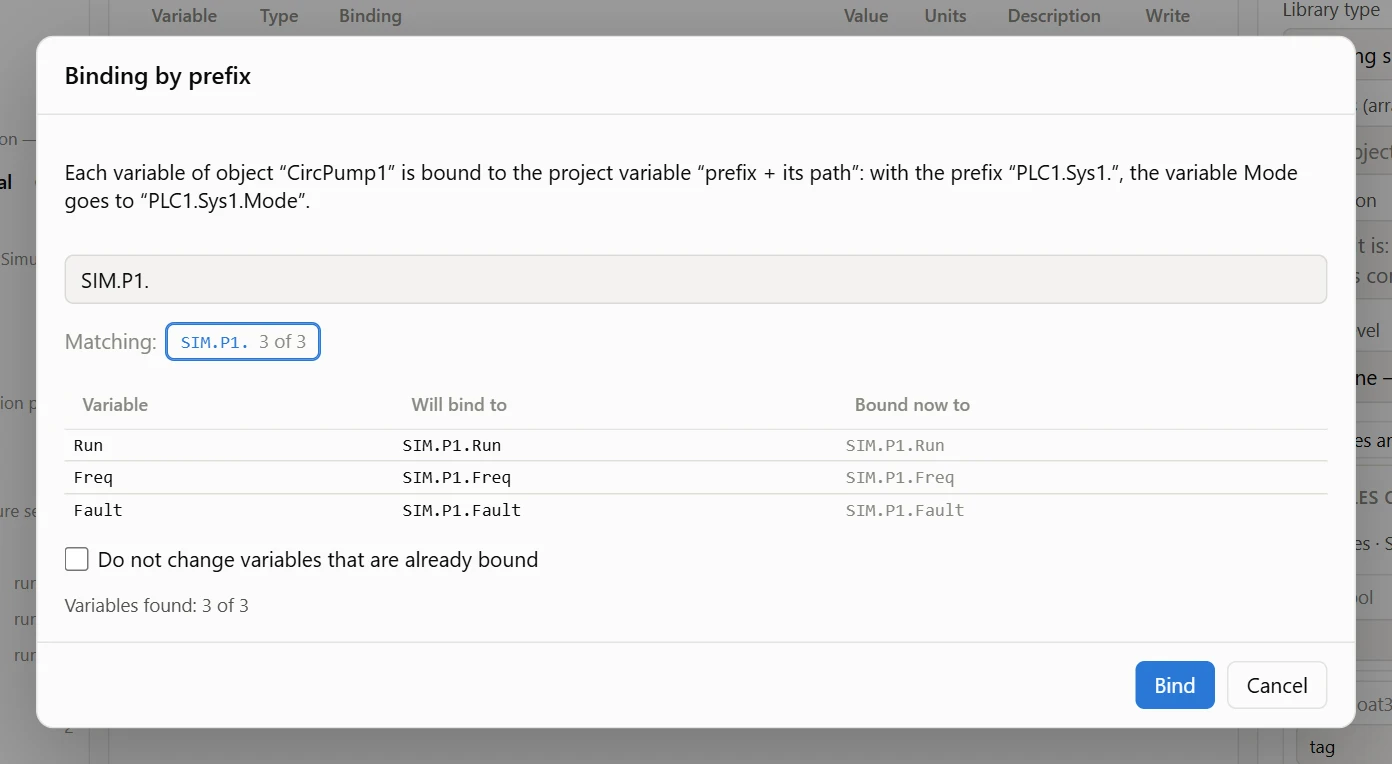
The By prefix… button binds all variables of an object in one action: each — to the project variable “prefix + its name” (with the prefix PLC1.Pump1. the variable Run goes to PLC1.Pump1.Run). You do not have to remember or type the prefix: the dialog itself finds the places in the project that hold variables named like the object’s variables and offers them as buttons — “PLC1.Pump1. 5 of 5”, “PLC1.Pump2. 5 of 5”… The prefix containing the name or code of the object itself comes first (for the object “P2” — PLC.P2.) — usually all that is left is to press Bind.
- The table under the field shows, before you press anything, what binds to what; what is not in the project is red (“no “PLC1.Pump1.Temp””), such variables stay as they are.
- Do not change variables that are already bound — bind only the empty ones (a partly bound object).
- The same dialog works for a symbol on a window (a type instance without a project object): the “By prefix…” button in its Properties.
Binding template
A type can describe once how its variables are usually named in the PLC: Run → {PLC}.Status.Run. The object then only needs the parameter PLC = PLC1.DB10.Pump1 — all bindings fill in by themselves. The template is the Binding template section of the type page.
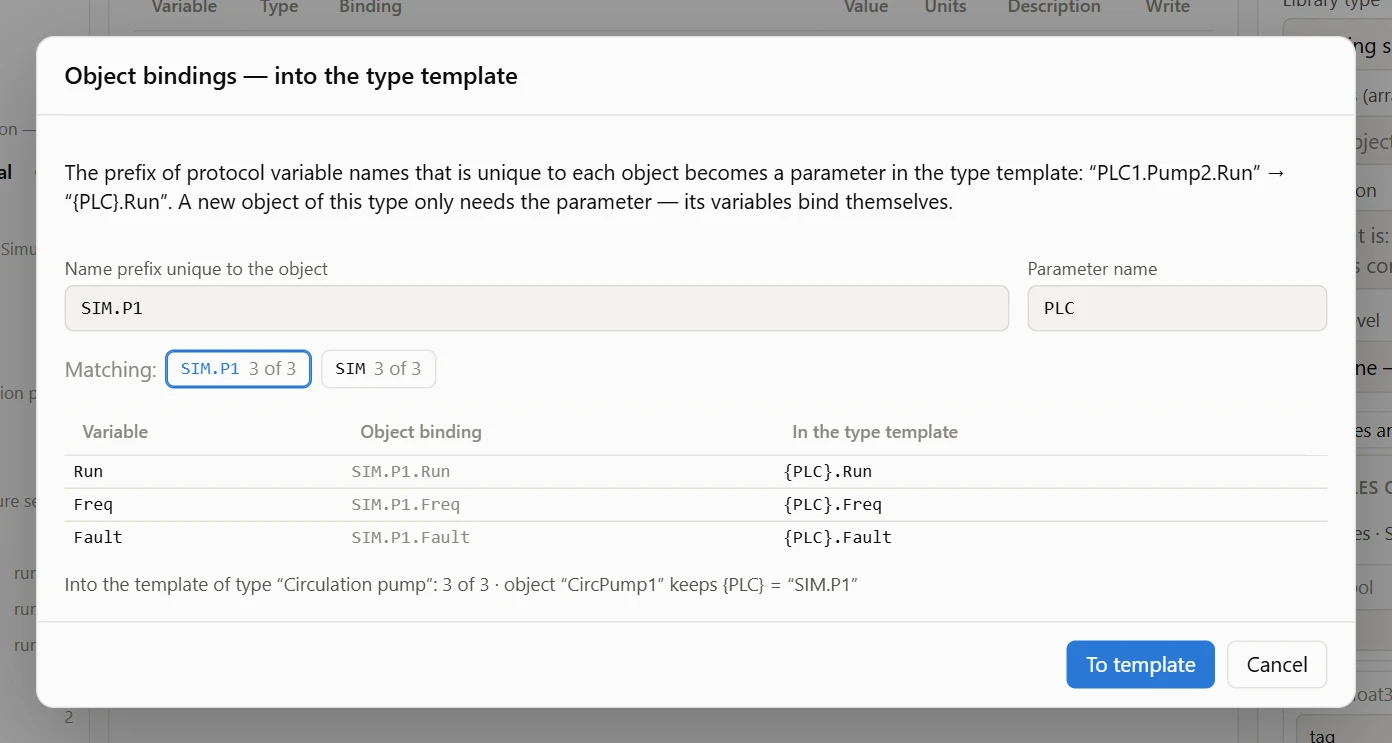
The quickest way is to bind one object (for example, with “By prefix…”) and press To type template… on it. The dialog itself finds the name prefix that is unique to each object (PLC.P2 for the bindings PLC.P2.Run, PLC.P2.Fault…): the one under which the project holds the same nodes of other objects (“more in the project: 5”). While the object is the only one and the project gives no hint, the whole common prefix goes into the parameter (SIM.P1): the template {PLC}.Run then fits both a second pump on the same PLC (SIM.P2) and a pump on another PLC; a different prefix is picked with the “Matching” buttons. Below it shows what goes into the template ({PLC}.Run) and what stays with the object (the parameter {PLC} = PLC.P2). If other objects of the type are already bound by hand in the same way, the Also switch the other objects of the type checkbox replaces their bindings with the parameter — the whole type moves to the template in one click, and undo (Ctrl+Z) returns the bindings to all of them at once. The template rows that would be replaced and the objects whose bindings would change because of it are shown in advance.
Braces can hold more than a parameter name:
| Written as | Gives | Example (N = 7) |
|---|---|---|
{PLC} | the parameter value as is | PLC2 |
{N:00} | an integer with leading zeros: as many digits as zeros | AHU{N:00} → AHU07 |
{1000+(N-1)*20} | integer arithmetic: + − * / (integer division) % and brackets; with a format — {…:0000} | HR{1000+(N-1)*20} → HR1120 |
{(N-1)/10+1} | the PLC number from the object number (10 per PLC) | PLC{(N-1)/10+1} → PLC1 |
{i:00}, {N*10+i} | in an object array — the element number (one-based; {i0} — zero-based); parameters may go into the same braces | V{i:00} → V03 |
A unit has no such sensor — set not bound for that object (in the objects table — -, on the object page — the not bound source): the template does not apply to this variable there, and there is no “variable missing” warning.
Objects of one type: a series
20 identical air handling units, 50 pumps: the type is described once (variables, a binding template with parameters), and the objects are created as a series. Right-click a folder → Create → Object → Series of type objects, right-click a type → Series of objects…, or Add objects… in the objects table: how many, from which number and with which step, name, code and parameter patterns with the number {n}.
| Field | Pattern | Result |
|---|---|---|
| Name | AHU-{n} | AHU-1 … AHU-20 |
| Name code | A{n:00} | A01 … A20 |
| Parameter N | {n} | 1 … 20 |
| Parameter PLC | PLC{(n-1)/10+1} | PLC1 for 1…10, PLC2 for 11…20 |
The preview shows at once how many bindings of each object will find their variables (missing ones in red). A series continues the folder’s numbering: with A01…A50 there it suggests “A{n:00}” from 51; the sample’s number in the name, code and parameters is already replaced with {n} (for the object “P6” with the parameter PLC.P6 — “P{n}” and PLC.P{n}; “PLC1” and an address like 192.168.0.1 are not treated as the number). If the objects of the series would get the same parameters as an existing object, the dialog warns: their template bindings would coincide. Duplicate several… on an object opens the same window, but the copies are complete: own bindings, alarm settings, description; the sample’s number in own bindings becomes the copy’s number. The whole series is one journal entry: Ctrl+Z removes all of it.
Copying an object with its bindings
A copy of an object — in the tree (Ctrl+C / Ctrl+V, Ctrl+D), a copy of a folder or window with objects, a copy of a symbol on a window — gets the next number (AHU1 → AHU2) and everything of its own: code, template parameters, own bindings, alarms. If the sample has own bindings or parameters, the Bindings of copies window opens before pasting:
| Choice | What happens to the copy’s bindings |
|---|---|
| Change | the object number in bindings — each copy gets its own (checkboxes choose which numbers: AHU1 → AHU2, AHU01 → AHU02; PLC1 only if ticked); own text replacements for all copies (Floor1 → Floor2); the path of any binding can be edited in the table or pasted as a column from Excel |
| Keep as in the sample | copies use the same variables |
| Without own bindings | only bindings from the type template; own ones later |
An object bound by the type template shows only parameters ({N}: 1 → 2; {PLC}: PLC.P6 → PLC.P7 — the object number inside a parameter changes too, the “in parameters” checkbox) — check and press Enter. One bound by hand shows the paths; the Number to the type template checkbox moves such bindings into the type template (PLC1.AHU{N}.T) and leaves a parameter on the objects — later copies only need it. A replacement does not touch other numbers: “AHU1” → “AHU2” does not change “AHU10”. Red — the variable is not in the project. Cancel — nothing is pasted.
Objects table of a type
All objects of a type in one table: rows are objects, columns are the name, code, template parameters and the binding of each variable. Open it: right-click a type → Objects of the type — as a table, right-click an object → All objects of type “…” — as a table, right-click a folder → Objects table… (only that folder’s objects), or the button on the type page.
| In a cell | Meaning |
|---|---|
| grey italic | a binding from the type template — it is changed through the object’s parameters |
| normal, with a bar on the left | the object’s own binding (takes precedence over the template) |
— | not bound: no sensor, the variable has its default value |
= 5 | a constant value |
| red | the variable is not in the project or a template parameter is not set |
- Typing in a cell: a variable name — an own binding (the same as the template gives removes the own one),
-— not bound,=5or a number — a value, empty (Delete) — as in the template. - As in Excel: drag, Shift+click, Ctrl+C / Ctrl+V of blocks (also from Excel), Delete, Ctrl+D — fill down, Ctrl+Shift+D — in sequence (AHU01, AHU02…), Fill in sequence with a step… in the menu (HR1000, HR1020…), CSV.
- Ctrl+H or Replace… — text in the selected cells or the whole table: “PLC1” → “PLC2” for six units.
- Rows pasted below the last one become new objects of this type: a list of units from Excel (name, code, parameters) turns into objects with one paste.
- Views: Parameters (name, code and parameters only), All bindings, Differences (only variables where someone has an own binding or an error); Errors only — rows with missing variables.
Objects of one type usually only need parameters: AHU-7 moved to another PLC — change its {PLC}, not 40 bindings. Own bindings are for exceptions; the “Differences” view shows them all.
Every table edit (paste, replace, fill) is one journal entry: Ctrl+Z undoes it for all objects at once. Object variables, as with any binding, are applied on Save.
Library types
The server library is the Library branch of the tree: types by folder. A click on a type opens its page, a double-click — its main window. A new type — right-click the library → New object type or Create → Object type (library). Ready-made types — Standard libraries.
12Type variables
| Column | Values | Meaning |
|---|---|---|
| Name | letters, digits, _ | the variable name of objects: <object>.Run; in type windows and programs — $Run |
| Type | BOOL, INT, UINT, DINT, UDINT, REAL, LREAL, STRING or a structure (UDT) | the IEC 61131-3 type |
| Array | the number of elements; empty — a single variable | an array: Fans.0…Fans.N-1 |
| Default | a value | the value of objects without a binding |
| Units, Decimals, Min, Max | as for a variable | passed on to the object variables |
| Write | checkbox | allow writing from the screen for all objects |
| Archive | checkbox | write to the archive for all objects of the type (trends, reports) |
| Description | text | shown in tips and alarms |
Type windows
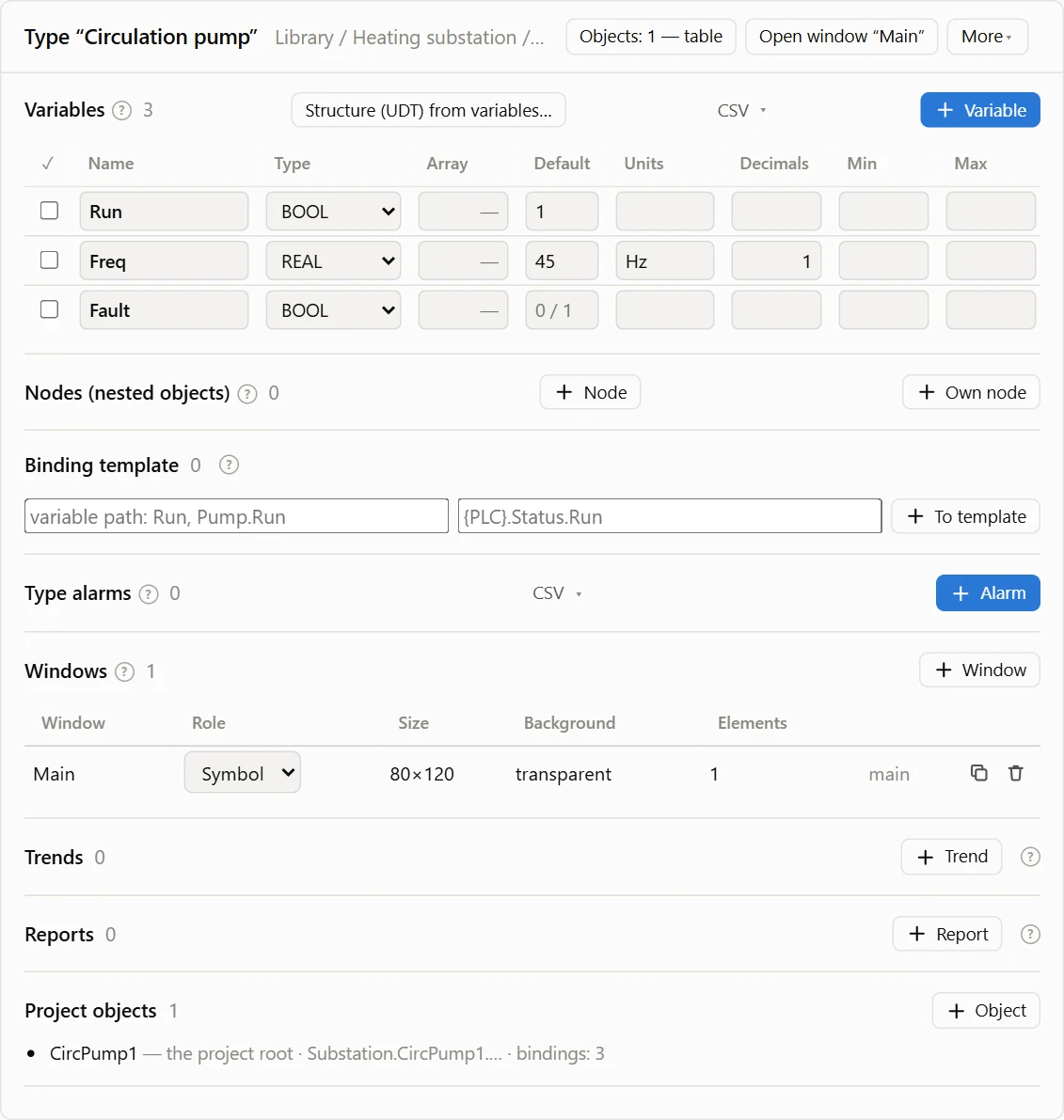
| Role | Where it is seen |
|---|---|
| Symbol | on mimic diagrams — how the object looks in project windows |
| Panel | a tab of the object panel for the operator (a click on the symbol) |
| Screen | a separate screen of the object in the operator navigation |
The size of the symbol window is the initial size of an instance: stretched on a mimic, it scales together with its contents. In type windows variables are written as $Name, node variables — $Node.Name.
Type alarms
Alarms of an equipment class are described once in the type — every object has its own. For a specific object only the limit, the priority and disabling are changed on its page.
Inheritance and nodes
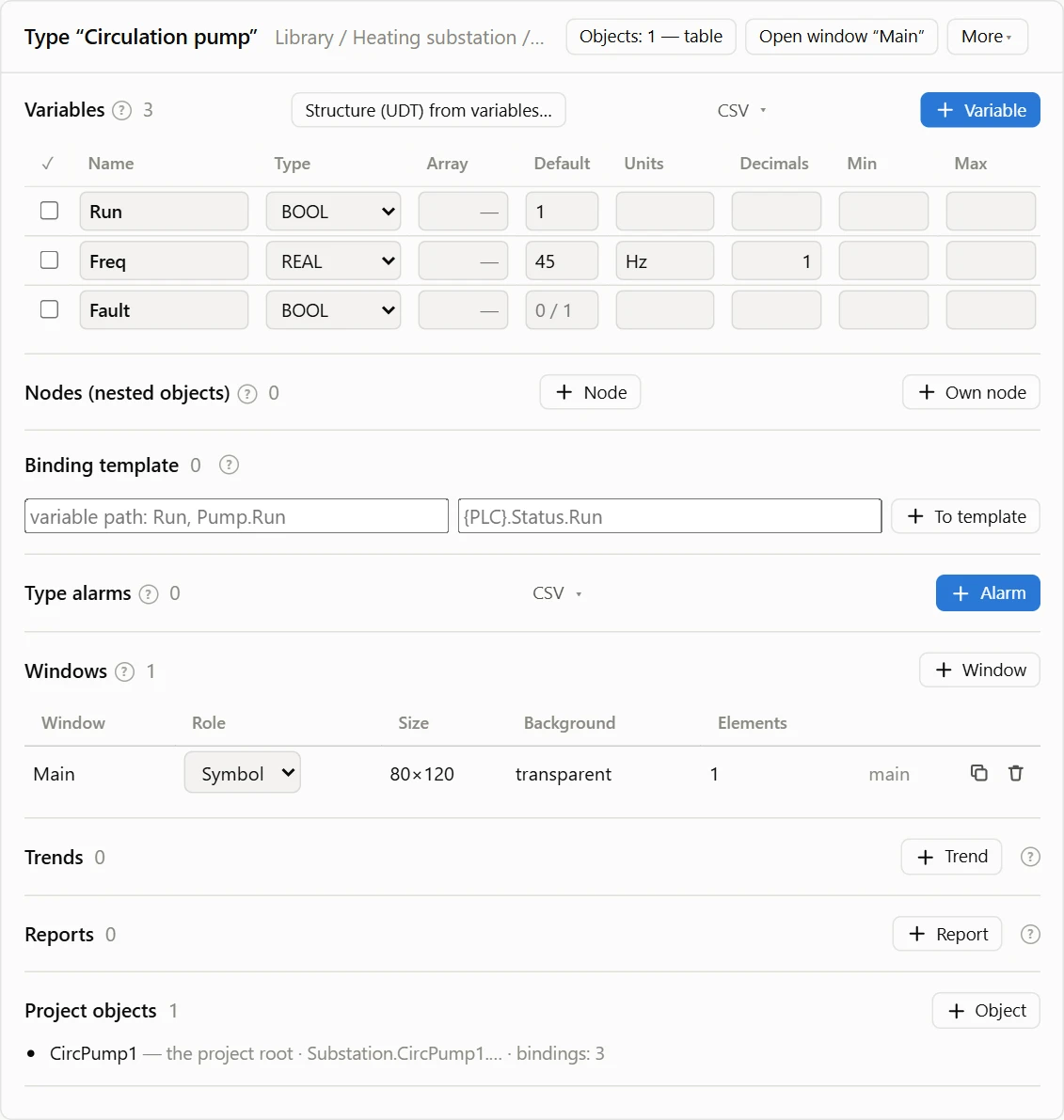
- Base type (in the type Properties): a descendant gets all variables, nodes, windows and alarms of the base and adds its own. “Pump with VFD” = “Pump” + frequency and current.
- Nodes: a type is assembled from other types — + Node on the type page or dragging a type onto a type window. Node variables —
$Fan.Run. - Detach from the library: an instance on a window gets its own copy of windows and variables — type changes no longer affect it. Ungroup into elements — the type window elements become ordinary window elements.
Object arrays
Create → Object → Array of objects of a type asks for a number and creates an array of identical objects as one project object (the “Elements (array)” field in the object Properties changes their number). Bindings for all elements are set by a template: the element number is substituted into the name — PLC.Fan{i}.Run (one-based) or PLC.Fans.{i0}.Run (zero-based), PLC.V{i:00}.Open (with a leading zero: V01), {i+100} (with an offset), and every object gets its own address.
Structures (UDT)
A structure is a set of typed fields, like a UDT in TIA Portal or a STRUCT in CODESYS. A type variable with a structure gets all fields at once. A structure is created from the selected type variables with the Structure (UDT) from variables… button or in the library.
The object page
A click on the “Variables” row of an object opens its page: all variables with bindings and live values in several columns, the object alarms with its limits, trends and reports. The binding template parameters are here too.