Administration
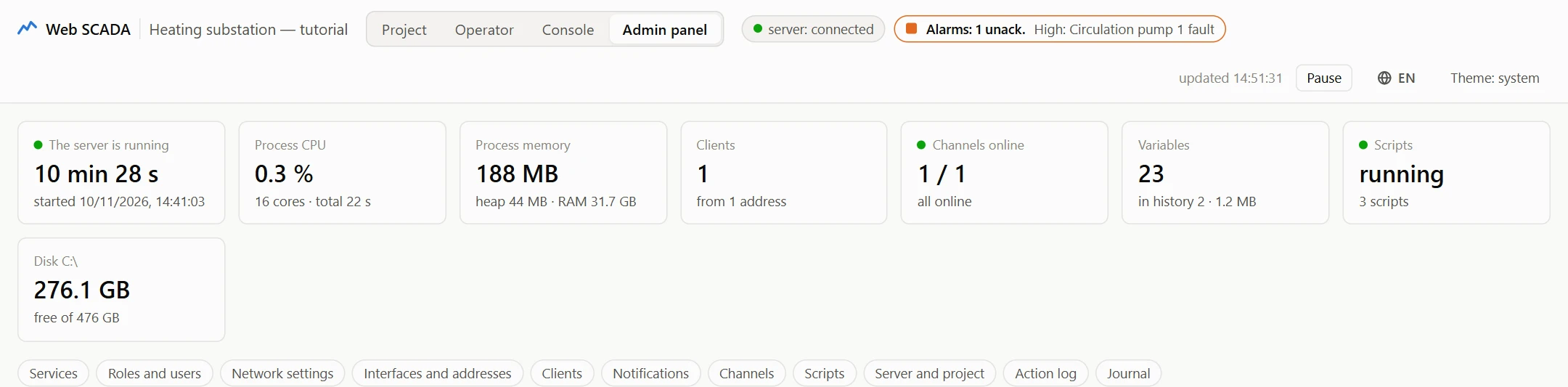
The admin panel is everything about the server itself: services, users and roles, network, clients, redundancy, the OPC UA server, notifications, archives, backups, time, logs. It opens with a click on the server row in the tree or as the “Admin panel” page.
Services
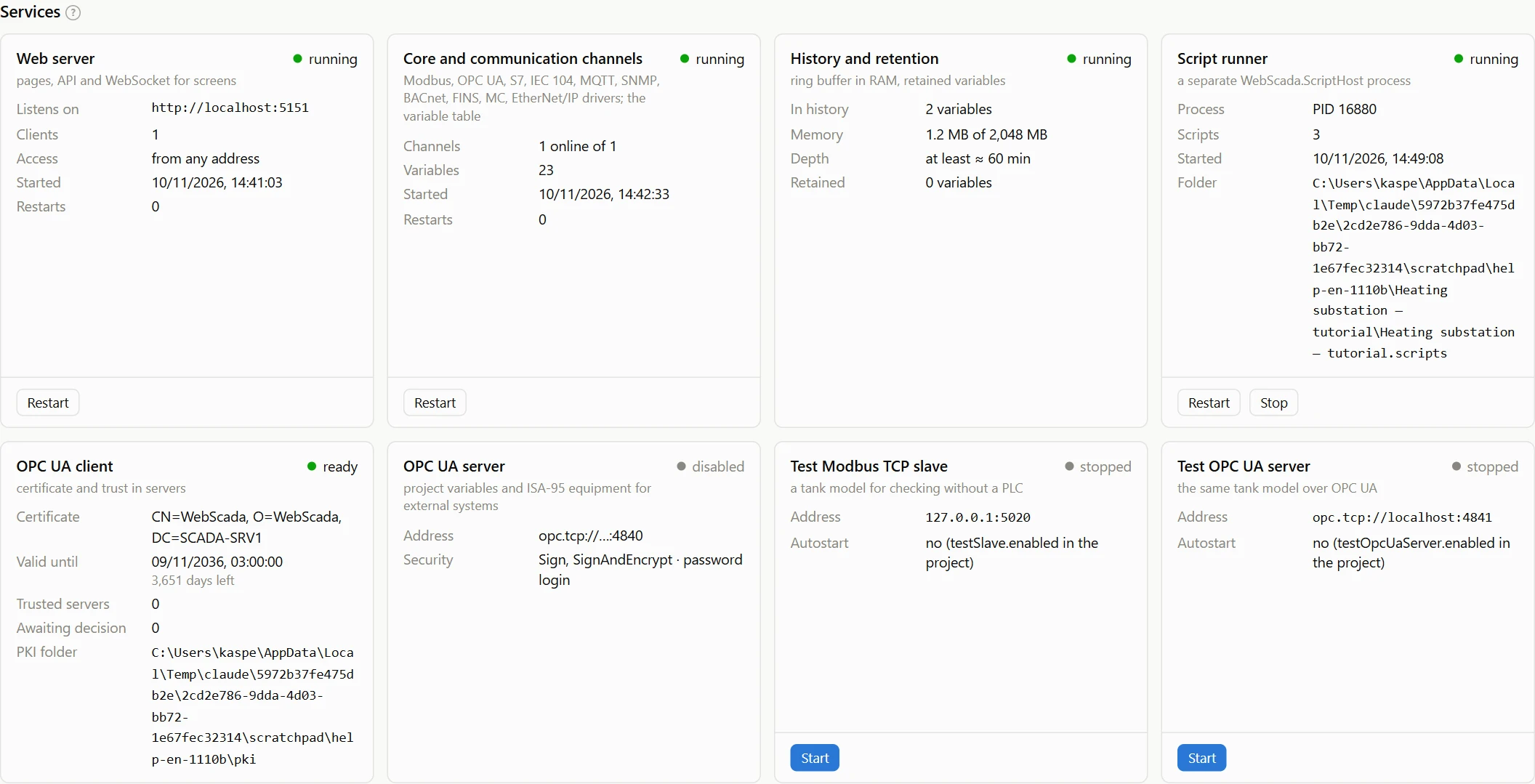
Server parts restart separately: restarting the web server does not stop channel polling, restarting the core does not stop the web server.
| Service | What it does |
|---|---|
| Web server | pages, API and WebSocket for screens: address, clients, access |
| Core and communication channels | protocol drivers and the variable table: channels online, number of variables |
| History and retention | the in-memory history ring buffer and retained values |
| Script runner | a separate WebScada.ScriptHost process: the project programs; “Stop” — turn all programs off |
| OPC UA client | the Flexible SCADA certificate and trust of OPC UA servers |
| OPC UA server | the own server for external systems (see below) |
| Test Modbus TCP slave | a tank model for checks without a PLC (127.0.0.1:5020): “Start” |
| Test OPC UA server | the same tank model over OPC UA (opc.tcp://localhost:4841) |
Roles and users
Password login is turned on here. While login is off everyone works without a password with every permission — convenient during commissioning, but not on a running site.
| Permission | What it gives |
|---|---|
| View | monitoring, windows, trends and value history |
| Control | writing values: buttons, input fields, the variable table (can be limited by variable masks) |
| Alarm acknowledgement | acknowledge alarms and reset latching ones |
| Alarm shelving | temporarily shelve alarms (with a time limit and a reason) and take them out of service |
| Project development | channels, variables, windows, library, scripts, version journal |
| Projects | creating, opening, importing, exporting and deleting projects |
| Administration | the admin panel: services, network, roles and users, audit log |
| Ready-made role | Permissions |
|---|---|
| Administrator | everything, including the admin panel and access |
| Control engineer | view, control, alarms, project development, projects |
| Operator | view, control, alarm acknowledgement and shelving |
| Observer | view only |
Password policy (IEC 62443): minimum length, letters and digits, expiry, lockout after failed attempts, session and idle time. The guest role — what is allowed without login. The audit log can be duplicated to a syslog server.

Network settings
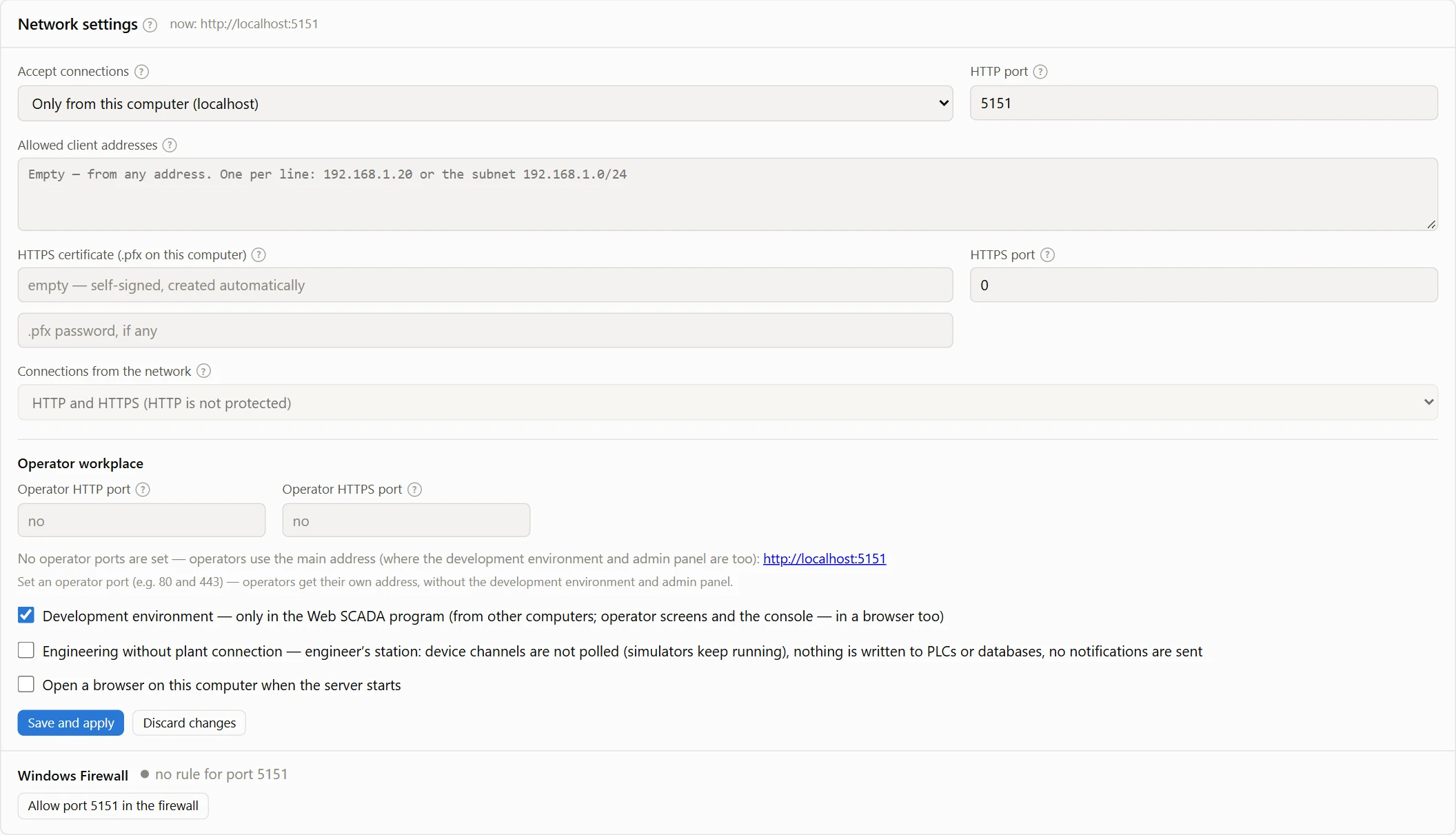
| Setting | Meaning |
|---|---|
| Accept connections | “Only from this computer (localhost)” or from the whole network — so that operators connect from other computers |
| HTTP port | default 5080; with “HTTPS only” — for this computer only (the program window on the server, the script executor): neither the IDE nor the operator screen opens through it from the network |
| Allowed client addresses | one per line: 192.168.1.20 or a subnet 192.168.1.0/24; empty — from any address |
| HTTPS certificate | a .pfx file on this computer and its password; empty — self-signed, created automatically |
| HTTPS port | 0 — HTTPS is off |
| Connections from the network | “HTTPS only” — the HTTP port is not open to the network at all, only this computer listens to it (the program window, the script executor, a browser on the server); “HTTPS, and HTTP is redirected” — the HTTP port is open but only sends to HTTPS; “HTTP and HTTPS” — HTTP is not protected |
| Operator HTTP port | the operator workplace over HTTP, e.g. 80 — an address without a port number: http://server; empty — none. Over HTTP, operator passwords and commands travel as plain text — only for a closed network of operator stations |
| Operator HTTPS port | the same over HTTPS, e.g. 443 — https://server; the certificate is the same as on the main port |
| Open the browser when the server starts | on this computer |
| Windows Firewall | whether there are rules for the ports open to the network (the main one and the operator ports); the “Allow the port in the firewall” button |
Save and apply restarts the web server with the new settings.
A mistake in the settings — the server restores the previous ones itself
You can change the port, the listening address or the HTTPS mode without fear of locking yourself out. When the new settings change the address the panel is open at, the server applies them on trial: the page moves to the new address by itself and confirms that it opens. If it does not open within 2 minutes (the port is closed by a firewall, taken by another program, or the address is wrong), the server restores the previous settings by itself and restarts the web server at the old address; the panel shows a countdown and, after the rollback, the reason.
- The port is taken by another program — the web server stays at the previous address and reports the error (the “Services” section → “Web server”).
- The settings file is damaged (edited by hand, a disk fault) — the server starts with the last settings it has already worked with and says so in the panel.
- The network address from the settings is not there yet (the cable is unplugged, the adapter comes up later) — the server starts on this computer (
localhost) and moves to the configured address by itself as soon as it appears. - The Flexible SCADA program window on a workstation recognises the same server on a new port by its certificate key and does not ask about trust again.
Operator workplace: its own port
Operator and developer access are separated by ports. Operator ports serve only sign-in and operator screens — windows, alarms, trends, reports, help. The IDE, the admin panel and the console are not there; project editing, publishing and administration do not go through — even for developers and administrators: they use the server's main address (e.g. https://server:5443). So operator stations get only the operator port (firewall, their own subnet), and the IDE and admin panel stay for engineers.
Below the fields, the line “Operators connect at:” lists ready addresses by the computer's network addresses: give these to operators (shortcut, bookmark, kiosk). Without operator ports it shows the main address: the operator screen opens there too. The server service adds firewall rules for the operator ports by itself. On Linux — sudo webscada operator 80 443 (0 — none, off — remove).
With network access, setup turns HTTPS on by itself: port 5443, “HTTPS only” (only it is open in the firewall). The help (F1) goes through the same address and channel — /help/ of this server; no separate help port is open to the network. After switching to “HTTPS only”, http://…:5080 bookmarks on other computers stop opening: open https://…:5443; other servers and the Flexible SCADA program window on workstations switch to HTTPS by themselves. A self-signed certificate shows its key: the Flexible SCADA program window on a workstation and other servers trust the certificate by this key and show it on the first connection — compare them. If the server is open to the network without HTTPS, the panel warns: “The channel is not secure”.
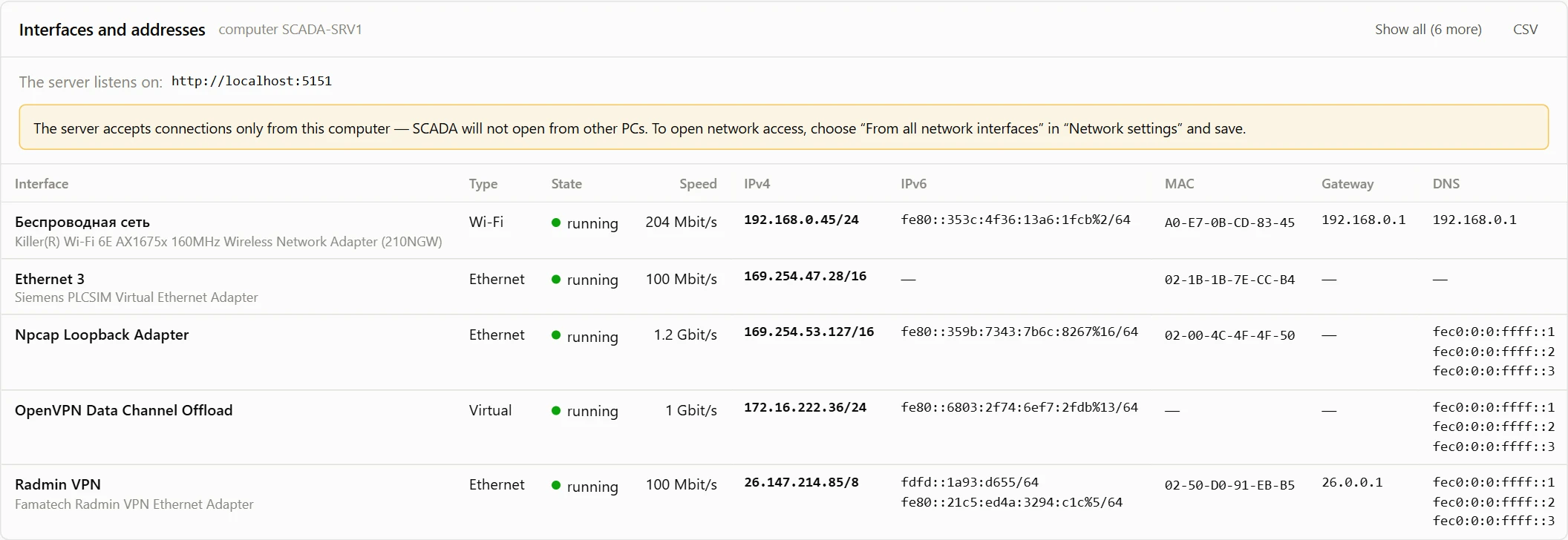
Interfaces and addresses
The network interfaces of the computer and the addresses clients connect to the server by.
Connected clients
Who is connected now: address, user, page, since when.

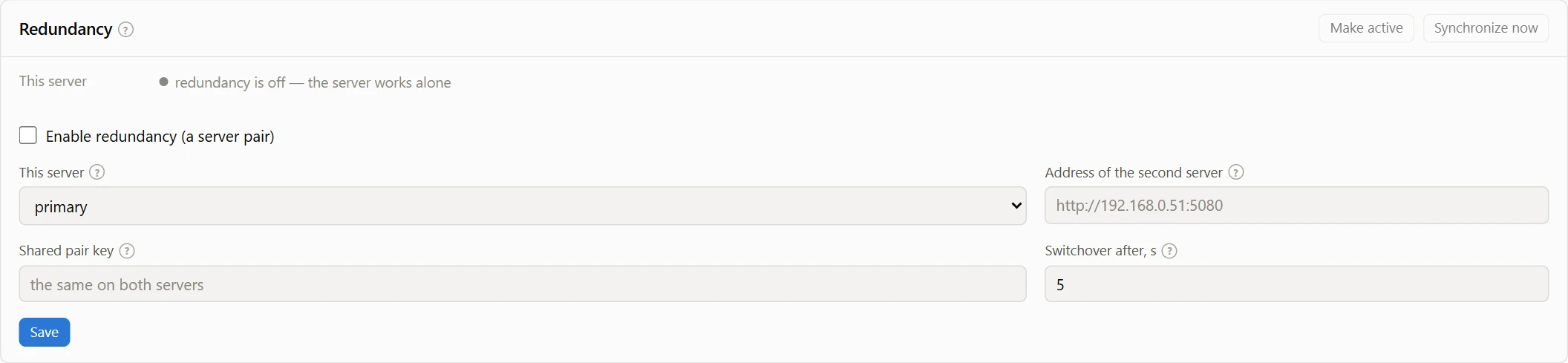
Redundancy
Hot standby: a pair of servers — primary and standby. The standby watches the primary and takes over on failure; when the primary returns, the archive is backfilled from the pair for the downtime.
| Setting | Meaning |
|---|---|
| Enable redundancy (a server pair) | off — the server works alone |
| This server | primary or standby |
| Second server address | for example http://192.168.0.51:5080; if the second one accepts only HTTPS from the network, the address becomes HTTPS by itself before the pair key is sent |
| Channel | whether the link to the second server is secure and its certificate key; if the second server's certificate changes — no link, the “Trust the new certificate…” button |
| Shared pair key | the same on both servers — a foreign server cannot join the pair |
| Switch over after, s | how many seconds without an answer from the primary before the standby becomes active (default 5) |
| Make active | switch over manually (commissioning, maintenance) |
| Synchronize now | reconcile the pair right away without waiting for the next exchange |
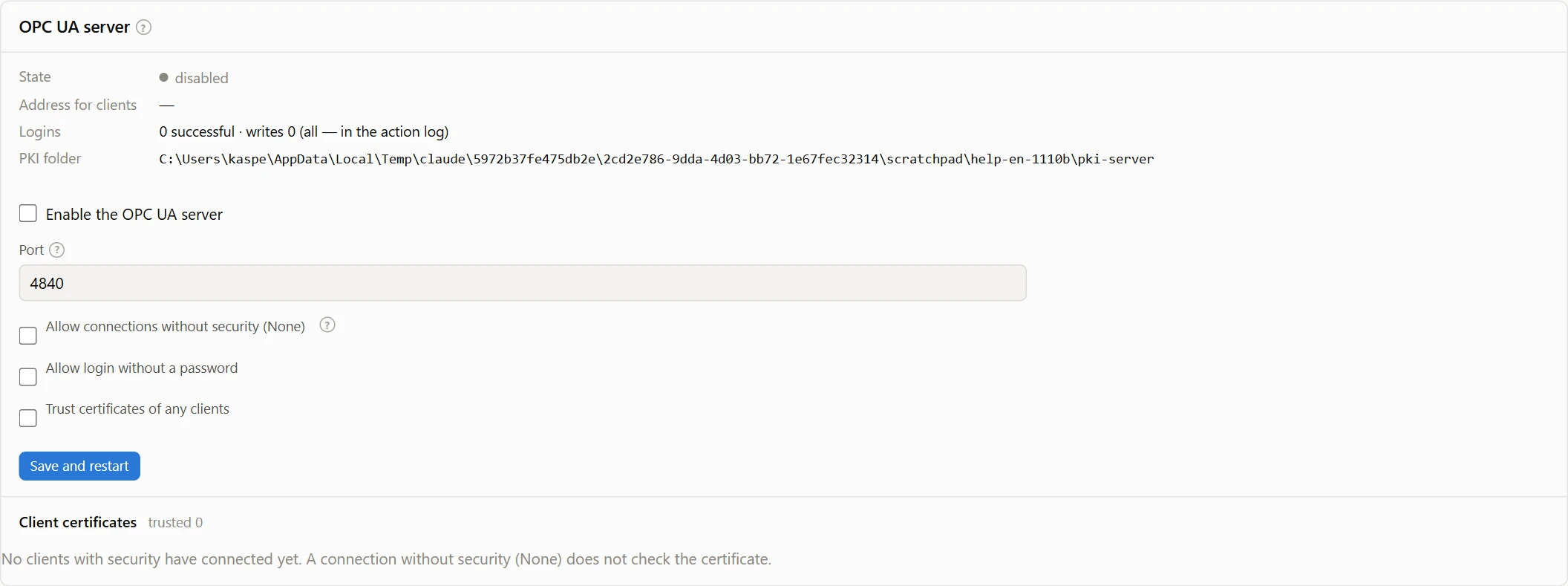
OPC UA server
The own Flexible SCADA OPC UA server — for upper-level systems (MES, ERP, another SCADA): project variables and equipment by the ISA-95 hierarchy (folders and objects) in the address space.
| Setting | Meaning |
|---|---|
| Enable the OPC UA server | off — the port is not open |
| Port | default 4840 |
| Allow connections without security (None) | for debugging; on a site — only Sign / SignAndEncrypt |
| Allow login without a password | anonymous login; off — Flexible SCADA users and passwords |
| Trust certificates of any clients | off — every client has to be added to the trusted ones (the “Client certificates” table) |
The state shows the address for clients, the number of logins and the PKI folder (certificates). Save and restart applies the settings.
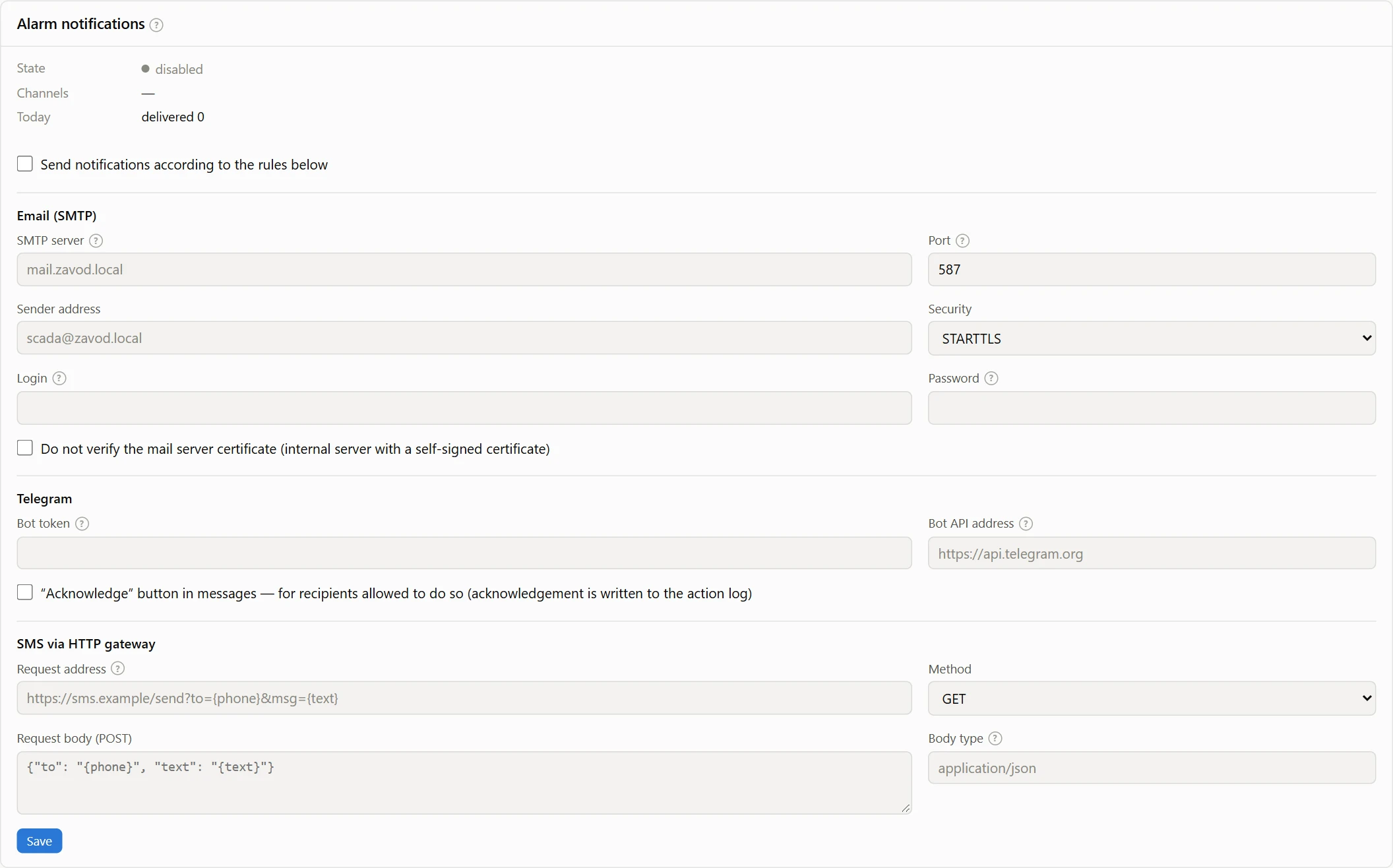
Alarm notifications
Sending alarms by e-mail, Telegram and SMS. The Send notifications according to the rules below checkbox turns it on as a whole.
| Channel | Settings |
|---|---|
| E-mail (SMTP) | SMTP server, port (587), sender address, security (STARTTLS, SSL, none), login and password; “Do not check the certificate” — for an internal server with a self-signed one |
| Telegram | the bot token, the Bot API address (your own if api.telegram.org is unreachable); an “Acknowledge” button in messages — for recipients allowed to |
| SMS through an HTTP gateway | the request address with {phone} and {text}, the GET or POST method, the body and body type for POST |
Notification recipients
People and groups: e-mail, Telegram, phone, duty shifts (“Mon–Fri 08:00–17:00”).

Notification rules
Who gets what: priority (critical only, high and above…), areas, variable masks, delay, escalation — if nobody acknowledged in N minutes, notify the next one.

Notification log
What, to whom, when and through which channel was sent, and whether it was delivered.

Communication channels
The state of the running project channels: connection, cycle time, errors, the last error.

Scripts
The project programs (the block is visible when there are any): the state of each, the time of the last call and errors — see Programs.

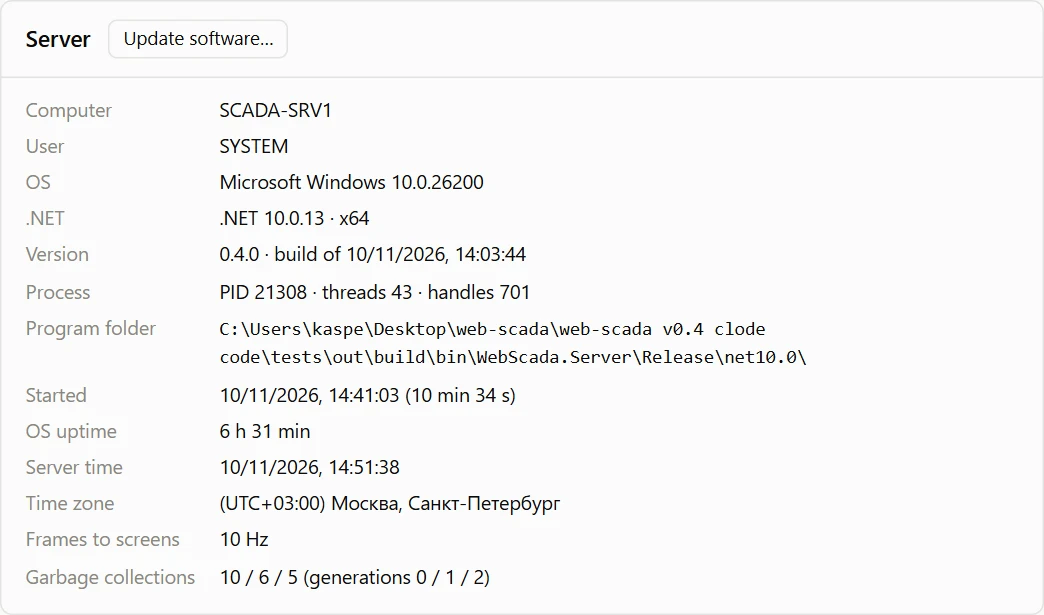
Server
Version, computer, data folder, start time, server restart.
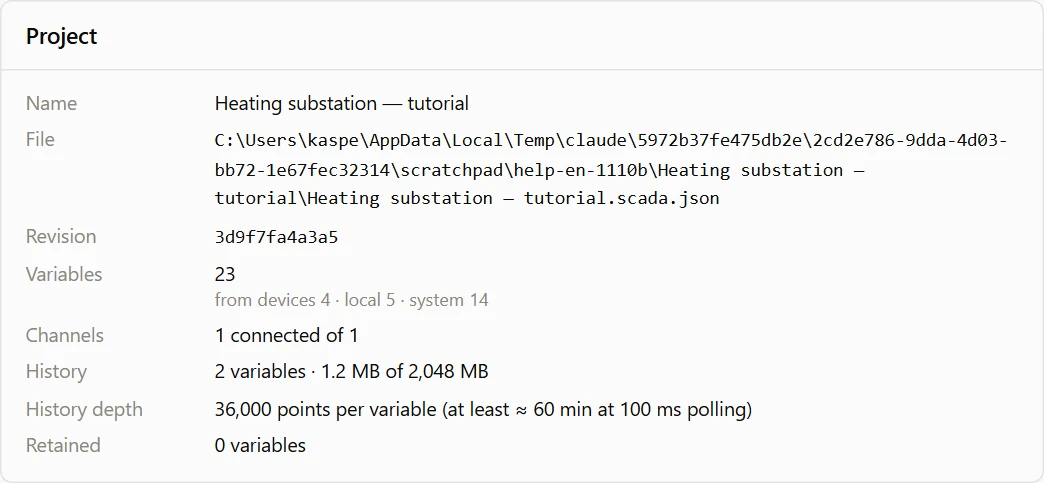
Project
The open project: file, revision, number of channels, variables and windows.
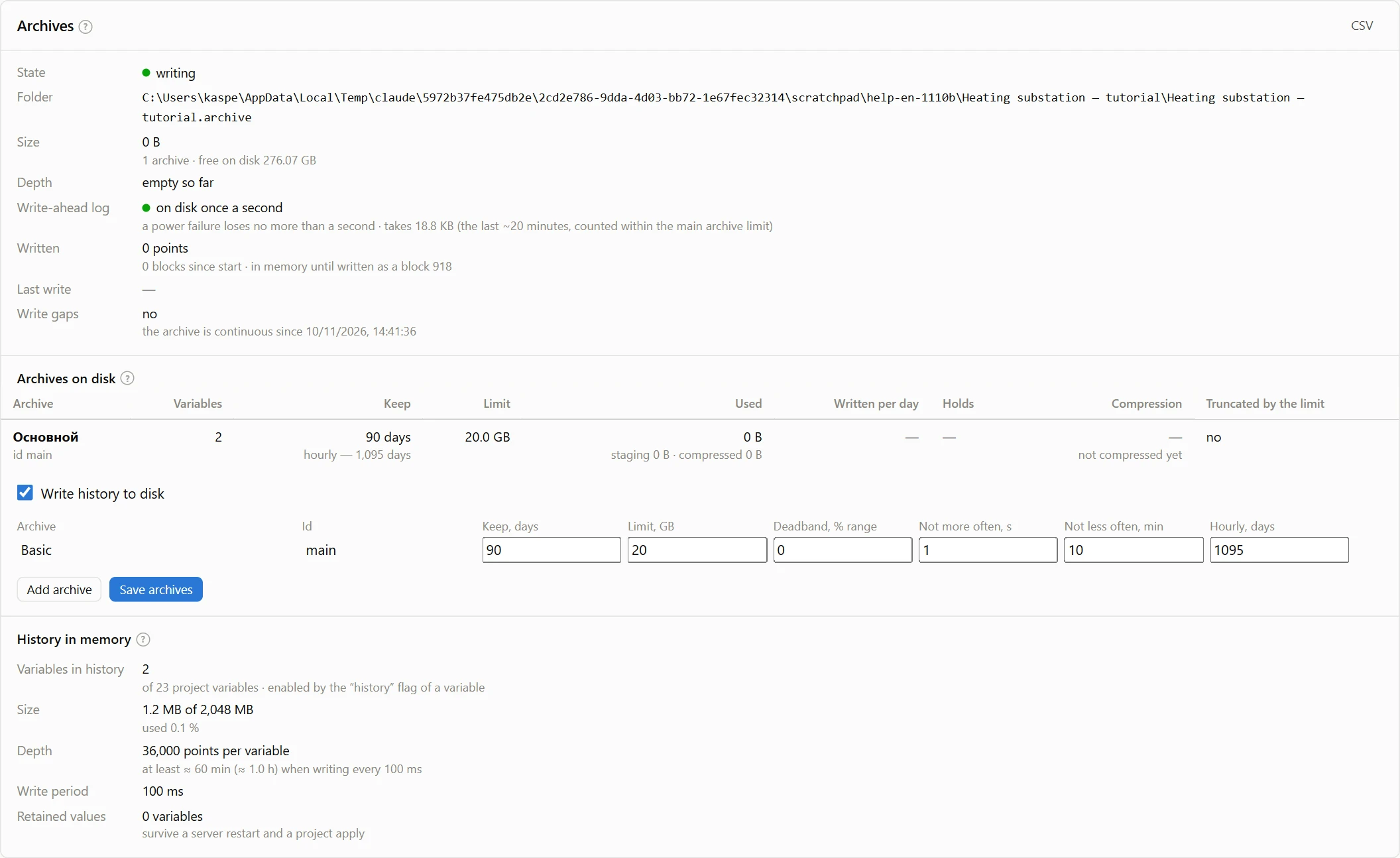
Archives
The value archive: recording state, volume, depth, archive groups and their settings. Details — Value archive.
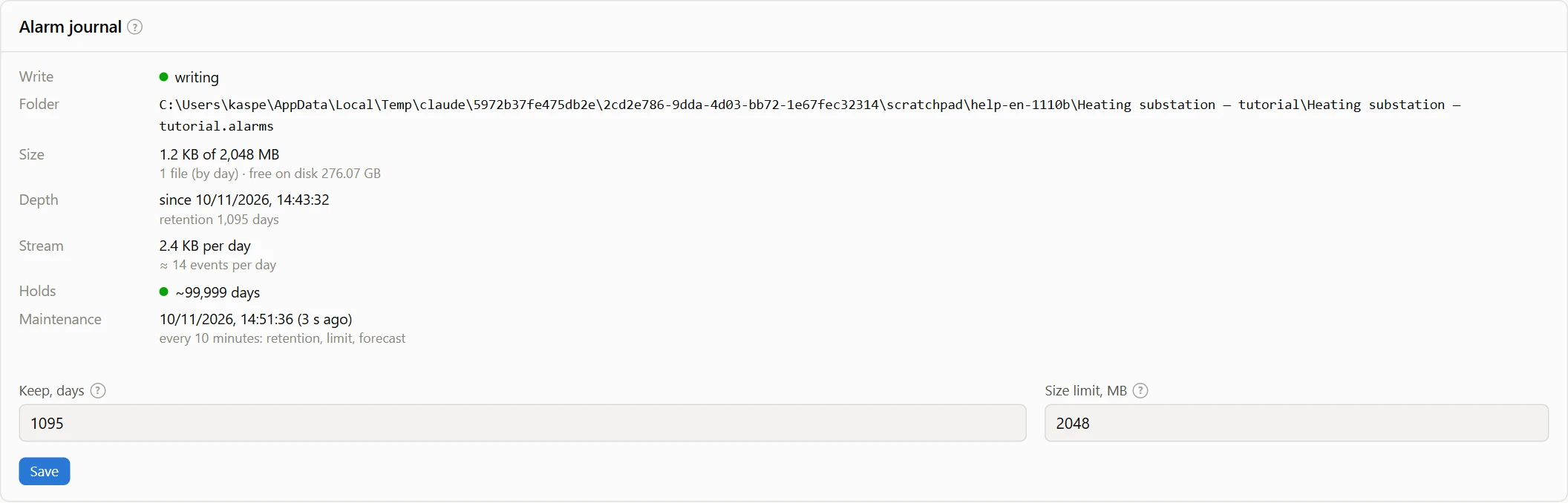
Alarm journal
Alarm journal storage: how many events, depth, retention.
Backups
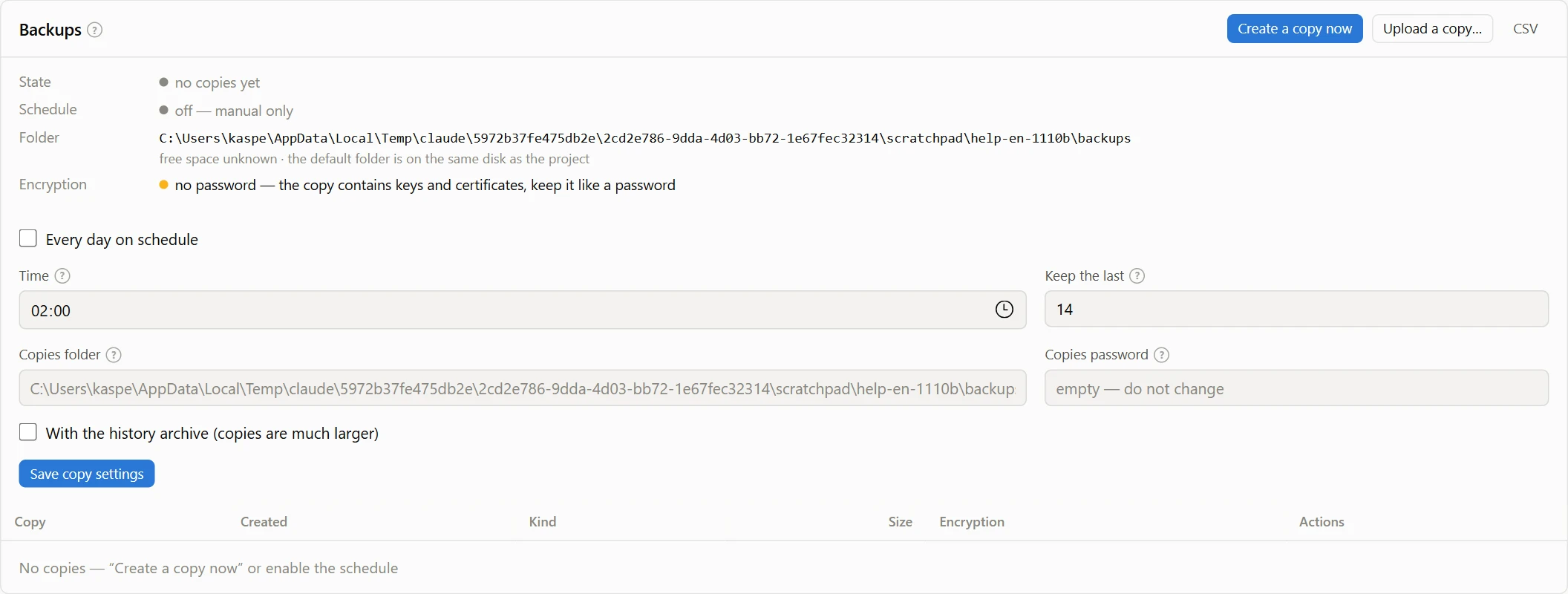
A copy is the project, its versions, the alarm journal, retained values, keys and certificates in one file; optionally — with the history archive.
| Setting | Meaning |
|---|---|
| Every day on schedule | off — only manually, with the “Create a copy now” button |
| Time | when to make the copy (default 02:00) |
| Keep the last | how many copies to keep (default 14); older ones are deleted |
| Copy folder | by default — on the same disk as the project; better — another disk or a network folder |
| Copy password | encrypts the copy; without a password the copy holds keys and certificates — keep it like a password |
| With the history archive | much larger copies, but trends are restored too |
Upload a copy… — restore the server from a copy file (for example, on a new computer). The copy table shows when a copy was made, its kind, size, encryption and the actions on it.
Server time
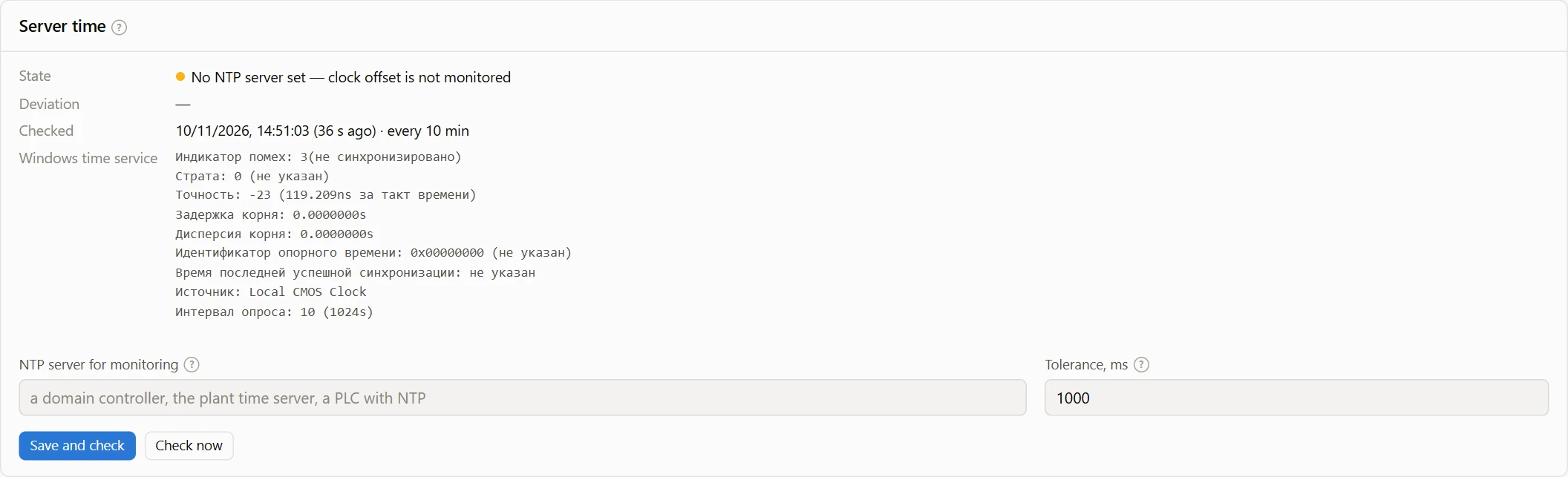
Clock control: archive and log time stamps are written in UTC and shown in local time on screens; diverging clocks of the server and the PLCs confuse events.
| Setting | Meaning |
|---|---|
| NTP server to check against | a domain controller, a plant time server or a PLC with NTP: the server clock is compared with it every 10 minutes |
| Tolerance, ms | a larger difference — a warning in the state and in the “Server overview” (default 1000) |
| Windows Time service | the state of the Windows time synchronization service |
Interface language
The default language for all users of the server; everyone can choose their own with the globe button.

Audit log
Who did what: logins, value writes, acknowledgement, project changes, publishing — with the address and the result.

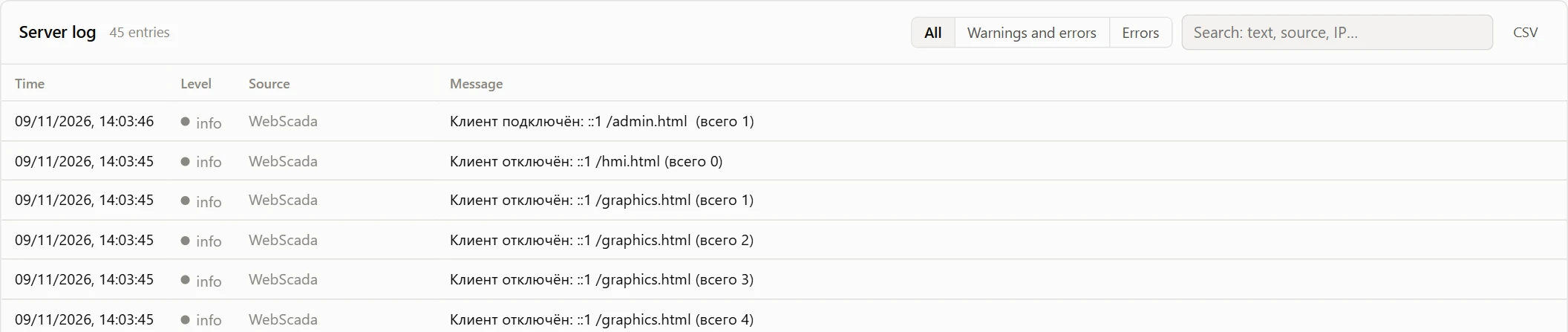
Server log
Server messages: info, warnings, errors, faults — for diagnostics.