Publishing
Operators see not the project draft but the published version of the windows. So an unfinished change never reaches the dispatcher screen, and any earlier version can be brought back in seconds.
 123
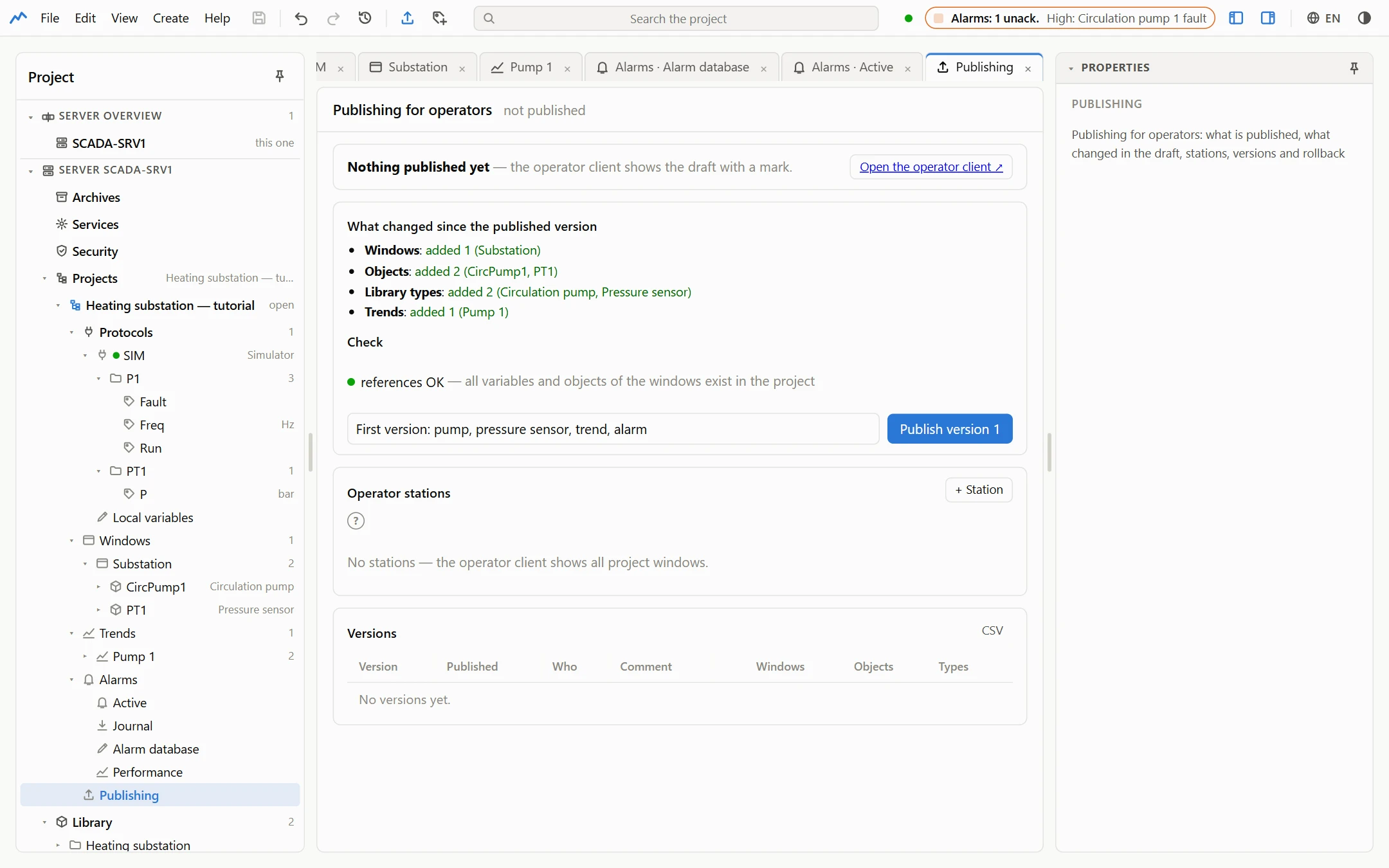
What is published
A version is a snapshot of windows, objects, types, trends, folders and stations at the moment of publishing. Channels, variables, alarms and programs always work by the last saved project — they need no publishing.
| Block | What it shows |
|---|---|
| State | the current published version or “Nothing published yet” — then the operator client shows the draft with a note; the “Open the operator client” link |
| What changed since the published version | windows, objects, types, structures, folders, trends, stations: added, changed, removed — with names |
| Check | window links: whether all variables and objects exist in the project; errors and warnings with links to the place |
| Comment and “Publish version N” | what changed — operators and the journal will see it |
| Operator stations | workstations: what each one sees |
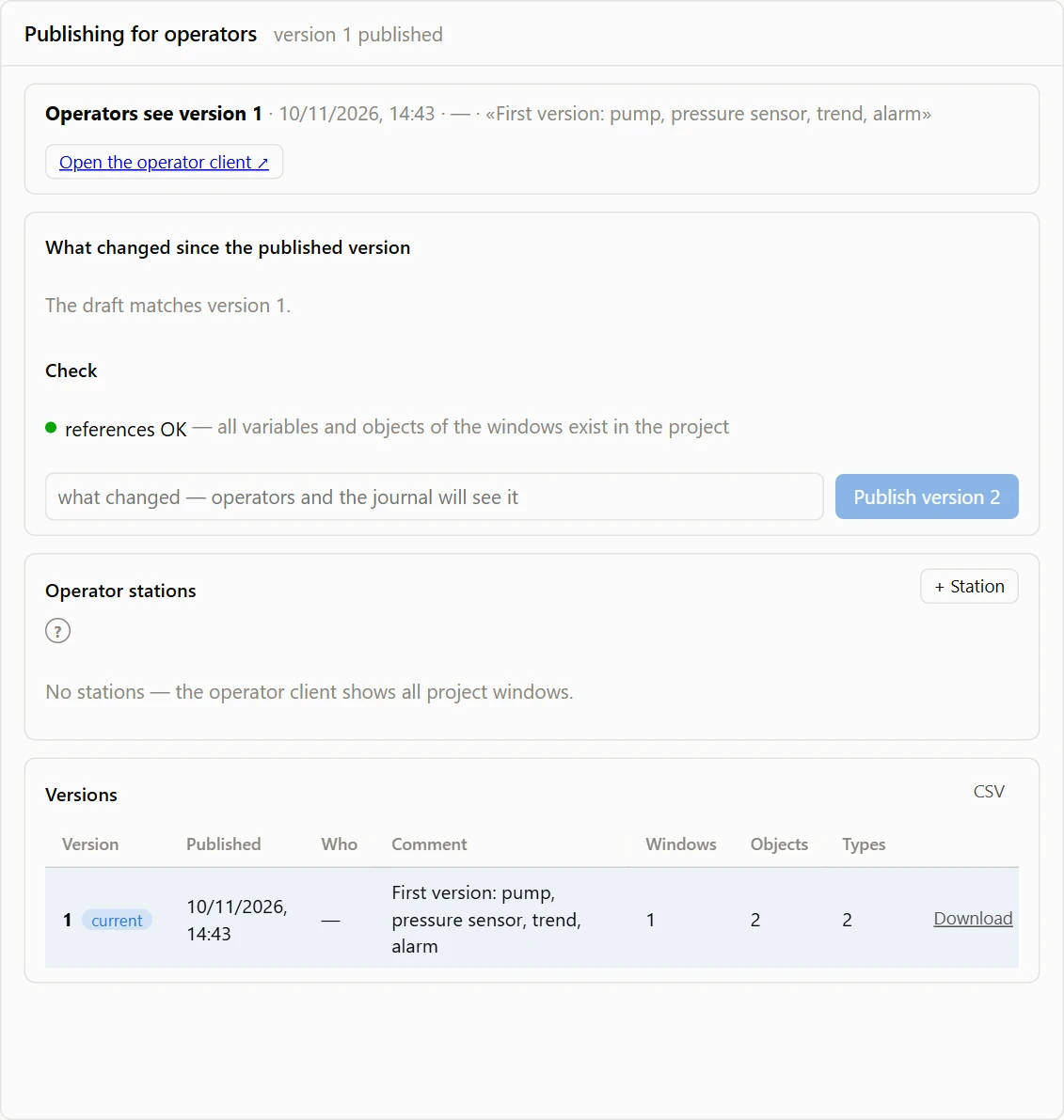
| Versions | the publishing history: who, when, comment, how many windows and objects; “Make current” — a rollback |
Publish
- Press Publish in the menu bar — the publishing tab opens.
- Look at “What changed” and the “Check”. Errors can be published (with a question), but it is better to fix them.
- Write a comment (“Pump 2 added, limits fixed”) and press Publish version N.
Open operator screens refresh by themselves within a few seconds.
Rollback
Every earlier version in the “Versions” table has Make current: operators see it within a few seconds, and the project draft does not change.
Operator stations
A station is a workstation or a group of them: which windows the operator sees and which one to start from. The operator has no window list — buttons, links and menus in the windows themselves do the navigation. + Station:
| Setting | Meaning |
|---|---|
| Name | how the station is chosen in the operator client |
| Start window | what the operator sees right at the server address (after login, if it is on); ⌂ in the operator bar leads to it |
| Folders | which project folders the station sees: a boiler house dispatcher — only “Boiler house”; empty — all |
Without stations the operator client shows all project windows, starting with the window of the top ISA-101 level.
Moving the whole project to another server (a commissioning laptop → the site server) is a different publishing: File → Publish to a server…, see Several servers.