Development environment
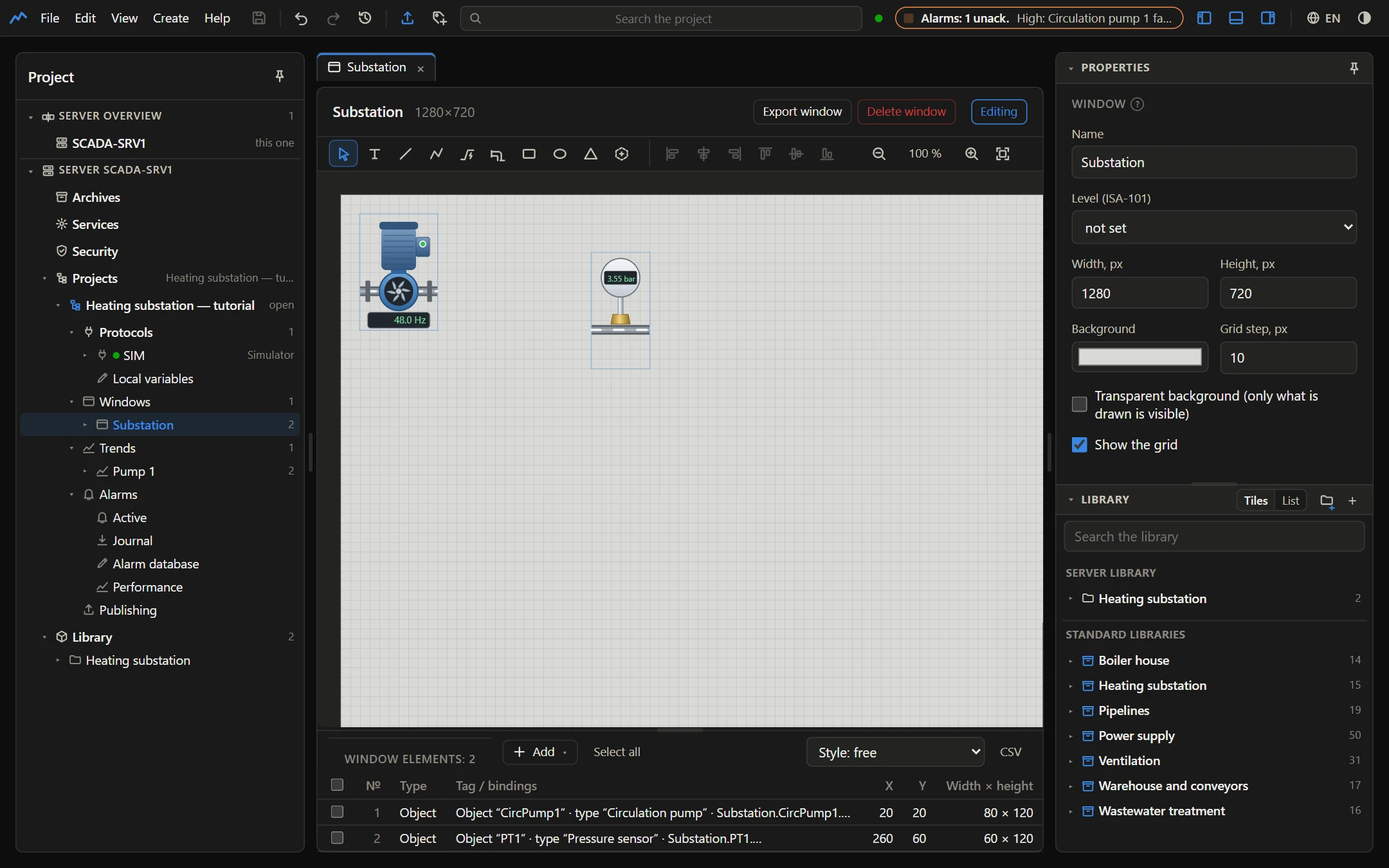
Open the project in the Flexible SCADA application. The project tree is on the left, work tabs are in the centre and the properties of the selected item are on the right. To add an item, right-click its parent in the tree or open the Create menu.
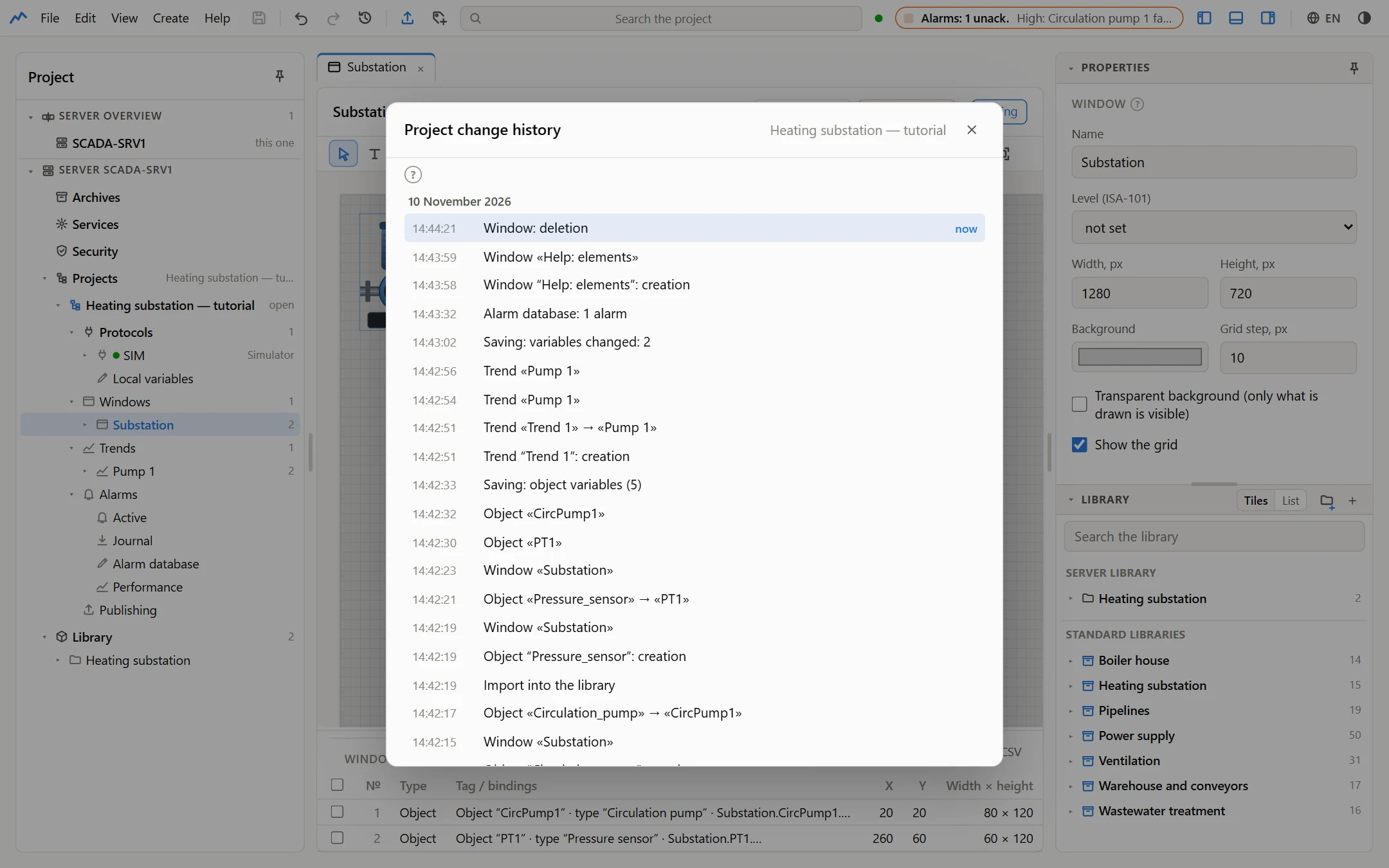
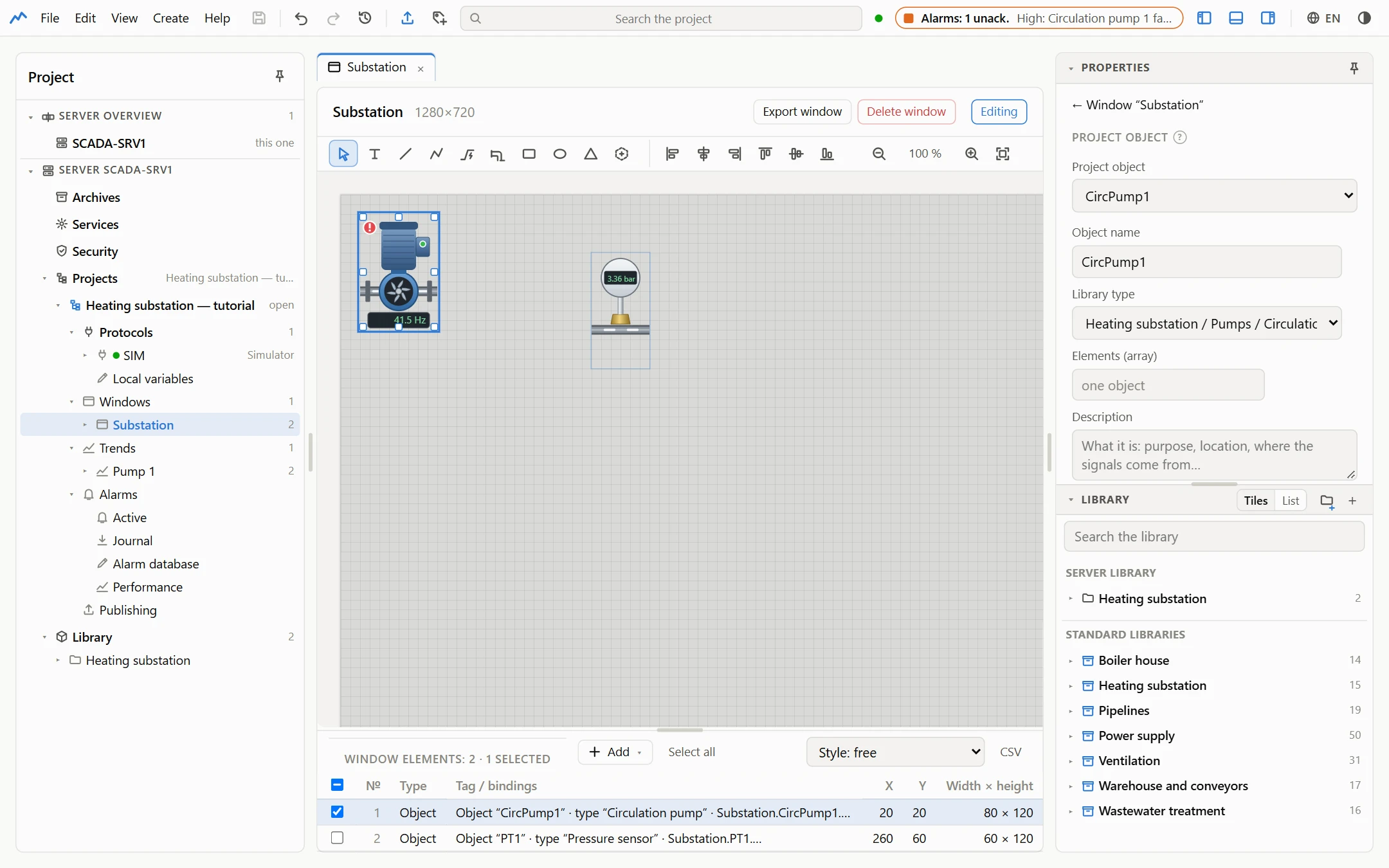 12345678910
- Menu bar: File, Edit, View, Create, Help.
- Frequent actions as icons: Save, Undo, Restore, History, Publish, Local variable.
- Project search (Ctrl+F): windows, objects, types, trends, channels, programs, folders, variables.
- Server connection and the alarm bar — a click opens the active alarms.
- Layout: project tree, window element list, Properties column.
- Interface language and theme (light, dark, as in the system).
- The project tree.
- Tabs of what is open: windows, channels, trends, objects, types, programs, alarms.
- The work area of the open tab — here, the window editor.
- The Properties column of the selection and the type library.
Menu bar
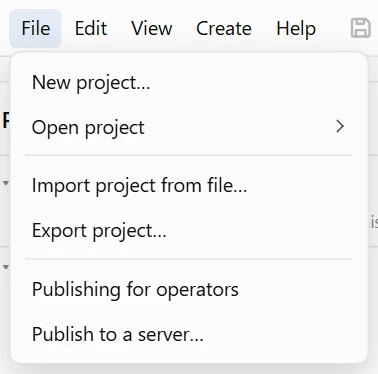
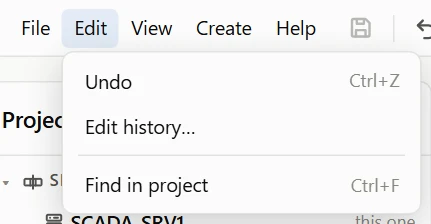
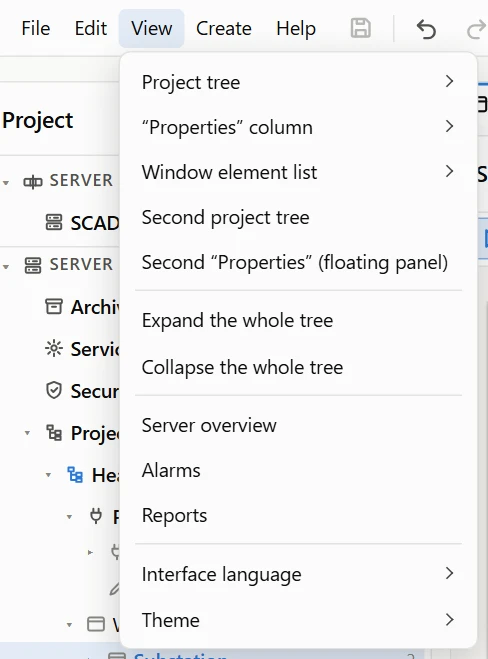
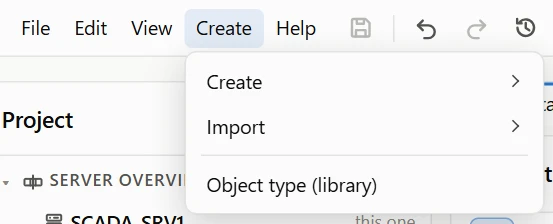
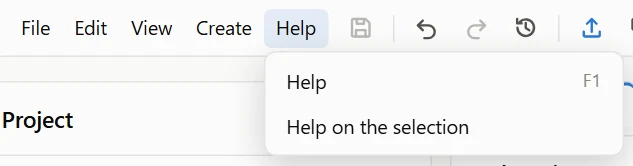
| Menu | Item | What it does |
|---|---|---|
| File | New project… | creates an empty project on the server and opens it |
| Open project | switches the server to another project (the running project stops) | |
| Save Ctrl+S | applies the draft of channels, variables and bindings to the running server | |
| Import project from file… | loads a .wscada or .json project | |
| Export project… | downloads the project as a file — optionally with the archive, journal and retained values | |
| Copy everything to another project | moves the contents of the open project into another project of the server | |
| Publishing for operators | opens the publishing tab — versions for the operator client | |
| Publish to a server… | moves the project to another Flexible SCADA server (see Several servers) | |
| Edit | Undo / Restore | a step back and forward along the project version journal |
| Edit history… | the change journal: return the project to any change, including one from another day | |
| Find in project Ctrl+F | moves to the search field | |
| View | Project tree ▸ | pinned (always visible), slides out on hover over the strip at the left edge, or hidden completely (Ctrl+B) |
| “Properties” column ▸ | the same for the right column (Ctrl+Alt+B) | |
| Window element list ▸ | the same for the element table under the window canvas (Ctrl+J) | |
| Second project tree | a floating panel with its own tree — see second tree | |
| Second “Properties” | a floating properties panel pinned to the selection — see second Properties | |
| Expand / collapse the whole tree | opens or closes every branch | |
| Server overview, Alarms, Reports | opens these sections as tabs | |
| Interface language, Theme | Russian, English, Turkish, Spanish, French, Portuguese, Arabic; light, dark or as in the system | |
| Create | … | a channel, folder, object, window, program, trend, alarm, alarm journal, report, local variable, library type |
| Help | Help F1 | this help; “on the selection” — straight to the topic of what is selected |
Menu bar buttons
| Button | What it does |
|---|---|
| Save | applies the draft (changes to channels, variables, object bindings). Disabled while there are no changes; next to it, “Not saved: …” says what is waiting |
| Undo, Restore | along the version journal; changes to server library types are undone too |
| History | the project version journal with search and a return to any change |
| Publish | the publishing tab: what changed, the check, versions, stations |
| Local variable | a new variable without a device of any type (BOOL, INT, DINT, REAL, STRING…) |
 12
Project search
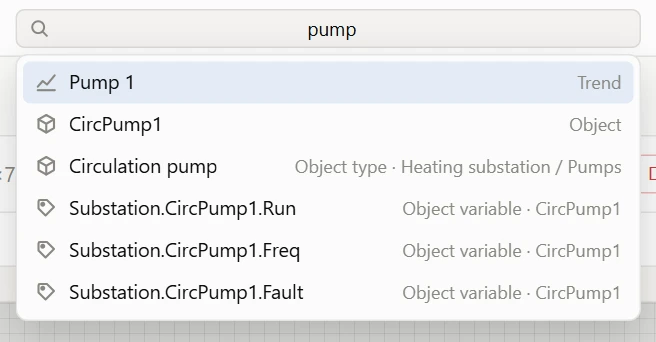
The field in the middle of the menu bar searches the names of everything in the project: windows, objects, types, trends, channels, programs, folders, variables. Arrows move through the results, Enter opens, Esc closes. Ctrl+F anywhere in the environment puts the cursor into the search.
Project tree
The tree shows everything on the server and in the open project:
| Branch | What is inside |
|---|---|
| Server overview | this and other Flexible SCADA servers: connection, projects, alarms, publishing from one to another |
| Server … | the server admin panel; inside — Archives, Services, Security |
| Projects | the server projects; the open one is marked “open” |
| Protocols | channels of the open project and their variables by name branches; “Local variables” |
| Folders, Windows, Objects | the project contents: folders nest inside each other and hold windows, objects, trends, programs, reports, alarms |
| Trends, Alarms, Publishing, Reports | project sections |
| Library | server object types by folder; the standard libraries are in the right column |
Mouse and keyboard in the tree
| Action | Result |
|---|---|
| Click | selects the row; its properties are in the Properties column; channels, trends and programs open as a tab |
| Double-click | opens: a window on the canvas, an object — its main window, a channel — the channel window |
| Arrow ▸ or → ← | expands and collapses a branch; a window shows its elements, an object — its variables, windows, nodes |
| Ctrl+click, Shift+click | select several; Properties shows what is common (different values — as an empty field) |
| Right-click | the row menu: create inside, rename, duplicate, delete, import, export, “Help” |
| F2 | rename |
| Delete | delete the selection (with a question) |
| Drag and drop | windows, objects, trends, programs — between folders; a library type — onto a window; a variable — onto a trend, a binding field or a window; a project — onto another server |
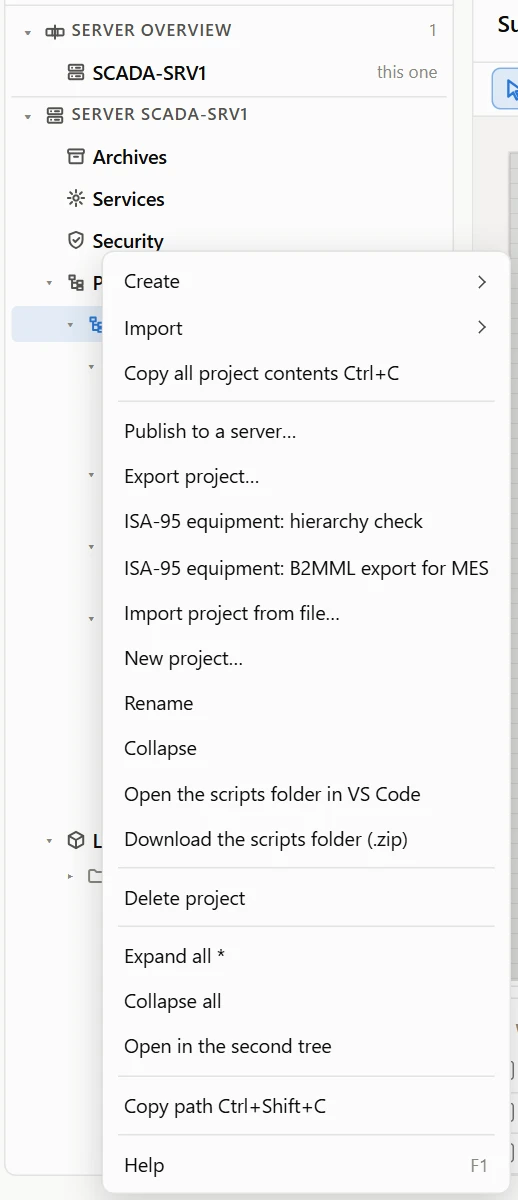
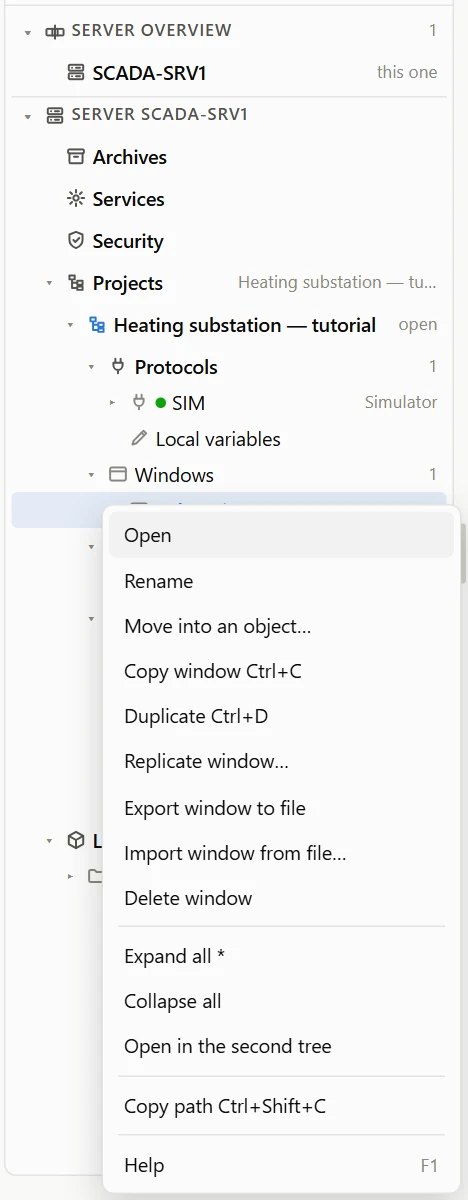
Replicate window… makes N copies of a window with their own objects and rebinding: a part of a variable name, for example AHU1, becomes AHU{n} in each copy, where n is the copy number. One air handling unit window turns into windows for all ten.
The tree shows no hover tips, so they never get in the way: what a row is and its details are in the Properties column after a click. Its description in the help — right-click → Help or F1.
Tabs
Everything you open — a window, channel, trend, object, type, program, alarms, reports, publishing — opens as a tab above the work area. Click to switch, “×” to close, Close all on the right. The IDE restores the tabs when you reopen the project.
Properties column
The right column always shows the properties of the last selection — in the tree or on the window canvas. Everything is edited here: name, description, type, bindings, sizes, colours. A field change applies immediately (for channels and variables — to the draft until Save).
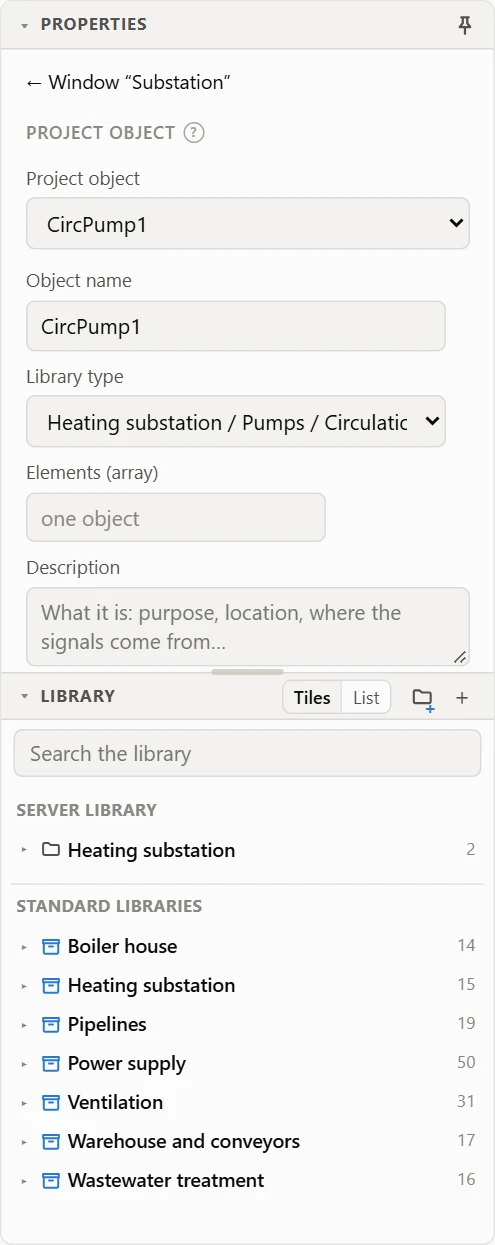
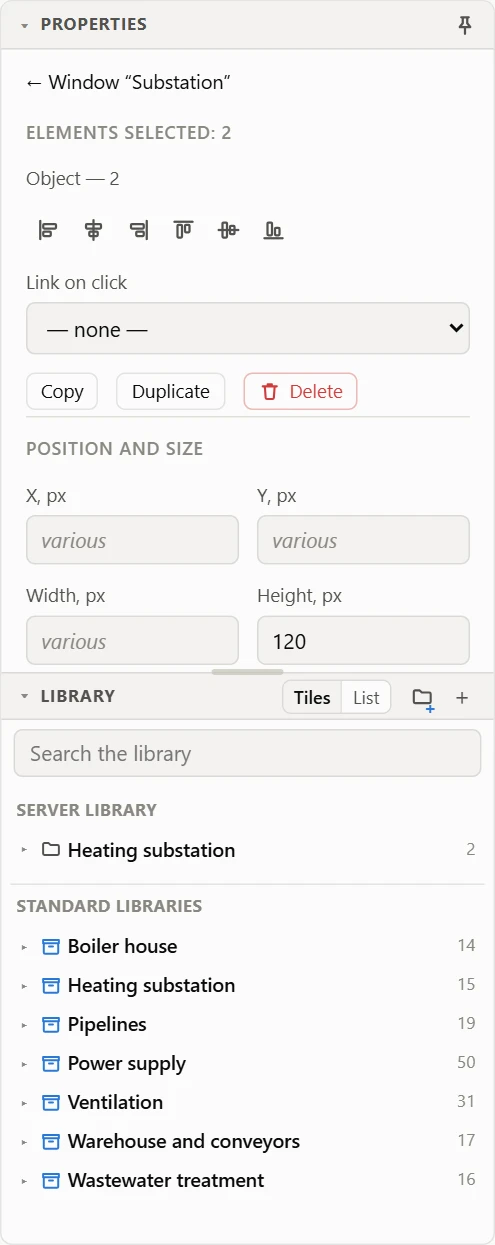
- Several selected of one kind — fields with the same value show it; different values show an empty “different” field. Type a value and it is set for all.
- The “← Window …” link at the top returns to the properties of the window the element is selected in.
- Library — the lower part of the column: server types and the standard libraries as tiles or a list, with search. Drag the divider between the parts.
Layout and theme
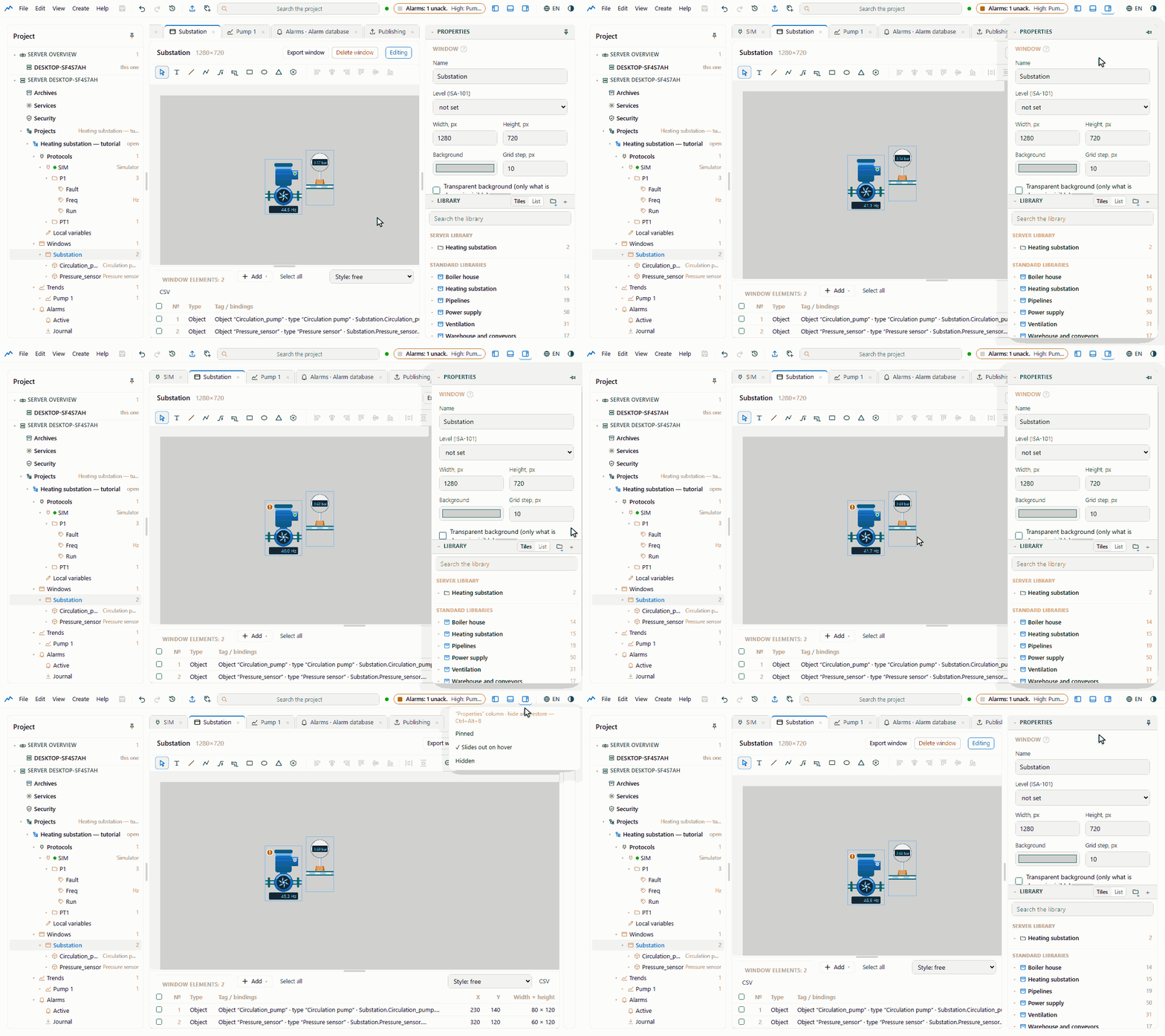
Three buttons on the right of the menu bar stand for the project tree, the window element list under the canvas and the Properties column. Click a button to choose how this work area is shown:
| Mode | What it looks like |
|---|---|
| Pinned | the area is always in its place; its width (height) changes by dragging the divider |
| Slides out on hover | a narrow strip at the edge replaces the area (“Project”, “Properties”, “Window elements”); hover it and the area slides out over the work area, move away and it hides. It stays while you type in its field or a menu or dialog is open |
| Hidden | the area is gone completely and the work area takes the whole width; bring it back with the same button, from View or with the key |
Keys as in VS Code: Ctrl+B hides or restores the tree, Ctrl+Alt+B — the Properties column, Ctrl+J — the window element list. The pin button in the tree and Properties headers switches between “pinned” and “slides out”. The modes are remembered. The globe button is the interface language, the half-circle — the theme.
 GIF
Second project tree
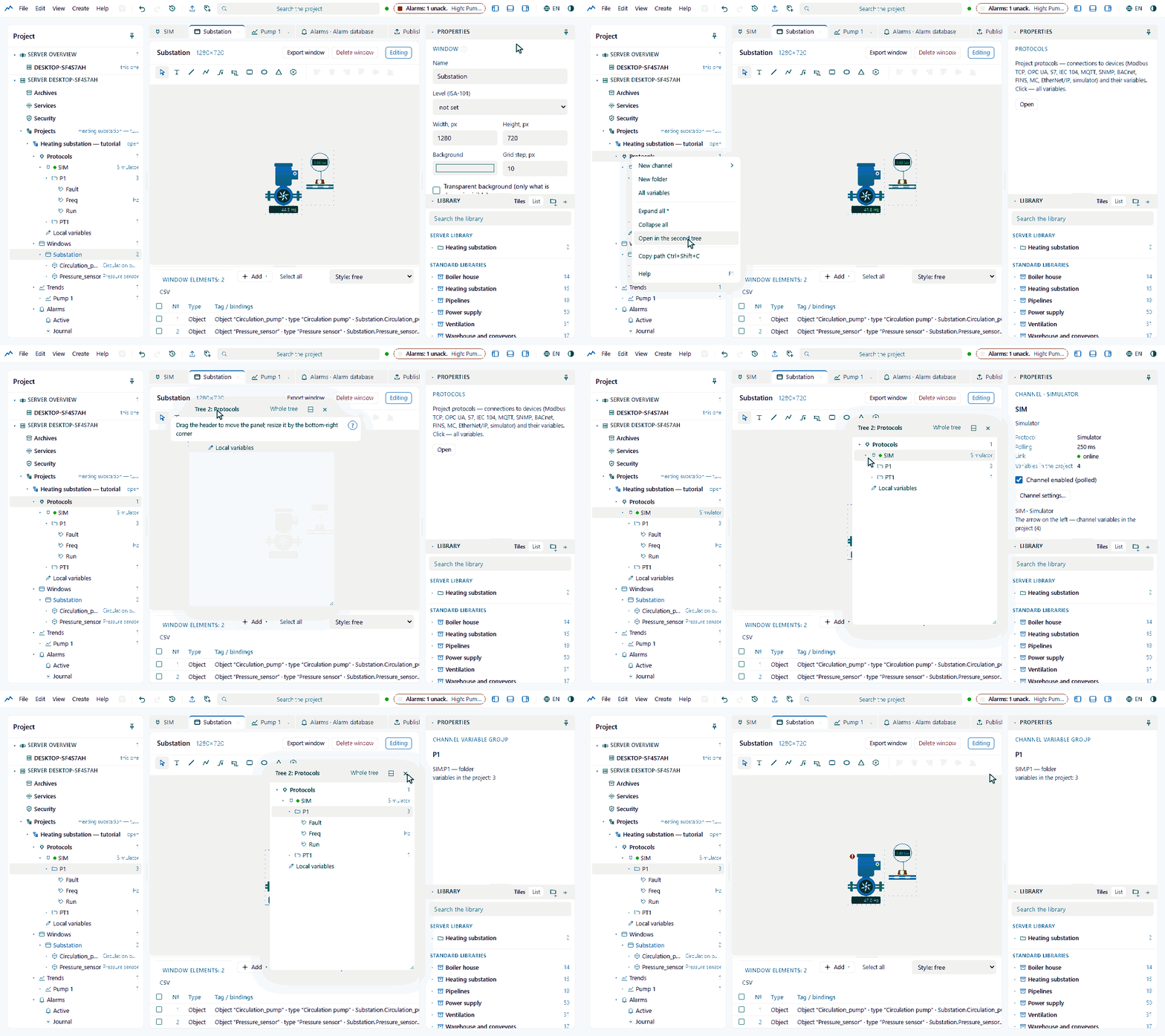
The tree can be opened a second time as a floating panel: for example, windows in the main tree and channel variables in the second one, so you drag variables onto bindings without scrolling one tree back and forth. Right-click any row with children (a folder, object, channel, “Protocols”, “Library”) → Open in the second tree — the second tree shows this branch; View → Second project tree — the whole tree.
- The second tree has its own expanded branches and scrolling; the selection is shared — select a row in the second tree and its properties are in Properties.
- Everything works as in the main tree: click, double-click, keys, F2, right-click, drag and drop — onto the window canvas, onto a trend, into the main tree and back.
- Right-click in the second tree → Show in the main tree expands the path and selects the row in the main tree.
- Move the panel by its header, resize it by the bottom-right corner; Whole tree shows everything instead of a branch, ⊟ collapses all. An open second tree is remembered after a reload.
 GIF
Second Properties
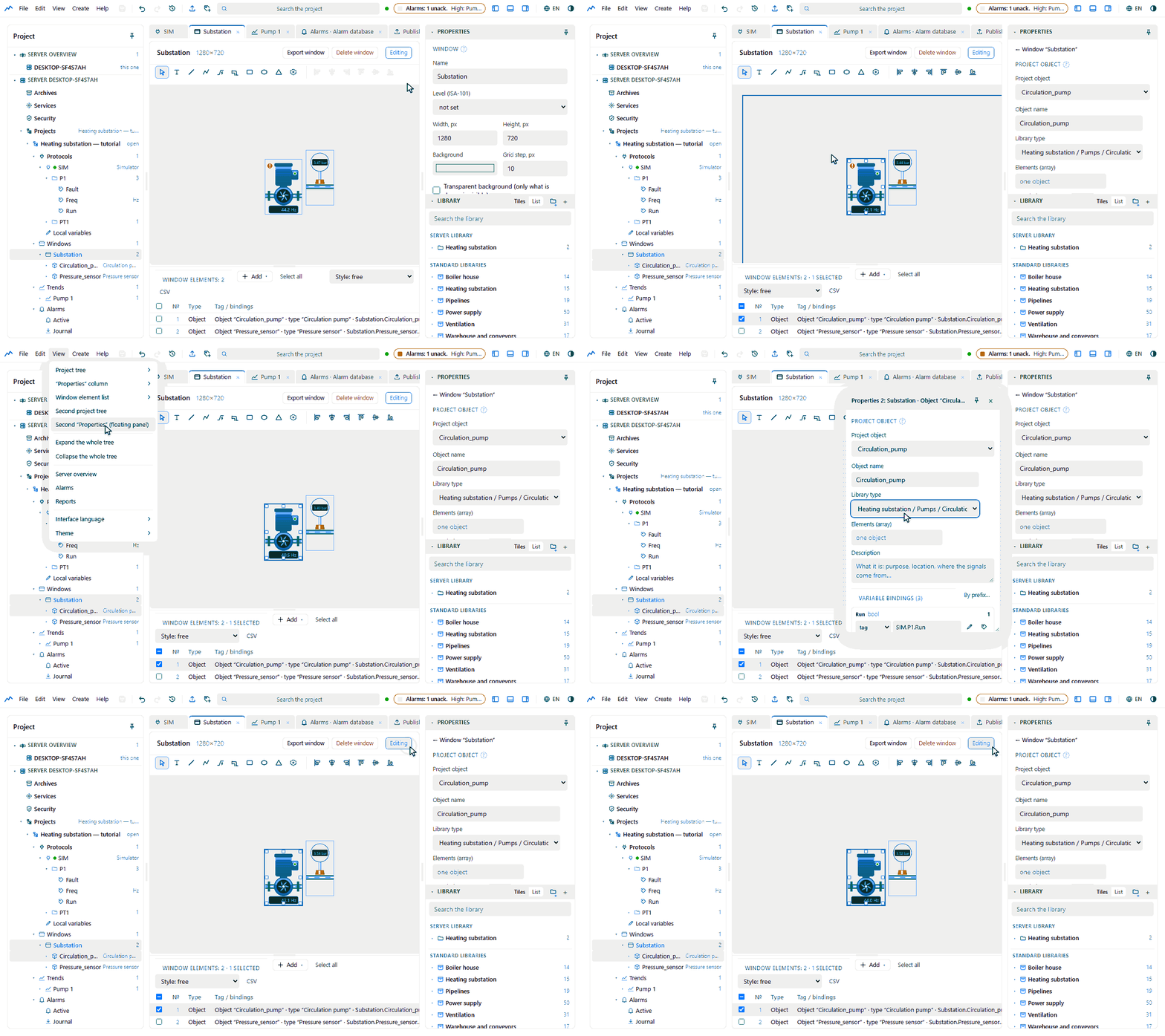
View → Second “Properties” opens a floating properties panel pinned to the current selection: select something else and the main Properties show it, while the second panel keeps the previous one. Handy for comparing two objects or editing the pump while the sensor is selected. The pin button in the panel header switches between pinned to the selection and following the selection like the main column (handy when the main column is hidden). Editing in the second Properties works the same as in the main one.
 GIF
Right-click to open the Flexible SCADA context menu. A window is zoomed with the − + buttons on the window toolbar, with the mouse wheel plus Ctrl or while holding the right mouse button (all the ways).