Several servers
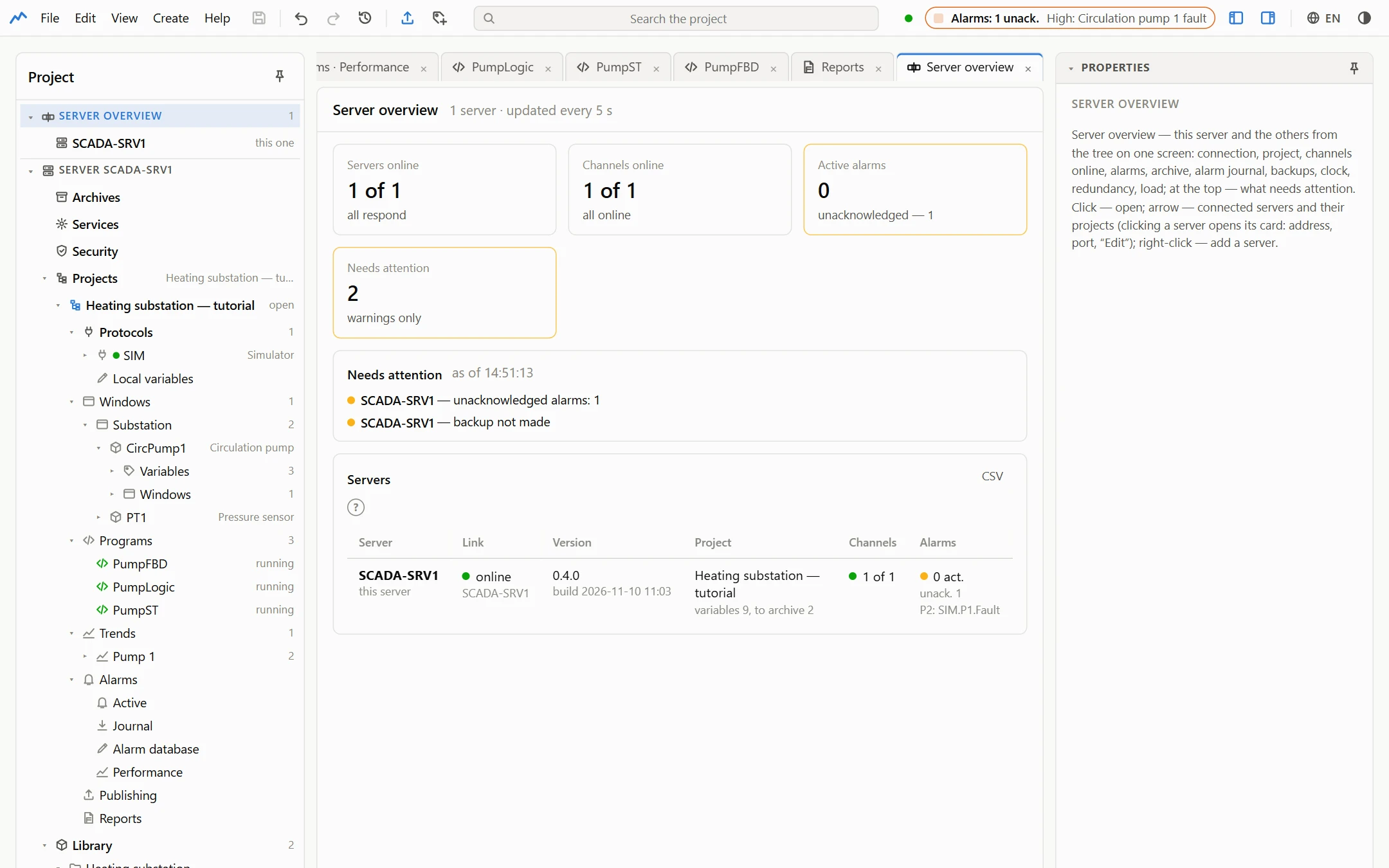
The server overview shows this and other Flexible SCADA servers on one screen: connection, projects, channels, alarms, archive, backups. A project moves from one server to another with one button.
 1
Overview
| Part | What it shows |
|---|---|
| Servers online | how many servers answer |
| Channels online | the channels of all servers |
| Active alarms | alarms of all servers, unacknowledged |
| Needs attention | what has to be done: unacknowledged alarms, no connection, no backup made, running out of space |
| Servers | the table: server, connection and version, project, channels, alarms, archive, backups, clock, redundancy, load |
It refreshes every 5 seconds. A click on a server opens its card (address, port, “Edit”); the arrow next to a server in the tree shows its projects.
Another server’s environment. Right-click a server → Open the server’s IDE (or double-click its open project) — its environment opens in this same window; its header has a ← this server’s name button that brings you back to where you were. To keep both side by side — Open the server’s IDE in a separate window or Ctrl+click the link. A server of an earlier version (without that button) opens in a separate window — there would be no way back from it in this one.
Add a server
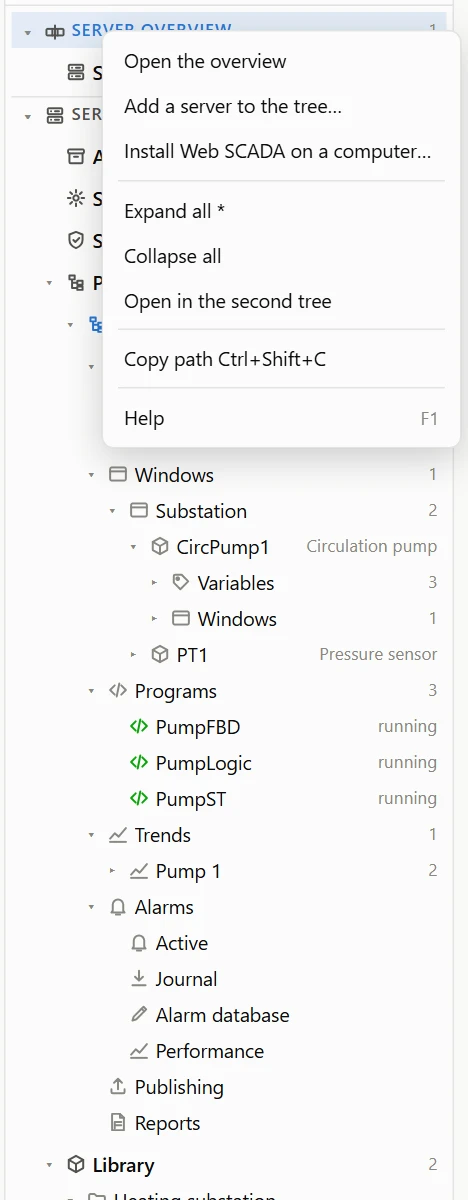
Right-click the “Server overview” → Add a server to the tree… (requires the “Administration” permission):
| Field | Meaning |
|---|---|
| Name | how the server appears in the tree and the overview |
| Address | an IP or a computer name, without “http://” and a path; a pasted address like https://10.0.0.5:5443 is parsed by itself |
| Port | 1…65535; a server set up by the installer accepts only HTTPS from the network, on port 5443 (without the installer, run.cmd — HTTP on 5080) |
| HTTPS | connect over HTTPS (the default); with an http://…:5080 address the connection switches to HTTPS by itself if that server accepts only HTTPS from the network |
| Login and password | a user on that server, if password login is on there |
No Flexible SCADA on that computer yet — you can install it from here too, over SSH: see below.
Secure channel. On the first HTTPS connection this server remembers the certificate key of that one (like SSH) and checks it on every connection — no certificates need to be installed. The key is shown in the server card (“secure (HTTPS) · certificate key …”) and in that server's admin panel — you can compare them. If the certificate is replaced, there is no connection and the card shows “certificate changed”: if that server was reinstalled, click Trust the new certificate….
Install Flexible SCADA on a computer (Linux)
Right-click the “Server overview” → Install Flexible SCADA on a computer… (requires the “Administration” permission). This server connects to the computer over SSH, sends it the program package and installs it — with the services, a secure channel and the first administrator — and then adds it to the “Server overview”. There is no need to carry the installation to that computer: the Linux x64 packages (.deb and .tar.gz of the same build) come with the Flexible SCADA installation for Windows.
| Field | Meaning |
|---|---|
| Address, SSH port | an IP or a computer name; the SSH port is usually 22 |
| System | Ubuntu, Debian, Astra Linux and other Debian-based ones — as a .deb package (apt); RED OS, ALT, Rocky, AlmaLinux, RHEL and other Linux with systemd — from a .tar.gz archive (install.sh). After the check the system is chosen by itself |
| User, password or private key | SSH sign-in: root or a user allowed to use sudo; the key — an OpenSSH or PEM file (with its passphrase, if it has one) |
| sudo password | appears if sudo asks for a password while the sign-in is by key (with a password sign-in sudo takes the same one) |
| Name in the tree | how the server will appear in the “Server overview”; by default — the computer name |
| Administrator of the new server | login and password (8+ characters, letters and digits): it is created during installation, password sign-in is turned on right away; the server is connected to the “Server overview” with it. If the computer already has users (a previous installation), enter the login and password of its administrator |
Check the computer connects and shows what is there: the system, the architecture, the rights (root, sudo), whether Flexible SCADA is already installed and has data, which package will be installed. On the first connection the window shows the fingerprint of the computer’s SSH key (like ssh): you can compare it on the computer itself with ssh-keygen -lf /etc/ssh/ssh_host_ed25519_key.pub; Trust this key and check — the password goes to the computer only after that. The key is remembered; if it changes, the window warns (the channel may be intercepted).
- SSH connection — the computer’s key is the trusted one
- Checking the computer — systemd, rights, space (300 MB in /var/tmp, 700 MB on disk), the kind of the previous installation
- Package transfer — into a temporary folder, with a SHA-256 check
- Installation — as root: apt-get (.deb package) or install.sh (archive); the administrator’s login and password go to the installation’s input, not to the command line or a file
- Server start — the key of its HTTPS certificate is taken over SSH, so “Trust the new certificate” is not needed
- Connecting to the “Server overview” — with the administrator login; the sign-in is checked right away
The new server accepts only HTTPS from the network (port 5443); the HTTP port is listened to by the server itself only; the firewall (ufw, firewalld), if on, is opened for 5443. The temporary folder is removed at the end. You can interrupt until the installation on that computer has started. No package for the architecture (for example, ARM64) — Choose a package file…: the package is checked and remembered for later installations and updates. SSH and sudo passwords are not stored anywhere.
Publish a project to another server
File → Publish to a server… or drag the project onto a server row in the tree. The project is packed, transferred and swapped on the target server atomically — with a check before the old one stops:
- Building the project package
- Transfer to the server
- Unpacking into a temporary folder
- Checking the project — on an error the old project keeps running
- Stopping the old project
- Swapping the project
- Starting the new project
The archive, alarm journal and retained values of the target server stay in place. Publish again in the File menu repeats the last publishing with one click.
Update server software
Another server — right-click it in the “Server overview” → Update server software…; this one — right-click it → Update this server’s software… or the Update software… button on the “Server” card of the admin panel. The “Administration” permission is needed on both servers. The window shows what is installed now (version, system, kind of installation) and how the previous update ended. Projects, archive, alarms and settings stay; the server stops for about a minute.
| Server | Update with | How it is installed |
|---|---|---|
| Windows | the installer FlexibleSCADA-…-setup.exe: a copy of this server’s installer (“To this server’s version”) or a file | the server runs it silently: the installer stops the service, installs the new files and starts it again |
| Linux, .deb package | flexible-scada_<version>_amd64.deb (for ARM — _arm64): the package from this Windows server’s installation (“To this server’s version”), a package this server has already sent to another one, or a file | the server checks the signature and passes the package to the update service (webscada-update, as root); it checks it once more and installs it with apt-get |
| Linux, installed from an archive | flexible-scada-<version>-linux-x64.tar.gz — the same kind as the installation (install.sh) | the same way; install.sh from the new archive installs it |
Signed Linux packages. The build signs packages with its key. An installed server accepts over the network only a package of its own kind and architecture signed with a key it already has: a changed, unsigned or differently signed package is not installed, and the window says why. A package built on another computer (with another key) is installed manually once — its key comes with it; a server installed from a package without network update is also updated manually once (sudo apt install ./flexible-scada_….deb).
On that computer the result of the last update is in /var/lib/webscada-update/status.json, the installation output — in update.log there. To turn the network update off: sudo systemctl disable --now webscada-update.path.